
Convert MP4 to WebM Offline on Windows
A practical guide to converting MP4 videos to WebM format on Windows without uploading files or relying on an internet connection, using FFmpeg, online converters, and the desktop‑based KinoFlux Editor.

Nitiksh
June 2026
You have an MP4 video file on your Windows machine and you need a WebM version — maybe for a website, a project that demands a royalty‑free container, or to save space with the VP9 codec. You don’t want to upload the file anywhere, and you’d prefer to handle the conversion offline. This article walks through exactly that, covering the tools that get the job done without an internet connection, without watermarks, and without handing your video to a third‑party server.
Real options for converting MP4 to WebM on Windows
Three approaches dominate this task. Each works, but the trade‑offs are worth understanding before you pick one.
1. FFmpeg (command line)
FFmpeg is the open‑source powerhouse behind most video processing pipelines. On Windows, a single command converts MP4 to WebM using the standard VP9 video encoder and Opus audio:
ffmpeg -i input.mp4 -c:v libvpx-vp9 -b:v 1M -c:a libopus -b:a 128k output.webmThis runs entirely offline, costs nothing, and gives you full control over quality and bitrate. The catch: you have to install FFmpeg, open a terminal, and type the command. For users comfortable with the command line, it’s often the fastest and most flexible route. If that describes you, you can stop reading here — the problem is solved.
2. Browser‑based online converters
Sites like CloudConvert, Zamzar, or Online‑Convert.com let you pick a file, choose WebM as the output, and download the result. They require no installation and work from any device with a browser.
The practical limitations, however, are real:
- File uploads – your video travels to a remote server. For anything confidential or personally identifiable, that’s a privacy risk.
- Size caps – free tiers often restrict uploads to 100 MB or less. A short 1080p MP4 can easily exceed that.
- Internet dependency – no connection means no conversion. Large files also take time to upload, adding latency.
- Output quality – some services recompress aggressively, and free tiers occasionally stamp a watermark on the output.
Online converters have a legitimate place for small, non‑sensitive clips when you’re away from your own machine. For offline, private, or large‑file work, they fall short.
3. A desktop application that does everything locally
The third option is a dedicated desktop tool that performs the conversion entirely on your PC — no uploads, no size limits, no account, and no watermark. The one we’ll walk through here is KinoFlux Editor, a cross‑platform media processing suite that includes a purpose‑built Video Format Converter.
Why local conversion matters for MP4‑to‑WebM
Converting locally keeps every frame on your hardware. There’s no upload wait time, no privacy leak, and you’re not dependent on a server being available. For WebM specifically, the output is a clean VP9/Opus file that’s ready to use immediately, with quality settings that stay consistent because they’re not being squeezed through a free‑tier web service. Whether you’re preparing a video for a self‑hosted player or archiving footage, offline processing guarantees the file never leaves your control.
KinoFlux Editor: desktop conversion without the cloud
KinoFlux Editor is a unified desktop tool that handles video, audio, image, and PDF tasks — all offline, all hardware‑accelerated where possible. For this operation we use its Video Format Converter module. It reads your MP4, encodes a WebM using the VP9 video codec and Opus audio (the standard pairing for the WebM container), and writes the result to your chosen folder. Nothing goes online, no account is required, and the output carries no watermark.
The interface is built for clarity: you pick a file, choose a format, and hit convert. There’s no timeline to learn and no codec jargon to memorise.
Step‑by‑step: MP4 to WebM in KinoFlux
- Launch KinoFlux Editor on your Windows PC.
- In the main dashboard, click Video Format Converter.
- Click Select Video and choose your
.mp4file. - From the Target Format dropdown, pick WebM.
- The output path is auto‑filled (usually
<original_name>_converted.webmin the same folder). You can change it if you prefer a different location. - Click Convert. A real‑time progress bar shows the conversion as it runs. There’s no upload — the engine is working on your local CPU/GPU.
- When it finishes, click Open Folder to grab your
.webmfile.
The converter preserves the original resolution and frame rate by default. Under the hood it uses libvpx-vp9 for video and libopus for audio, the same codec pair you’d get from a well‑tuned FFmpeg command, but without touching a terminal.
Platform note: KinoFlux Editor runs on Windows 10/11, macOS, and Linux. The steps above are identical on any supported operating system. Input files can be any common video format (MP4, MOV, AVI, MKV, etc.) and the output is always a standard WebM.
Frequently Asked Questions
Can I convert MP4 to WebM offline on Windows without installing anything?
Technically no. Any offline conversion requires software — either FFmpeg (free, command‑line) or a desktop application like KinoFlux. Once the tool is installed, the actual conversion runs without an internet connection.
Do my files get uploaded when using KinoFlux?
No. All processing happens on your local machine. KinoFlux never uploads your video, and it doesn’t require an account or internet access to perform a conversion.
Does the output WebM have a watermark?
No. KinoFlux produces a clean WebM file with no branding, overlay, or logo added.
Is KinoFlux free?
KinoFlux Editor is a free application for commercial use. There are no recurring fees and no hidden costs, and you get full‑featured local conversion without watermarks.
Whichever route you choose — a single FFmpeg command, an online service for a quick non‑critical clip, or a dedicated desktop tool — converting MP4 to WebM offline ensures your original footage never leaves your control, and the compact VP9 output is ready wherever you need it.
Related Posts
Why the most reliable and private way to merge MP4 files is to keep the entire process on your own machine — and how intelligent local tools make it accessible to everyone.
How to reduce video file sizes on Windows without sacrificing visual quality — covering FFmpeg, online tools, HandBrake, and a local‑first desktop compressor that runs entirely offline.
A deep investigation into why offline video compression matters, the hidden costs of cloud-based tools, and how local-first solutions like KinoFlux Editor deliver genuine privacy, hardware-accelerated speed, and full control over your files.
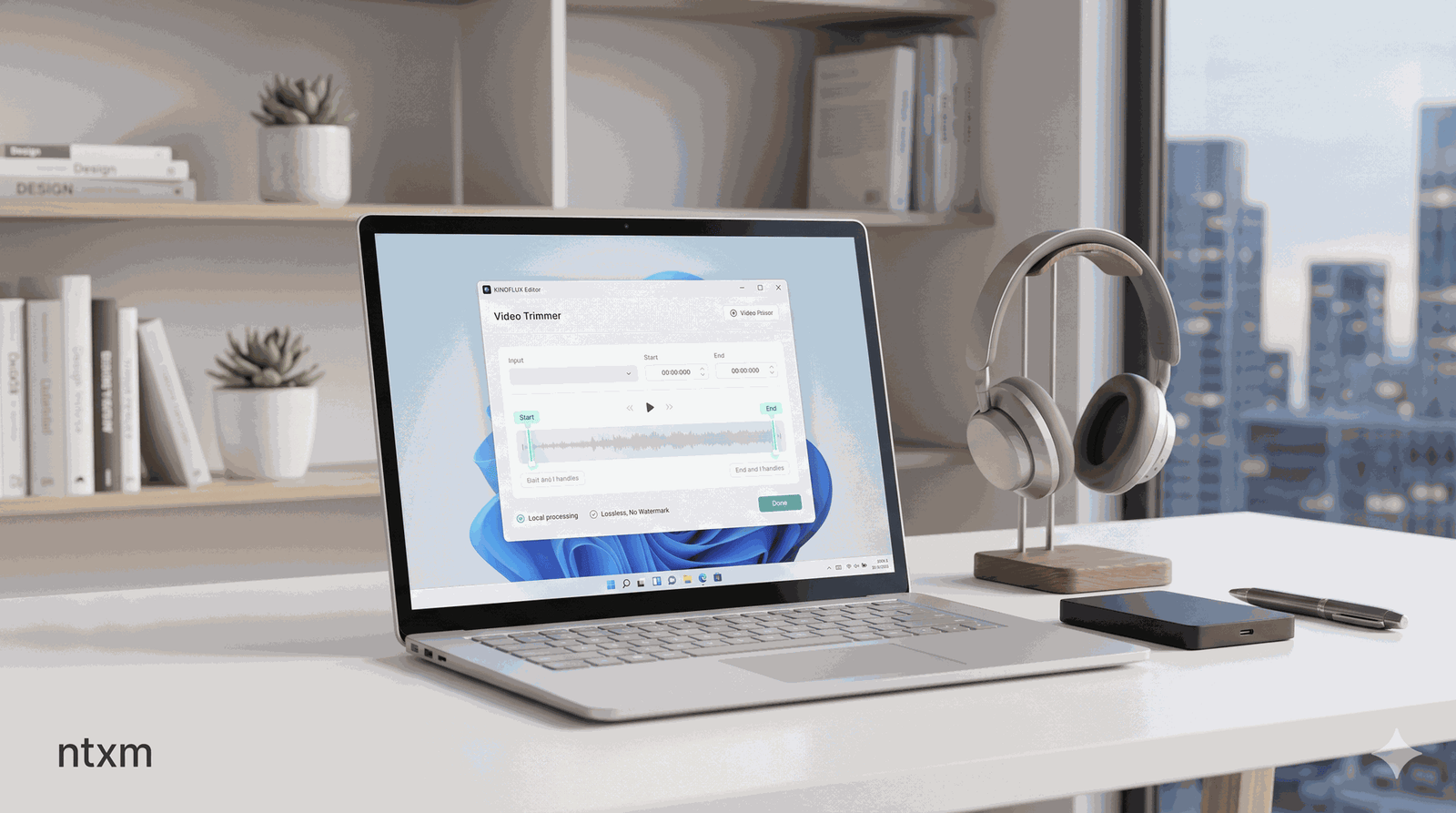
A practical guide to trimming video locally on Windows using free, offline tools. Covers FFmpeg for command-line users and KinoFlux Editor for a quick, lossless graphical workflow.