Extract Pages from PDF Without Adobe
Step-by-step guide to pulling specific pages out of a PDF document using offline tools, command-line utilities, and a desktop application that never uploads your files.

Nitiksh
June 2026
Extract Pages from PDF Without Adobe
You have a multi-page PDF and you need exactly pages 3, 7, 11, and 14 as a separate document. Maybe you’re archiving a subset of scanned pages, pulling a chapter from a report, or sending only the relevant parts of a contract. You don’t have Adobe Acrobat Pro, and you’d rather not upload a confidential document to some website you found five seconds ago.
The good news: extracting pages from a PDF is a solved problem, even without Adobe. The better news: you can do it entirely offline, with no file uploads, no watermarks, and no accounts.
Real Options People Actually Use
Before installing anything, it’s worth knowing what the landscape looks like. There are three broad approaches people take, and each has tradeoffs.
Command-line: qpdf (powerful, completely free, works everywhere)
qpdf is an open-source PDF manipulation tool that runs on Windows, macOS, and Linux. It does one thing extremely well: rearranging and splitting PDF pages without re-encoding the content. To extract pages 1, 3, and 5 through 7 from an existing file, you can run:
qpdf --empty --pages input.pdf 1,3,5-7 -- output.pdfThat’s it. No quality loss, no file size inflation. If you’re comfortable with a terminal, this is a near-instant solution. The syntax feels arcane if you’ve never touched a command line before, but once you learn it, it’s incredibly reliable.
The limitation? No visual page preview, no built-in error handling for mangled ranges, and zero assistance if you accidentally type 1-500 instead of 1,5. It’s a sharp tool; it assumes you know exactly what you want.
Online PDF tools (quick, but privacy and size limits apply)
Sites like iLovePDF and Smallpdf handle page extraction through a browser. You drag a file in, pick the pages you want, and download the result. For a non‑sensitive, small PDF, this works fine.
The constraints you’ll run into:
- File size caps — free tiers often limit uploads to 100 MB or 200 MB.
- Upload requirement — the entire document travels to a server you don’t control.
- Watermarks — some services stamp the output unless you pay.
- Internet dependency — no connection, no conversion.
If you’re splitting a scanned rental agreement or a patent draft, uploading it to a free web service is a privacy decision worth thinking about.
Other desktop tools
Dedicated PDF editors like PDFsam, Sejda Desktop, or LibreOffice Draw can also extract pages. Many are free, but they often vary in interface quality, cross-platform consistency, and the sheer amount of surface area they present for a single task. Some are Java-based, which means a noticeably heavier startup time on lower-end machines.
Why Handling This Locally Makes Sense for Page Extraction
PDF page extraction is not computationally expensive. Your machine doesn’t need a server farm to delete pages from a document — the operation is metadata surgery, not heavy rendering (unless you’re exporting to images). Doing it locally means:
- No upload, so your file never leaves the device.
- No file size restrictions beyond your own storage.
- Instant processing, no waiting for a server queue.
- Offline capability — you can pull pages on a plane, in a remote location, or during an internet outage.
A Desktop App That Keeps Your Files Where They Belong
KinoFlux Editor is a cross-platform desktop tool that bundles video, audio, image, and PDF utilities into one application — all running locally, no cloud accounts, no subscriptions.
Inside that suite, the PDF Page Remover & Extractor gives you a straightforward interface for selecting pages from a PDF and exporting them either as a new PDF document or as a ZIP of PNG images. It’s built on the pure-Rust lopdf engine, meaning the page operations happen directly on your hardware, not on someone else’s server.
Step-by-Step: Extract Pages to a New PDF
Here’s how to pull exactly the pages you need, using the tool’s PDF export path.
- Open the PDF Page Remover — In KinoFlux Editor, navigate to the PDF section and select the Page Remover module.
- Load your source PDF — Click to choose the file. The tool immediately reads the document and shows you the total page count, so you know the valid range.
- Specify the pages you want to keep — In the page range field, type the pages you need using commas for individual pages and hyphens for ranges.
1, 3, 5keeps only pages 1, 3, and 5.2-6keeps pages 2 through 6.- Mixed format:
1, 3, 5-8, 10keeps a custom selection.
- Set output format to PDF — A toggle lets you switch between PDF output (a new document) and ZIP export (each page as a PNG image). Leave it on PDF for this task.
- Confirm the output path — The tool auto‑fills a save location based on your input file’s directory and name (e.g.,
report_edited.pdf). You can override it if needed. - Run the extraction — Hit the process button. The backend performs the page deletion (or rather, retains only the pages you listed) while preserving inherited attributes like sheet size and rotation. A progress indicator shows the status.
- Find your file — When the operation finishes, the output folder opens automatically. You now have a clean PDF containing only the pages you selected.
What happens under the hood is a plain page deletion: the tool loads the document, works out which pages to drop, removes them with zero data loss for the remaining pages, and saves the trimmed file. No rendering artifacts, no altered formatting.
Format and Platform Notes
- Input — Any standard PDF file. Password-protected documents won’t be processed unless they are unlocked ahead of time.
- Output — A new PDF (preserving original page attributes like dimensions and orientation) or a ZIP archive of PNG images if you choose the image export path.
- Operating systems — KinoFlux Editor runs on Windows, macOS, and Linux. The PDF tool works identically across all three.
Frequently Asked Questions
Can I extract pages from a PDF without an internet connection?
Yes. KinoFlux Editor works entirely offline. The PDF page extractor requires no internet access at any stage.
Are my PDF files uploaded anywhere during the process?
No. All processing happens locally on your device. The file never leaves your machine.
Does the output contain watermarks?
No watermarks are added. The extracted PDF is clean, retaining only the original content of the selected pages.
Is the PDF extractor free to use?
KinoFlux Editor is a free download. There are no subscriptions, no hidden fees, and no paywalls for the page extraction feature.
You don’t need an Adobe subscription to pull a few pages out of a PDF — and you don’t need to hand over your documents to a random web service either.
Related Posts
How to shrink image file sizes on Windows without uploading anything, without an internet connection, and without paying. Covers real ImageMagick commands and the KinoFlux Editor desktop compressor.
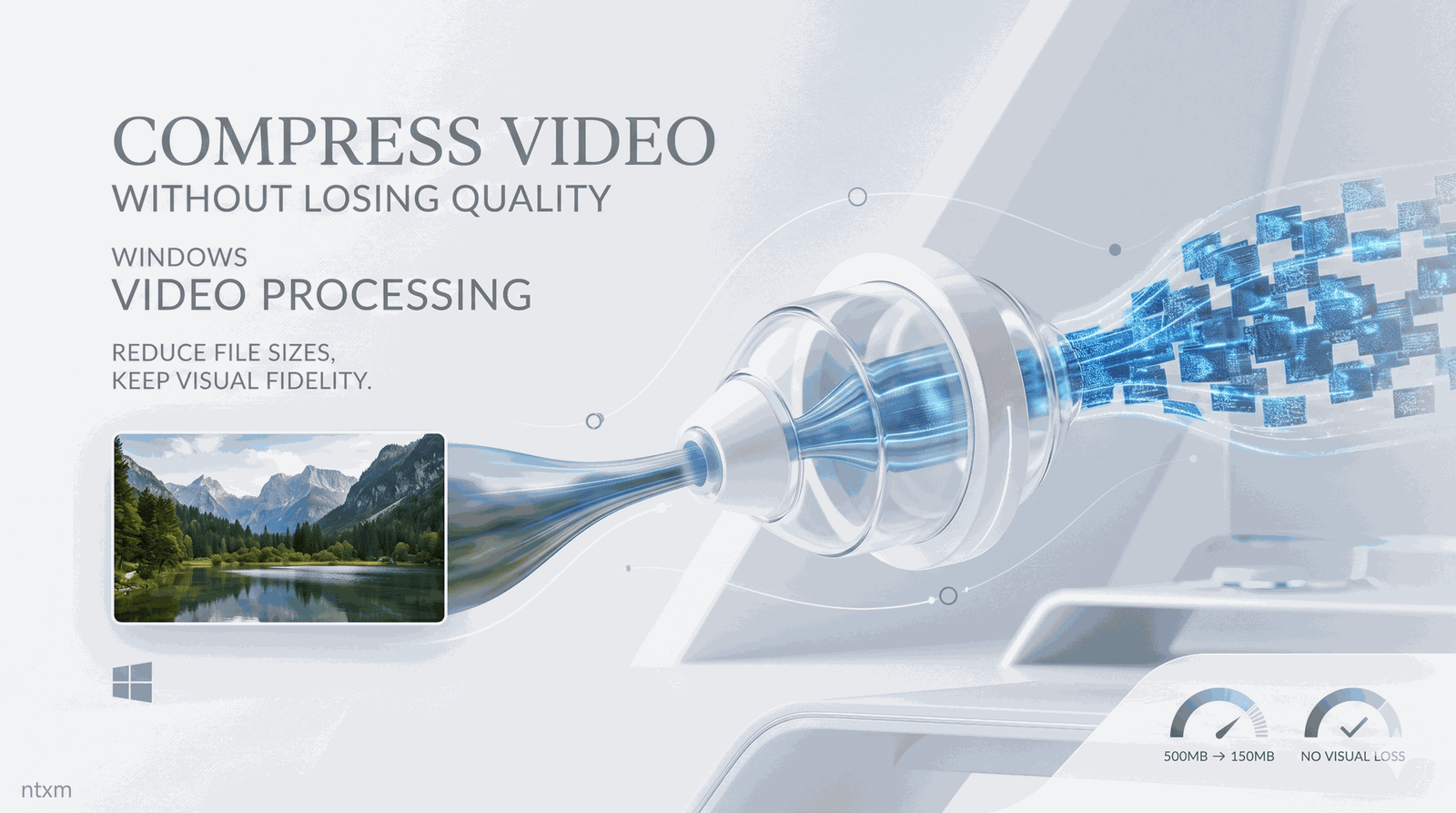
How to reduce video file sizes on Windows without sacrificing visual quality — covering FFmpeg, online tools, HandBrake, and a local‑first desktop compressor that runs entirely offline.
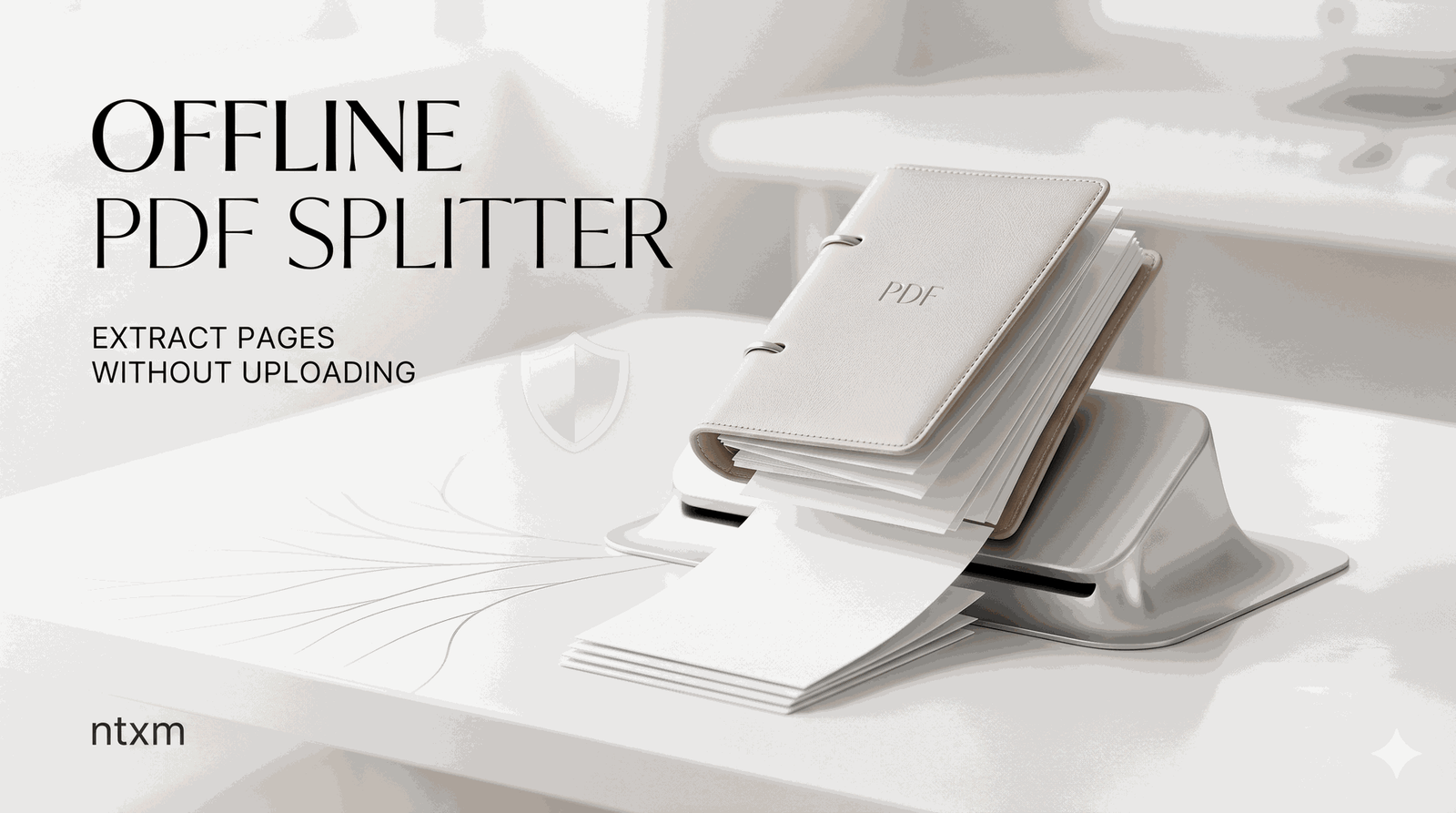
A straightforward guide to splitting PDF files and extracting pages offline on Windows using free tools, including a command‑line approach and a desktop‑first method that keeps your files completely private.
A direct, no-fluff guide to merging PDFs on Windows without an internet connection, zero cost, and zero uploads — covering command-line tools, online limits, and a practical desktop walkthrough.