
Merge PDF Files Offline Windows Free
A direct, no-fluff guide to merging PDFs on Windows without an internet connection, zero cost, and zero uploads — covering command-line tools, online limits, and a practical desktop walkthrough.

Nitiksh
June 2026
Merge PDF Files Offline Windows Free
You’ve got a handful of PDF documents — a report cover, the main body, and an appendix — and you need them to be one single file. You also need to do it without an internet connection, without paying for software, and without your documents ever touching a remote server. This guide is for exactly that situation.
What most people try first (and where those options fall short)
You can solve this problem three ways, and they’re all genuinely free. None of them are perfect, and the right one depends on your tolerance for command lines, file size limits, or uploading files.
Option 1: Free command-line tools (Ghostscript)
Ghostscript is an open‑source interpreter for PostScript and PDF. You can merge PDFs from the Windows Command Prompt with one command — no internet required, no file size ceiling.
gs -dBATCH -dNOPAUSE -q -sDEVICE=pdfwrite -sOutputFile=merged.pdf input1.pdf input2.pdf input3.pdfThis works, quickly, and completely offline. The trade‑offs are what you’d expect: Ghostscript must be installed separately, the syntax is finicky if you’re not used to terminal tools, and you won’t get a visual preview of page order.
If you’re comfortable at the command line and already have Ghostscript on your machine, this may be all you need.
Option 2: Browser-based PDF mergers (iLovePDF, Smallpdf, etc.)
Open any search engine and you’ll see a dozen websites that merge PDFs for free. The workflow is simple: upload your files, wait for a server to combine them, then download the result.
The free tier of these services usually works, but with built‑in constraints:
- File size caps (often 25 MB or 50 MB per file)
- Upload speed lag if your connection is slow
- Your documents sit on a third‑party server, however briefly
Privacy policies vary widely. Some services delete files automatically after an hour; others keep them longer or log metadata. For contracts, financial documents, or any personal material, the upload requirement is a genuine concern.
Option 3: Standalone desktop PDF tools
A number of free desktop utilities offer offline merging, with PDFsam Basic being one of the more established names. They handle the job without uploads, but they usually require Java, come with bundled offers during installation, or add watermarks in their free versions. Interface clarity can also be hit‑or‑miss.
Why merging locally matters for PDFs
PDF files often contain exactly the kind of information you don’t want floating around a browser cache or a public endpoint: tax forms, contracts, personal records. Even if you trust the online service, regulatory or internal policies might forbid uploading.
Merging offline keeps everything on your own drive. No file leaves your device. No account creation. No internet dependency. For PDF workflows, that’s not a luxury — it’s common sense.
KinoFlux Editor’s PDF Merger — a free, offline desktop option
KinoFlux Editor is a free, local‑first media processing application for Windows, macOS, and Linux. Among its tools is a built‑in PDF merger that handles this exact task without touching a network.
You can grab the installer from the KinoFlux Editor product page — the PDF tools are part of the same download, no separate add‑on required.
The merger itself runs on a pure‑Rust PDF engine that reconstructs page catalogs in memory, so heavy documents merge quickly and layout stays consistent across different source files.
Step‑by‑step: merging PDFs with KinoFlux Editor
We’ll stick to one clear path — the direct merge workflow. No feature hopping.
-
Open the PDF Merger tool
Launch KinoFlux Editor and navigate to PDF Merger from the sidebar or home screen. -
Add your PDF files
Click the add button or drag and drop the PDFs you want to combine. The file list shows each document’s page count and file size, so you know exactly what you’re working with. -
Arrange the order
Use the drag handles next to each filename to reorder them. Page 1 of the final merged PDF will come from the first file in the list, then the second, and so on. -
Set the output location
The tool automatically suggestsmerged.pdfin the same folder as your first file. You can override that with any path you like. -
Click Merge
A progress bar tracks the operation — first probing and normalizing the documents, then writing the consolidated PDF. When it finishes, the output folder opens so you can grab the file immediately.
The resulting PDF preserves page dimensions, rotation, and embedded fonts. The underlying engine resolves inherited page‑tree attributes like MediaBox and Resources explicitly, so you won’t get white pages or missing text from complex source documents.
Format and platform specifics
- Input: PDF only (
.pdf). Encrypted or password‑protected files will need to be unlocked before merging. - Output: Standard PDF, viewable in any reader.
- Operating system: Works on Windows 10, Windows 11, macOS, and Linux. The walkthrough above is identical across all platforms.
- Cost: Completely free. No watermarks, no page‑count restrictions, no subscription.
Frequently Asked Questions
Can I merge PDFs completely offline with this tool?
Yes. All processing happens on your local machine. No internet connection is required after the initial download.
Are my PDF files uploaded anywhere during the merge?
No. KinoFlux Editor never transmits files over the network. The entire operation runs offline, on‑device.
Does the free version add a watermark to the merged PDF?
No. The PDF merger outputs a clean, unmarked file with no watermarks or trial stamps.
Is KinoFlux Editor compatible with Windows 10 and Windows 11?
Yes. Native installers are available for Windows 10, Windows 11, and the corresponding server editions.
A good PDF merge tool is one you don’t have to think about — it just combines your pages and gets out of the way. Whether you go the command‑line route or grab a desktop app, the important thing is that your documents stay on your own drive and the final file looks exactly the way you arranged it.
Related Posts
How to shrink image file sizes on Windows without uploading anything, without an internet connection, and without paying. Covers real ImageMagick commands and the KinoFlux Editor desktop compressor.
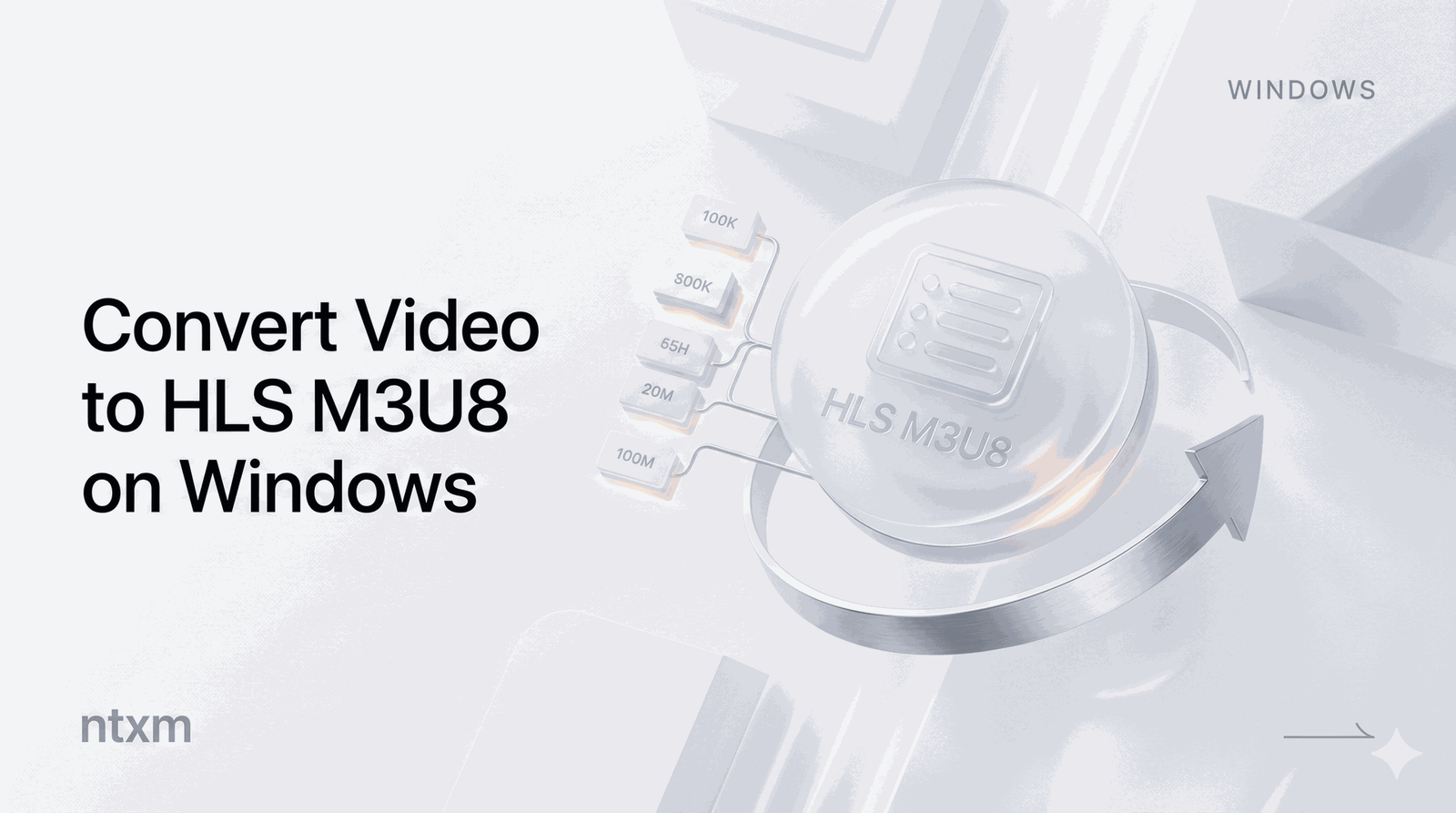
How to turn a video file into a complete HLS streaming package (master .m3u8 playlist, .ts segments, and adaptive bitrates) on a Windows PC — using free command-line tools and a dedicated offline desktop application.
A practical guide to reducing video resolution on Windows using desktop tools, covering everything from FFmpeg commands to a simple interface that keeps files private and avoids watermarks.
Step-by-step guide to pulling specific pages out of a PDF document using offline tools, command-line utilities, and a desktop application that never uploads your files.