
Put your name or logo on photos before you share them
Photos you post get copied and reused without credit. How to stamp a text watermark like "© Your name" or your logo on many pictures at once with KinoFlux Editor, on your own computer.
Nitiksh3 min readKinoFlux Editor
On this page
You post photos, and later find them on other sites or in someone else's ad. A visible watermark does not stop copying, but it keeps your name on the picture wherever it ends up. Doing that by hand in an editor for 40 photos takes an afternoon.
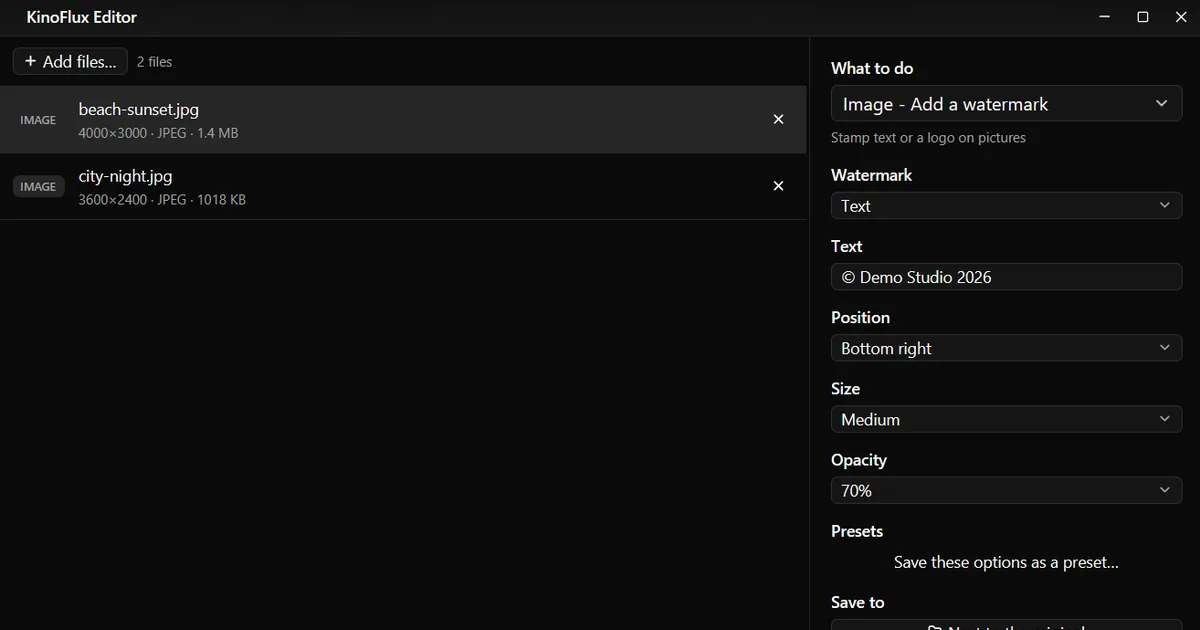
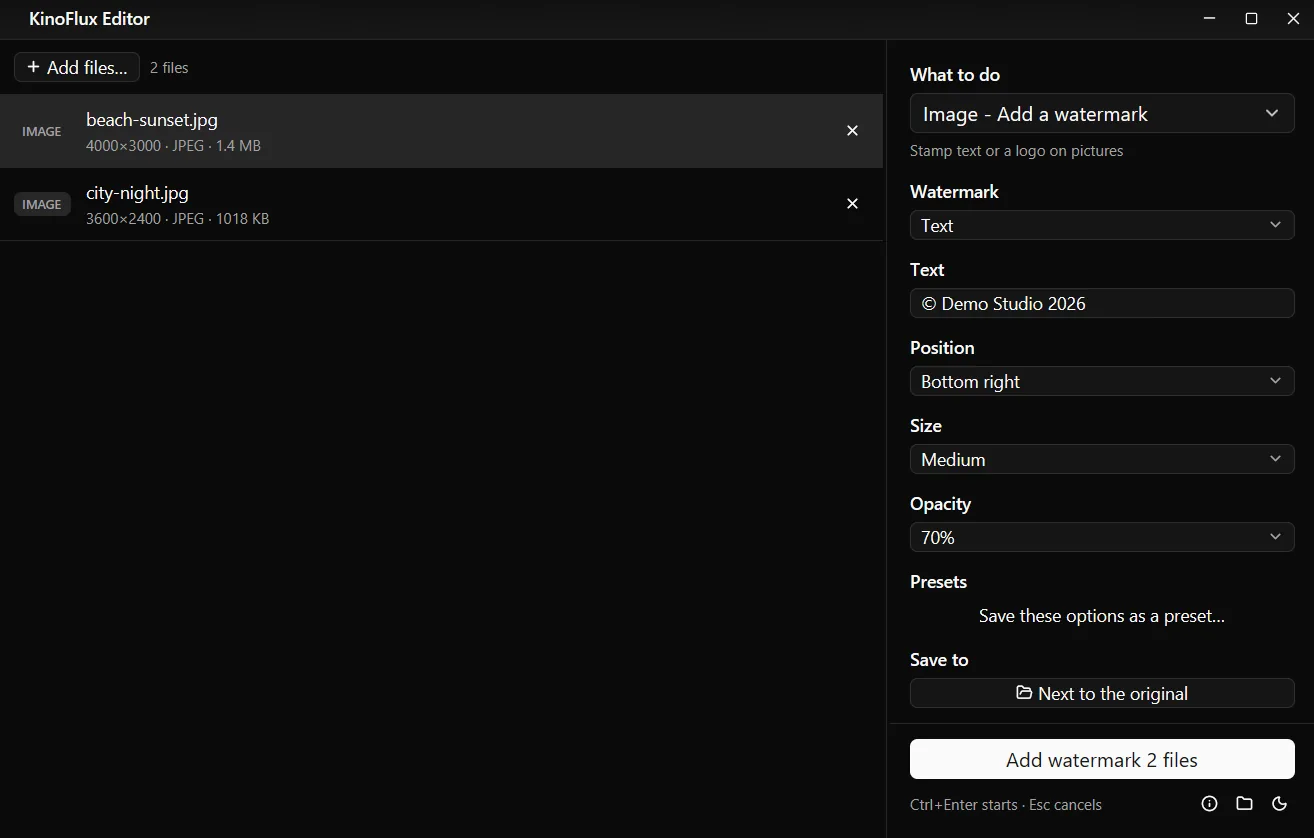
Image - Add a watermark in KinoFlux Editor stamps the same text or logo on every picture in the list, in the corner you choose.
How to watermark photos#
- Add the photos. Drag them onto the KinoFlux Editor window.
- Pick the tool. Press Ctrl+K (Cmd+K on a Mac), type "watermark" and choose Image - Add a watermark.
- Type the text. Replace "© Your name" with your name or website. Or set Watermark to Picture (logo) and pick your logo file.
- Choose where and how strong. Set Position (default Bottom right), Size (default Medium) and Opacity (default 70%).
- Start. Press Ctrl+Enter. Each photo gets a copy named
name_watermarked.
The result#

| File | Before | After |
|---|---|---|
| beach-sunset.jpg, 4000 x 3000 | 1.4 MB | 950 KB (-32%) |
| city-night.jpg, 3600 x 2400 | 1018 KB | 700 KB (-31%) |
The photos are demo images made for these guides. The size changes because the picture is saved again (JPEG quality 92). The pixel size stays the same and the camera data in the file is kept.
Options#
| Option | Choices | Default |
|---|---|---|
| Watermark | Text, Picture (logo) | Text |
| Text | any text | © Your name |
| Logo picture | an image file (Browse...) | none |
| Position | Bottom right, Bottom left, Top right, Top left, Center | Bottom right |
| Size | Small, Medium, Large | Medium |
| Opacity | 90%, 70%, 50%, 30% | 70% |
The gap from the edge is 2% of the photo width, so it looks the same on every size.
Tips#
- A corner is easy to crop away. If copying is a real worry, use Center with 30% opacity. It is harder to remove and still lets people see the photo.
- Resize first, then watermark. If you post smaller copies, resize them first so the watermark is not scaled down with the picture.
- Remove location data too. Watermarked files keep the camera data. Run Remove metadata afterwards if the photos show where you live.
Limits#
- One line of text. No line breaks, no choice of font or colour.
- Five fixed positions. You cannot drag the mark to an exact spot or tile it across the photo.
- Animated GIFs become a still picture with the mark on the first frame.
- Transparency becomes white in JPEG output; PNG and WebP keep it.
Related guides#
- Same thing for videos: add a logo watermark to a video.
- Smaller files for posting: compress photos.
- A watermark on documents: add page numbers and a watermark to a PDF.
All tools are on the KinoFlux Editor page.
Frequently asked questions
Can I use my logo instead of text?
Yes. Set Watermark to Picture (logo) and choose the file with Browse. A PNG with a transparent background looks best. The logo is scaled to the photo width, so it looks the same on big and small pictures.
How do I type the © sign?
The Text box already starts with "© Your name". Replace the name and keep the sign. On Windows you can also type Alt+0169 on the number pad; on a Mac, Option+G.
Can I change the font or colour?
No. Text is white with a soft dark shadow so it reads on light and dark photos. The font is Segoe UI or Arial on Windows and Arial on a Mac.
Does the watermark stay the same size on every photo?
It stays the same share of the width: about 15% for Small, 28% for Medium and 45% for Large. So it looks the same on a phone photo and a resized web image.
Is the original photo changed?
No. Each result is a new file named name_watermarked next to the original.
- watermark
- photos
- copyright
- image tools