NTXM Logo
Version 0.1.2 · Windows + macOS

FAST. LOCAL. PRIVATE.KINOFLUXVIDEO EDITOR

66 offline tools for video, audio, images, PDFs and documents in one small native window. Trim, merge, convert, compress and more, without subscriptions, watermarks, uploads or cloud dependencies. Now for Windows and macOS.

Windows

Installer · 262 MB
Windows 10 (1809) or 11 · 64-bit

macOS

Disk image · about 344 MB
Apple Silicon (M1 or newer) · macOS 11 or later

Get it from Microsoft

Windows 10 and 11 · installed and updated by the Microsoft Store

Install steps

Download KinoFlux Editor 0.1.2

Unsigned builds. For the installer, Windows SmartScreen may warn: choose More info → Run anyway, or use the Microsoft Store version instead. The Mac app is not notarized: use System Settings → Privacy & Security → Open Anyway.

Free to download · proprietary licence · what’s new in 0.1.2

0S
1S
2S
3S
4S
5S
6S
7S
8S
9S
10S
11S
12S
13S
14S
15S
16S
17S
18S
19S
20S
21S
22S
23S
KinoFlux Editor on Windows compressing three videos: one file shows a progress bar, two are finished with their new size and Open and Show buttons, and the Cancel button replaces Compress.

OFFLINE WORKFLOW

Editing workspace
Studio mixing
CREATE, EDIT,
Bike jump 1
Bike jump 2
CONVERT AND
PROCESS
FazerdaZe - C...00.80
MEDIA LOCALLY
WITH A WATERMARK-
FREE
Subtitle 2
00.12
WORKSTATION.
A Non Timeline Video Editor

Edit Videos Without
Subscriptions, Watermarks,
Or Cloud Dependencies

VIDEO PROCESSING

Trim, Merge & Convert Videos

Cut clips, combine footage, convert formats, extract audio, and prepare content for publishing.

1. Web Streaming

The Problem

NEED TO
STREAM
VIDEO ON
THE WEB?

Cloud transcoders are
expensive & slow, exposing your private video folders
to external servers.

✕
No Cloud Servers Needed
!
Zero Processing Fees
100% Secure & Local
00:0900:20
1. Big Files Problem

The Problem

NEED TO
COMPRESS
VIDEO
FILES?

Large video files take
forever to upload, occupy disk
space, and trigger high bandwidth bills.

✕
Large File Sizes
!
High Storage Costs
100% Secure & Private
00:1200:20
1. The Problem

The Problem

NEED TO
CONVERT
VIDEO
TO AUDIO?

Online tools come with
file size limits, watermarks,
and privacy risks.

✕
No Internet Required
!
No File Size Limits
100% Secure & Private
00:0700:20
IMAGE TOOLKIT

Resize, Crop & Compress Images

Optimize images, change dimensions, convert formats, and create PDFs from media assets.

Editing Canvas
Compression64%
FormatWEBP
JPG
WEBP
PNG
1920 × 1080 px

Everything You Need
For Local Media Processing ✌️

Food video preview
Next clip preview
0s5s10s15s
T
T Rusa berbulu Beruang
Compress to a target size
🎵 DJ Rimekk

No Timeline
Video Trimming

Cut footage precisely while maintaining original quality.

Audio Conversion

MP3

Convert Video Audio Into MP3 Format For Playback, Sharing, Or Archiving.

WAV

Export High Quality WAV Audio For Editing, Production, And Professional Use.

Convert Audio
Formats Easily

Extract audio from videos and export in multiple formats including MP3, WAV, AAC, and FLAC.

float
float
float
Processing...

Remove Extra
Editing Bloat

No accounts, subscriptions, cloud uploads, or unnecessary distractions.

Go to allReleases

Build Complete
Media Workflows

Video Trim
Video Merge
Resolution Convert
Audio Extract
Image Resize
Image Compress

66 Media Tools
Included Free

A look inside

Real screenshots, real app

Captured from the 0.1.2 builds: the Windows app running on Windows 11, and the Mac app on Apple Silicon.

KinoFlux Editor on Windows compressing three videos: one file shows a progress bar, two are finished with their new size and Open and Show buttons, and the Cancel button replaces Compress.

The file list is the job queue

Progress shows in each row while files are processed one after another. Finished rows show the new size and link to the result.

The Ctrl+K action picker listing PDF tools such as Merge, Extract pages and Pages to pictures.

Type what you want to do

The action picker searches all 66 tools and suggests the ones that fit your files. Ctrl+K on Windows, Cmd+K on macOS.

The Video Trim tool with a thumbnail strip, a two-handle range slider and Start and End fields.

Trim with a preview

A thumbnail strip with a two-handle range slider, synced with the Start and End boxes. Fast cuts without re-encoding, or precise re-encoded ones.

Audio extracted from a video as an MP3; the finished row shows the output name and size.

Pull the audio out of a video

Save the sound track of a video as MP3 (or another audio format), next to the original or in a folder you choose.

Three photos converted and compressed to JPEG, with the size saved shown on every row.

Convert and shrink images

Change the format, set the quality and size, and strip EXIF and GPS data. Every row shows how much space you saved.

Two PDFs merged into one; up and down arrows set the merge order.

Merge PDFs, set the order

Add the files, reorder them with the arrows and merge. Split, rotate, compress, protect and unlock are in the same list.

A Word document and an OpenDocument text file converted to PDF.

Documents to PDF

Word, ODT and other documents to PDF, and back. LibreOffice is bundled with the Windows installer and with the Mac app.

The Recent results panel listing finished jobs across Documents, PDF, Image and Video tools.

Results history

Reopen or reveal anything you converted from the Results panel (the newest 200 are kept), and save a tool’s options as a preset.

Your layout, your theme

KinoFlux Editor in the light theme with three videos queued.

Light, dark or follow the system

One button cycles system, light and dark.

The divider between the file list and the options panel dragged to give the options more room.

Drag the splitter

Give the file list or the options more room. Panel width and window size are remembered.

KinoFlux Editor in a narrow window: the file list and the options panel are stacked.

Narrow windows stack

Below a certain width the options move under the file list, so the window stays usable on small screens.

On macOS

The Cmd+K action picker on macOS suggesting video tools for the added files.

Also on the Mac

The same app on Apple Silicon, with the action picker on Cmd+K.

Two videos converted to GIF on macOS; each row shows the output file name and size.

Finished jobs on macOS

Two videos converted to GIF, with the output name and size on every row.

Everything in one window

66 tools, six areas, zero uploads.

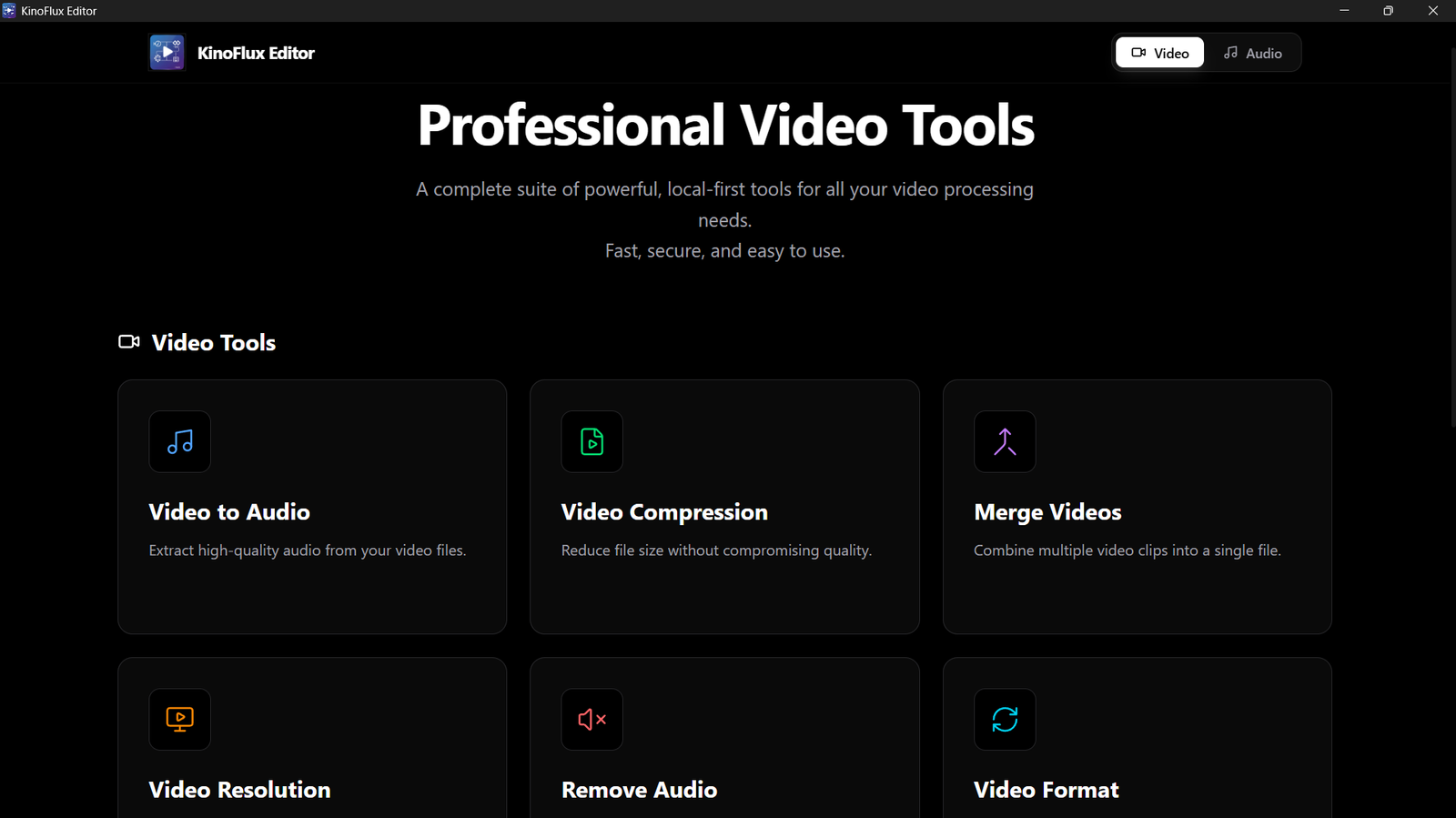
Each tool runs a bundled, well-known program on your own machine and shows only the options it needs, in plain language. The earlier app had 33 tools; 0.1.2 has 66. Click a tool to open its step-by-step guide.

KinoFlux Editor is a batch toolbox, not a multi-track timeline editor: one action at a time on a list of files. Presets save your favourite options per tool, and a results panel keeps your last 200 jobs.

How-to guides

Pick a problem. Follow the steps.

Short guides for everyday jobs, with real screenshots of the app, the options that matter and what each tool cannot do.

Offline & private

Nothing leaves your computer

  • No network code. The program never opens a connection: no accounts, no telemetry, no analytics, no crash upload and no update check.

  • Your files stay put. Everything is converted on your computer by bundled programs. Nothing is uploaded, and originals are never changed.

  • Nothing sensitive stored. Only settings, presets, history, logs and crash reports are written, in per-user folders. No file contents and no passwords.

The Privacy policy page inside the app, stating that KinoFlux Editor works completely offline.

The privacy policy is also built into the app (press F1).

How “no network” was checked

  1. A dependency audit of the Windows and macOS builds found no HTTP client, TLS library or networking stack in the app.
  2. The Windows executable imports no internet libraries (winhttp, wininet, urlmon).
  3. A runtime spot check on Windows 11 watched the app and its helper programs during a real conversion: no network endpoint was opened.

To be precise: bundled FFmpeg, Poppler and LibreOffice contain network features of their own. KinoFlux Editor only hands them local files and starts LibreOffice headless, so those features are not reachable from the app. That is a design guarantee, not an operating-system sandbox; if you need a hard guarantee, block the program in your firewall.

What is stored, and where

Settings, presets, history
Windows: %APPDATA%\KinoFlux Editor
macOS: ~/Library/Application Support/KinoFlux Editor
Logs, crash reports
Windows: %LOCALAPPDATA%\KinoFlux Editor\logs
macOS: ~/Library/Logs/KinoFlux Editor

The Windows uninstaller can delete these for you. Licence: proprietary, © 2026 ntxm.org. Bundled programs (FFmpeg as a GPL v3 build, ImageMagick, qpdf, Poppler, LibreOffice) keep their own licences; full notices ship with every package and are shown in the app under About › Third-party.

Install · version 0.1.2

Download & first start

Both builds are unsigned for now, so each system asks for one confirmation the first time. Here is exactly what to expect.

Windows

Windows 10 (1809) or 11 · 64-bit

KinoFlux-Editor-Setup-0.1.2-x64.exe

Installer · 262 MB

SHA-256 50541c91e5b208b604da20adf601f6c47cc88c3d17e509f6ee79485859673529

Get it from Microsoft

Or get it from the Microsoft Store. Same app (listed as Kinoflux Editor), installed and kept up to date by the Store. Store apps are signed by Microsoft, so there is no SmartScreen prompt.

Requirements

  • Windows 10 (version 1809) or Windows 11, 64-bit
  • Direct3D 11 graphics (the interface is drawn by GPUI)
  • About 1.1 GB of disk space after installation; all helper programs and LibreOffice are included

Install

  1. Download and run the installer. From the Microsoft Store, click Get and go to step 4.
  2. If Windows shows “Windows protected your PC” (SmartScreen, because the installer is not code-signed yet), click More info, then Run anyway.
  3. Choose this user only (default, no administrator prompt) or all users. Optional tasks: a desktop icon and right-click “Open with KinoFlux Editor” entries.
  4. Start KinoFlux Editor from the Start menu.
The setup wizard's optional tasks page: desktop icon and right-click Open with entries.

Verify, silent install, uninstall

  • Check the download: certutil -hashfile KinoFlux-Editor-Setup-0.1.2-x64.exe SHA256
  • Silent install: KinoFlux-Editor-Setup-0.1.2-x64.exe /VERYSILENT /CURRENTUSER
  • Uninstall from Windows Settings › Apps; the uninstaller asks whether to delete your settings, history and logs too.

macOS

Apple Silicon (M1 or newer) · macOS 11 or later

KinoFlux-Editor-0.1.2-macos-arm64.dmg

Disk image · about 344 MB

SHA-256 1b20312705c34f21c78f77f18e6d8cd363d90610c3ce1845daf988c8edb02a9c

Requirements

  • A Mac with Apple Silicon, macOS 11 or later (tested on macOS 26.6). Intel Macs are not supported.
  • About 1 GB of disk space after installation; all helper programs and LibreOffice are included, so the 13 Documents tools work without installing anything else

Install and first start

  1. Open the dmg and drag KinoFlux Editor onto Applications.
  2. Open it. macOS says “KinoFlux Editor” Not Opened, because the app is ad-hoc signed but not notarized by Apple. Click Done (not Move to Bin).
  3. Open System Settings › Privacy & Security, scroll to “KinoFlux Editor was blocked” and press Open Anyway (macOS 15 and newer). On macOS 14 and older, right-click the app › Open also works.
  4. Or in Terminal: xattr -dr com.apple.quarantine "/Applications/KinoFlux Editor.app"

You only need to do this once.

The macOS dialog shown on first start: KinoFlux Editor Not Opened, with Done and Move to Bin buttons.The KinoFlux Editor disk image window: drag the app onto the Applications folder.

Verify and uninstall

  • Check the download: shasum -a 256 KinoFlux-Editor-0.1.2-macos-arm64.dmg
  • Uninstall: drag the app to the Trash. To remove settings, history, logs and caches as well:
rm -rf ~/Library/Application\ Support/KinoFlux\ Editor ~/Library/Logs/KinoFlux\ Editor ~/Library/Caches/KinoFlux\ Editor ~/Library/Preferences/org.ntxm.kinoflux-editor.plist

All files and notes: release 0.1.2 on GitHub. Questions: contact@ntxm.org

Version history

Changelog

0.1.2

Latest

First release of the native (Rust + GPUI) KinoFlux Editor.

Update of 2026-10-05 (same version, 66 tools)

  • 13 new tools: File info with a privacy check (new Info area); PDF Arrange pages, Add page numbers, Extract images, Split by file size; Document to pictures; Video Split into parts, Change aspect ratio, Add a logo, Picture + sound to video; Audio Remove silence, Edit tags and cover; Image Make a favicon / icon set.
  • New options: Video Convert gets Frame rate and Black and white; Image Convert gets Black and white; PDF Optimize can repair a damaged PDF; Burn in subtitles became Add subtitles and can also add a track viewers turn on and off.
  • Subtitle files that are not UTF-8 (for example an old Windows-1252 .srt) no longer make the job fail.
  • Now also on the Microsoft Store as “Kinoflux Editor”.

New native app

  • First release of the native (Rust + GPUI) KinoFlux Editor.
  • 53 tools at launch in five areas: Video 15, Audio 6, Image 7, PDF 12, Documents 13 – all offline (66 after the update above).
  • One window: drag-and-drop file list, multi-select, reorder, Delete, command palette (Ctrl+K / Cmd+K), presets per tool, results history, progress per file and overall, cancel.
  • Trim preview with thumbnail strip and range slider.
  • Light / dark / system theme; remembers window size, panel width and last options.
  • Draggable splitter between file list and tool panel; narrow windows switch to a stacked layout; footer buttons are icons with tooltips.
  • Plain-language error messages (wrong password, damaged file, disk full, permission denied…).
  • About window (F1) with Help, Privacy Policy, Terms, Licence, Third-party notices and Data handling.
  • Offline and private by design: no network code, no telemetry, no account, no update check.
  • Local rotated log file and crash reports in a per-user folder; single running instance hands new files to the open window; first-run welcome card.

Windows

  • Installer (Inno Setup): per-user or all-users, Start menu entry, optional desktop icon, optional right-click “Open with KinoFlux Editor”, optional removal of settings and logs on uninstall, silent install (/VERYSILENT).
  • Only one edition: the full one with LibreOffice included. The earlier “lite” package no longer exists.

macOS (Apple Silicon)

  • Native app with menu bar, Cmd shortcuts, Finder / Dock / Open With file opening, high-resolution support and icon.
  • Helper programs (FFmpeg, ImageMagick with HEIC / AVIF / WebP / JPEG 2000, qpdf, Poppler and LibreOffice 26.2.6) bundled inside the app, so the Documents tools work without installing anything. The disk image is about 344 MB.
  • dmg is ad-hoc signed with the hardened runtime, not notarized: first start needs the one-time Gatekeeper step.
  • All 53 tools and 173 end-to-end cases pass on a Mac (verified on macOS 26.6).

Notes

  • The Windows installer and executable are not code-signed yet, so SmartScreen may show a warning.
  • Bundled programs: FFmpeg 8.0 (GPL v3 build), ImageMagick 7.1.2-11, qpdf 12.2.0, Poppler 26.09.0, LibreOffice Portable 26.2.1.2 (Windows).

Earlier releases (up to 0.1.1) are superseded and remain on the GitHub releases page.

FAQ

Questions answered

Is KinoFlux Editor free?

Yes. KinoFlux Editor is free to download and use: no subscription, no watermark on results and no account. It is proprietary software (not open source) © 2026 ntxm.org. The licence lets you install and run it on computers you control for personal or internal business use, including processing files for paying clients. Redistribution is limited to the official, unmodified installer or package.

Does it need an internet connection or upload my files?

No. Your files are converted on your computer by the bundled programs (FFmpeg, ImageMagick, qpdf, Poppler and LibreOffice). The app has no accounts, no telemetry, no analytics, no crash upload and no update check, and it never opens a network connection. You can disconnect from the internet and everything still works.

Does it overwrite my original files?

Never. Results are written as new files next to the originals (for example clip_converted.mp4 or report_merged.pdf), with “ (2)” added if the name already exists, or into a folder you choose under “Save to”.

Is this a timeline video editor?

No. KinoFlux Editor is a batch toolbox for everyday jobs: convert, compress, trim, join, change speed, rotate, make GIFs, burn in subtitles, extract or replace audio and more. It has one action at a time on a list of files, not a multi-track timeline.

What changed in 0.1.2?

0.1.2 is the first release of the native app, written in Rust with the GPUI toolkit (no Electron, no webview). It has 66 tools (53 at launch on 2026-10-03, 13 more in the update of 2026-10-05), a single-window design with a draggable splitter, and adds an installer on Windows and a macOS (Apple Silicon) version.

Which systems are supported?

Windows 10 (1809) and Windows 11, 64-bit, and Macs with Apple Silicon (M1 or newer) running macOS 11 or later. Intel Macs and Linux are not offered at the moment.

Is KinoFlux Editor on the Microsoft Store?

Yes. It is listed as “Kinoflux Editor” (product ID 9NXKR2GV1WM7). The Store version is the same free app; the Store installs it and keeps it updated, and because Store apps are signed by Microsoft there is no SmartScreen warning. The installer from this page stays available for anyone who prefers it.

Windows shows “Windows protected your PC”. Is the file safe?

The installer and the program are not code-signed yet, so Microsoft SmartScreen may warn about an unknown publisher. Click “More info”, then “Run anyway”, or install the Microsoft Store version instead. You can compare the SHA-256 of your download with the value on this page (certutil -hashfile <file> SHA256) before you run it.

macOS says KinoFlux Editor “Not Opened”. What do I do?

The Mac app is ad-hoc signed but not notarized by Apple, so Gatekeeper blocks the first start. Click “Done” (not “Move to Bin”), open System Settings › Privacy & Security, scroll to “KinoFlux Editor was blocked” and press “Open Anyway” (macOS 15 and newer). On macOS 14 and older, right-click the app › Open also works. You only need to do this once.

Do the Documents tools work on my Mac?

Yes. The Mac app includes LibreOffice 26.2.6 (the official build from The Document Foundation, unmodified), so the 14 Documents tools (Word, Excel, PowerPoint, OpenDocument, CSV and HTML to and from PDF, and documents to pictures) work out of the box and there is nothing else to install. That is why the disk image is about 344 MB and the app is about 1 GB once installed. If the Documents tools ever show a notice that LibreOffice was not found, download the disk image again and reinstall the app. On Windows LibreOffice is included in the installer too.

Where does it store settings, and how do I remove them?

Settings, presets and the last 200 results live in your own user profile (Windows: %APPDATA%\KinoFlux Editor; macOS: ~/Library/Application Support/KinoFlux Editor), plus a small log folder. The Windows uninstaller asks whether to delete them too. On a Mac, drag the app to the Trash and delete those folders if you want them gone. Your converted files are never touched.

Which licences apply to the bundled programs?

KinoFlux Editor itself is proprietary. It ships with independent programs under their own licences: FFmpeg (a GPL v3 build), ImageMagick, qpdf, Poppler, LibreOffice and many Rust libraries. Full licence texts, versions and source-code locations are included in every package and shown in the app under About › Third-party (press F1).

Drop files. Press go.

KinoFlux Editor 0.1.2 · by ntxm.org · Windows and macOS (Apple Silicon)

Windows

Installer · 262 MB
Windows 10 (1809) or 11 · 64-bit

macOS

Disk image · about 344 MB
Apple Silicon (M1 or newer) · macOS 11 or later

Get it from Microsoft

Windows 10 and 11 · installed and updated by the Microsoft Store

Install steps

Download KinoFlux Editor 0.1.2

Unsigned builds. For the installer, Windows SmartScreen may warn: choose More info → Run anyway, or use the Microsoft Store version instead. The Mac app is not notarized: use System Settings → Privacy & Security → Open Anyway.