
Resize or crop a picture to an exact size: 1200 px wide, 1080 x 1080, 16:9
A website wants images 1200 pixels wide, Instagram wants 1080 x 1080, a passport form wants 600 x 600. How to resize, fit and crop pictures to an exact size in bulk with KinoFlux Editor, without squashing them.
Nitiksh4 min readKinoFlux Editor
On this page
Many places ask for a picture of a fixed size. A blog theme wants 1200 pixels wide, a profile picture must be square, a YouTube thumbnail 1280 x 720. Resizing one photo in Paint is easy. Doing it for 30 photos, without squashing faces, is not.
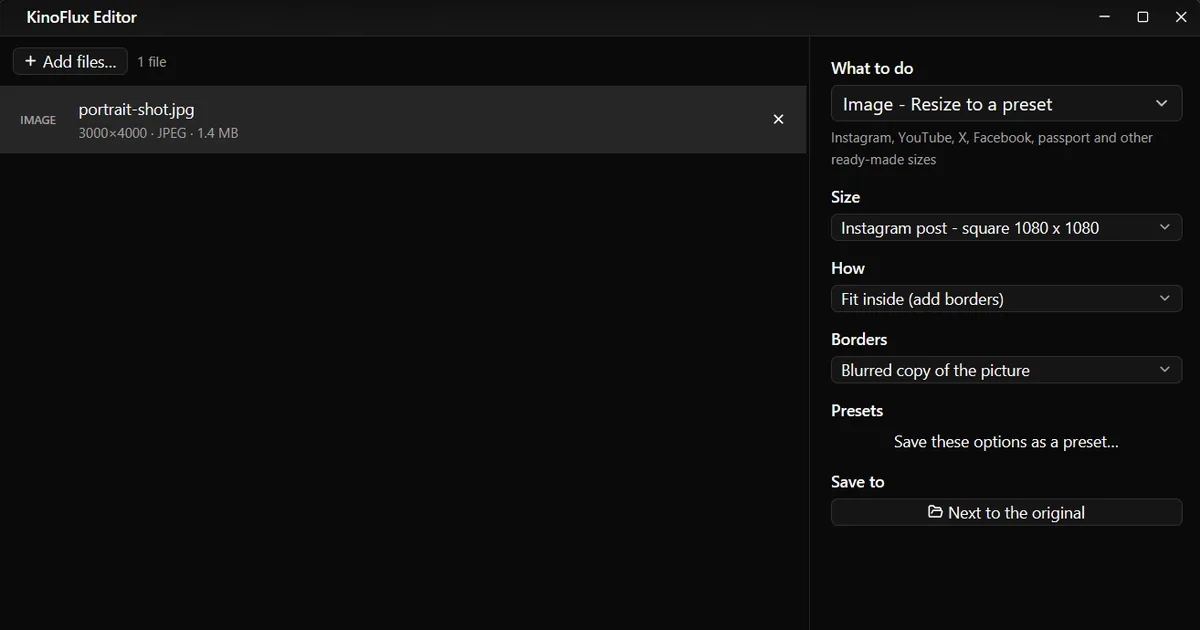
KinoFlux Editor has three image tools for this, all working on many files at once:
- Image - Resize changes the size by width, height, percent or to a box.
- Image - Resize to a preset fits pictures into ready-made sizes like Instagram, YouTube or passport.
- Image - Crop / rotate cuts pictures to a shape like 1:1 or 16:9, rotates and mirrors them.
How to resize to an exact width#
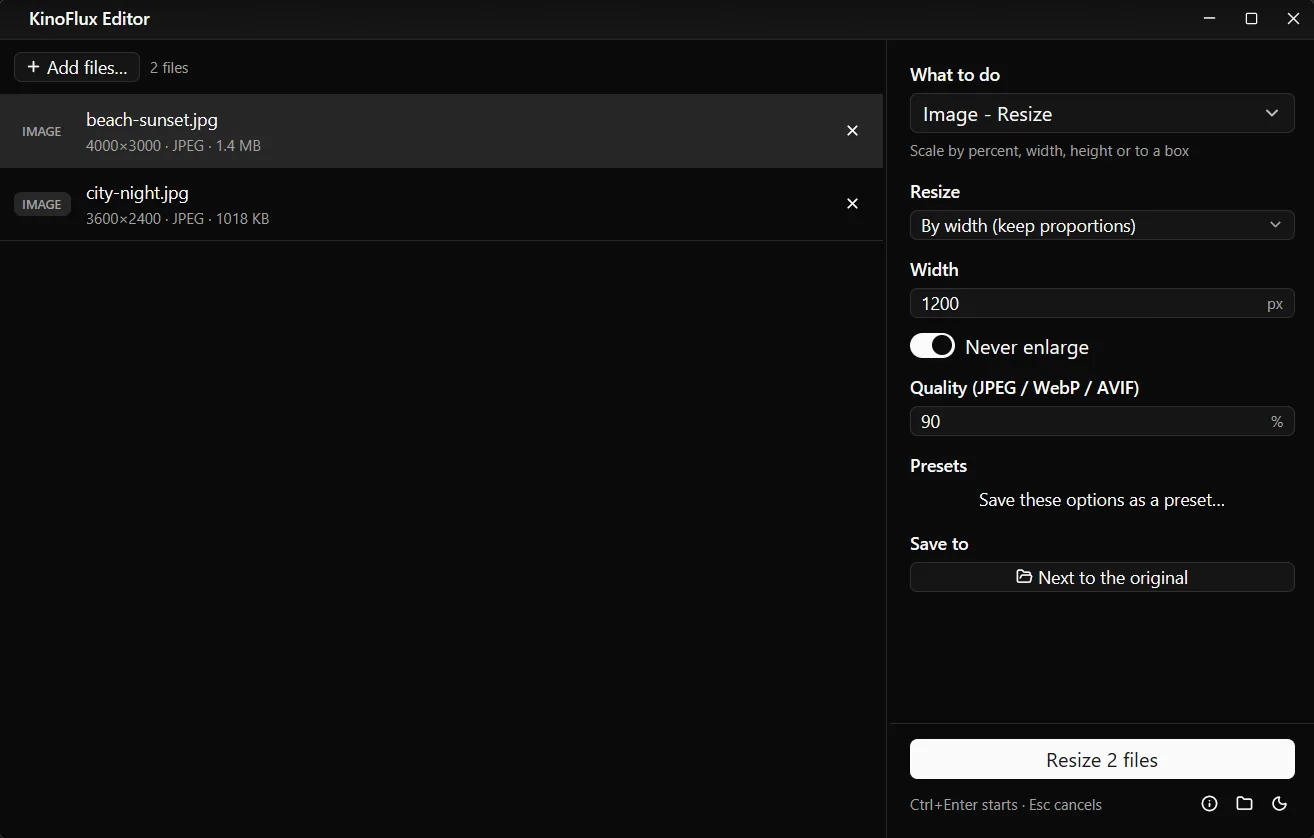
- Add the pictures. Drag them onto the KinoFlux Editor window.
- Pick the tool. Press Ctrl+K (Cmd+K on a Mac), type "resize" and choose Image - Resize.
- Choose how. Set Resize to By width (keep proportions).
- Type the width. For example 1200. The height follows the picture's shape.
- Start. Press Ctrl+Enter. You get
name_resizednext to each original, in the same format.
Results#
These are demo photos made for these guides.
| Tool and setting | Input | Output |
|---|---|---|
| Resize, by width 1200 | beach-sunset.jpg, 4000 x 3000 | 1200 x 900, 34 KB |
| Resize, by width 1200 | city-night.jpg, 3600 x 2400 | 1200 x 800, 35 KB |
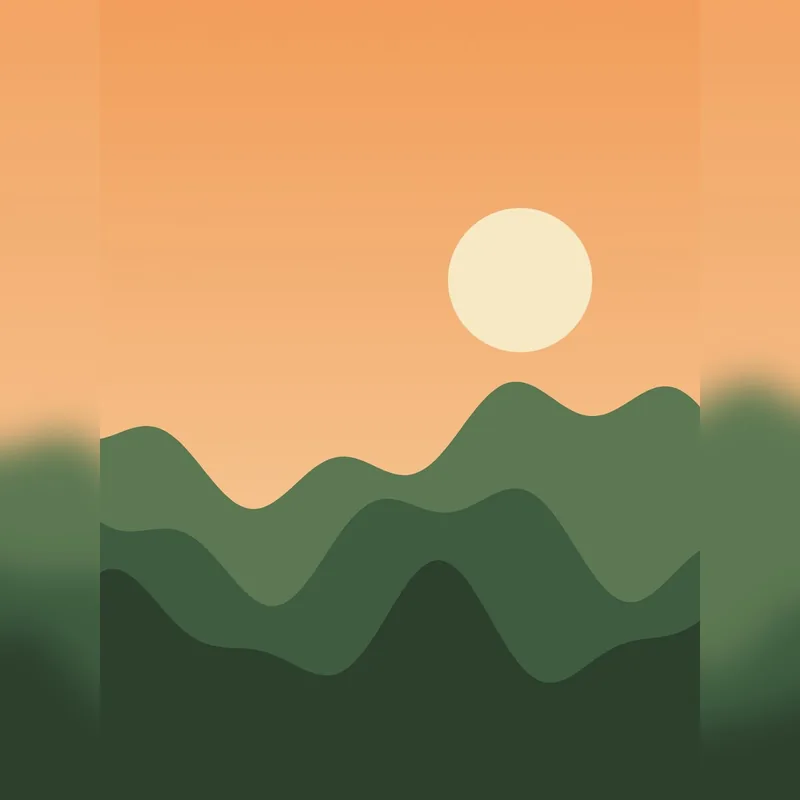
| Preset, Instagram square, fit inside, blurred borders | portrait-shot.jpg, 3000 x 4000 | 1080 x 1080, 35 KB |
| Crop / rotate, 16:9, keep the centre | portrait-shot.jpg, 3000 x 4000 | 3000 x 1687, 322 KB |
Fit a picture into Instagram, YouTube or passport sizes#
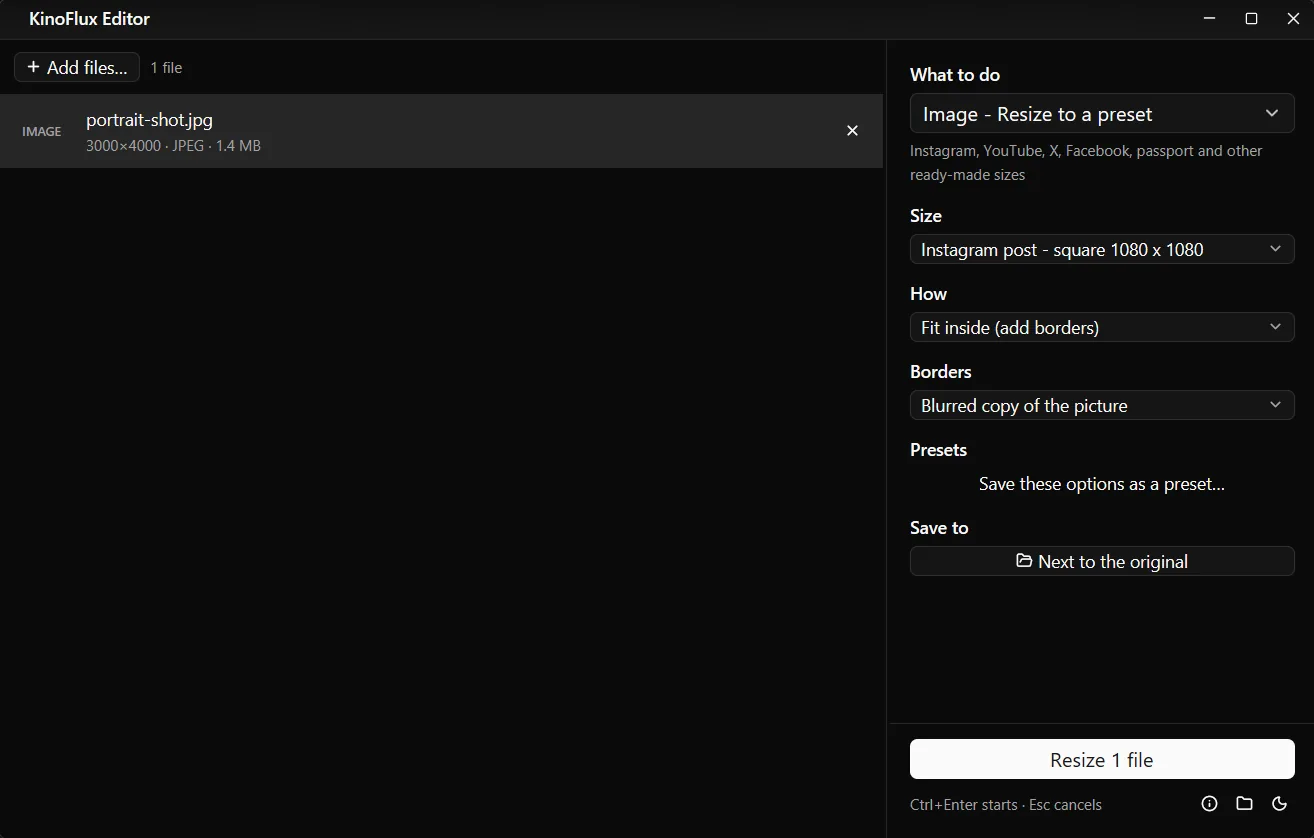
Use Image - Resize to a preset. Pick a Size, then choose How:
- Fill the frame (crop the edges) fills the whole size and cuts off what sticks out. Good when the subject is in the middle.
- Fit inside (add borders) keeps the whole picture and adds Borders: White, Black, Transparent (PNG) or Blurred copy of the picture.
The sizes on offer:
| Preset | Pixels |
|---|---|
| Instagram post - square | 1080 x 1080 |
| Instagram post - portrait | 1080 x 1350 |
| Story / Reel / TikTok | 1080 x 1920 |
| YouTube thumbnail | 1280 x 720 |
| X / Twitter post | 1200 x 675 |
| Facebook cover | 820 x 312 |
| LinkedIn banner | 1584 x 396 |
| Full HD | 1920 x 1080 |
| 4K | 3840 x 2160 |
| Profile picture | 400 x 400 |
| Passport photo | 600 x 600 |
| App icon | 512 x 512 |
The passport preset only sets the pixel size. It does not check the rules for head size or background in your country.
Crop to 1:1, 16:9 or exact pixels#
Use Image - Crop / rotate.
- Crop to a shape cuts the picture to Square 1:1, 4:3, 3:2, 16:9 widescreen, 3:4, 2:3, 4:5 or 9:16 vertical. Keep the chooses which part stays: Centre, Top, Bottom, Left or Right.
- Crop to exact pixels takes a box: Left and Top for the corner, Width and Height for the size.
- Rotate (90° clockwise, 180°, 90° counter-clockwise) and Flip (mirror left-right or top-bottom) work with or without cropping.
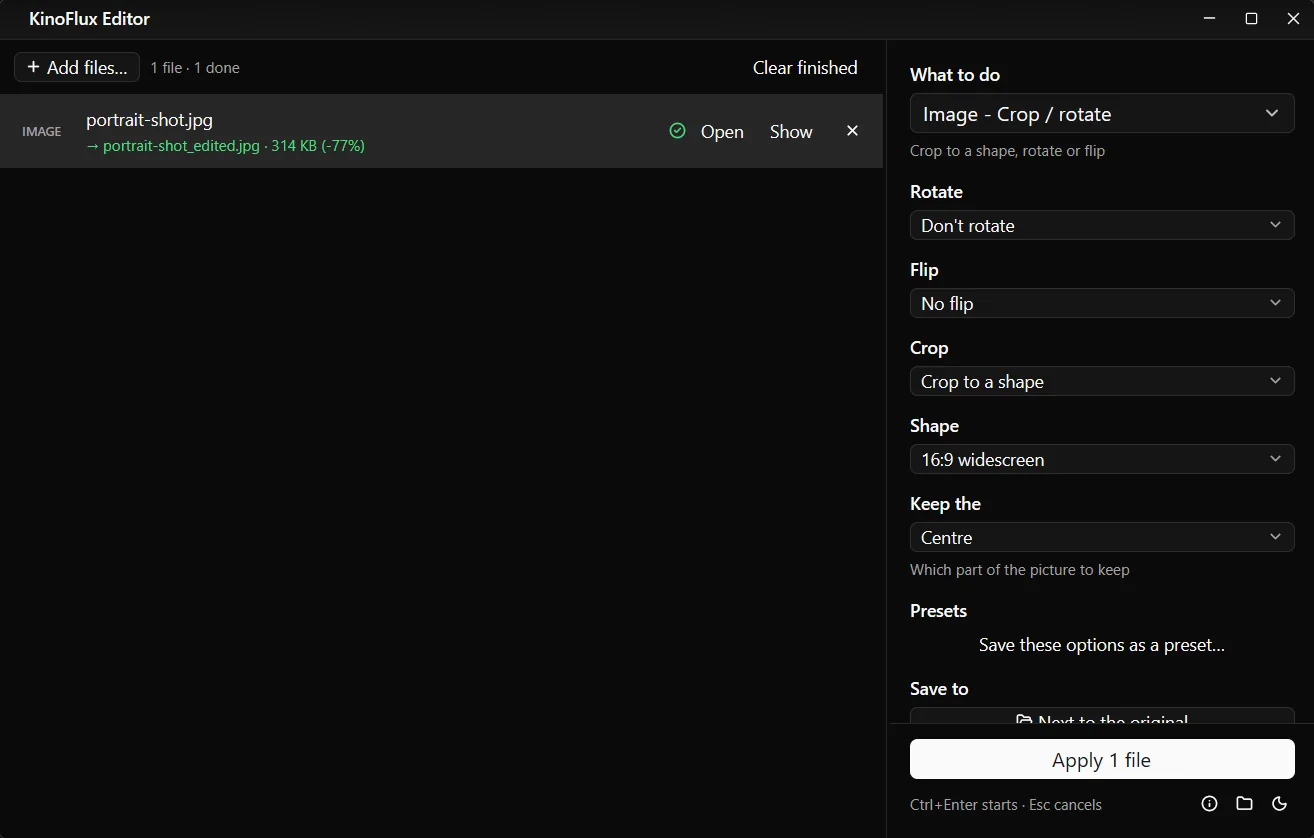
A crop does not shrink the picture. If you need both a shape and a size, crop first and then resize, or use a preset with Fill the frame, which does both in one step.
Resize options#
| Resize mode | What it does |
|---|---|
| By percentage | 1 to 800%, default 50% |
| By width (keep proportions) | Height follows |
| By height (keep proportions) | Width follows |
| Fit inside a box (keep proportions) | Largest size that fits the width and height |
| Fill a box (crops the overflow) | Covers the box, then cuts the edges |
| Exact size (may distort) | Forces both numbers |
Never enlarge (on by default for width, height and fit) leaves smaller pictures alone. Quality (default 90) applies to JPEG, WebP and AVIF.
Limits#
- The format stays the same, except formats that cannot be written (HEIC, ICO, PSD and similar) become PNG. To change format, see convert HEIC, WebP and AVIF to JPG.
- Same setting for every picture. A batch of mixed portrait and landscape photos all get the same rule. "By width" on a tall photo makes it very tall.
- No free-hand crop. You pick a shape and an anchor, or type exact pixels. There is no box to drag.
- Animated GIFs lose their animation; only the first frame is kept.
- Transparency becomes white in JPEG output.
Related guides#
- Smaller files, same size? Compress photos.
- Name or logo on every photo? Add a watermark to photos.
- Need icons for a website? Make a favicon and app icons.
- The same job for videos: make a video vertical 9:16.
All tools are on the KinoFlux Editor page.
Frequently asked questions
How do I resize without stretching the picture?
Use By width, By height or Fit inside a box. They keep the proportions. Only Exact size can distort, because it forces both numbers.
How do I post a tall photo on Instagram without cutting it?
Use Image - Resize to a preset, pick Instagram post - square 1080 x 1080 and set How to Fit inside (add borders). Borders can be white, black, transparent or a blurred copy of the picture.
Can I make a small picture bigger?
Yes, with By percentage (up to 800%) or by switching off Never enlarge. It gets bigger but not sharper; there is no detail to add.
Is the original replaced?
No. Results are new files: name_resized, name_ig-square (or the preset name) and name_edited for crop and rotate.
Can I rotate a photo here too?
Yes. Image - Crop / rotate turns pictures by 90 or 180 degrees and mirrors them, with or without cropping.
- resize image
- crop image
- instagram size
- image tools