
Burn subtitles into a video offline
Want captions that always show, on any app or phone? Here is how to style subtitles and burn them into the video on your own computer with KinoFlux Whisper Studio.
Nitiksh Kumar1 min readKinoFlux Whisper Studio
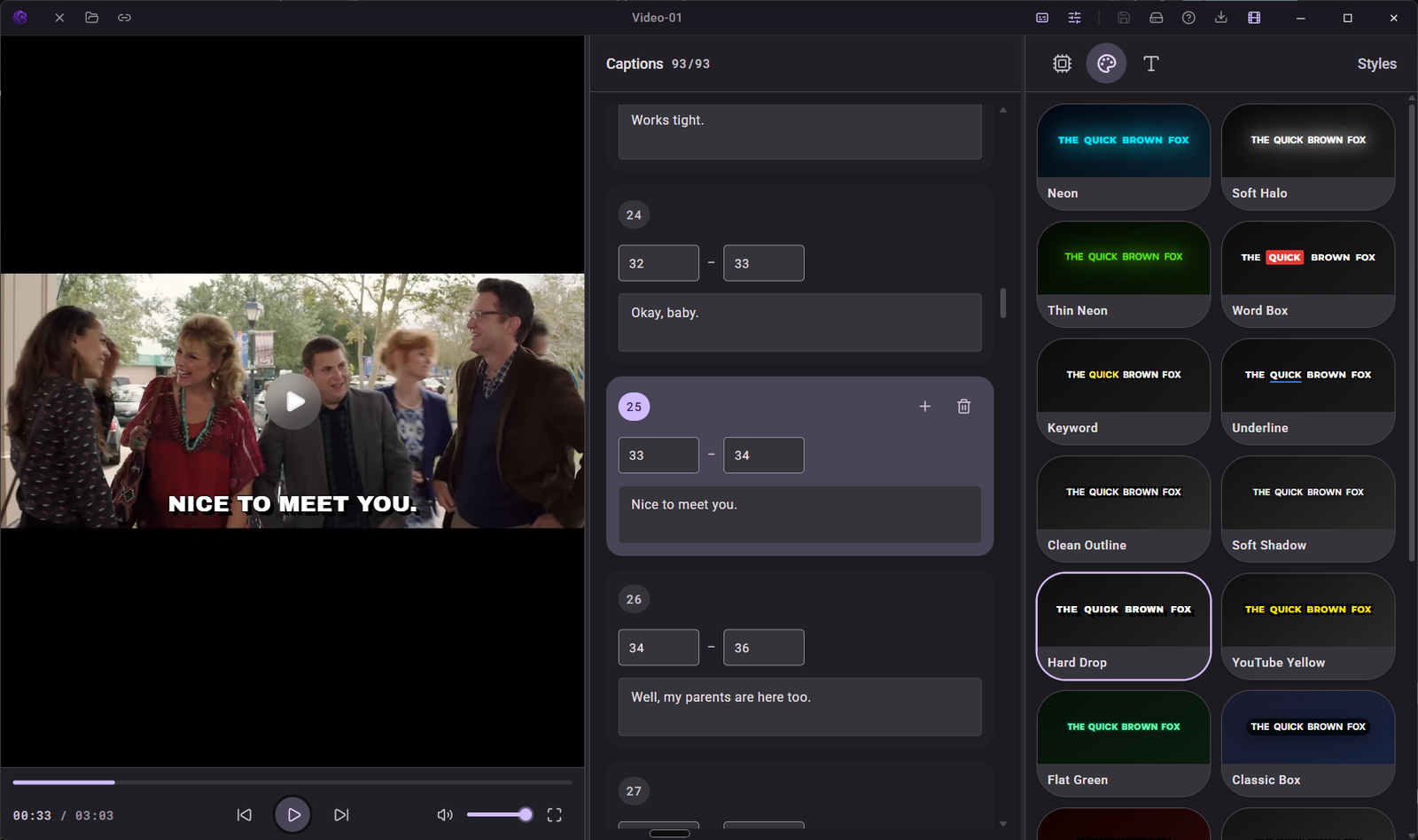
Social apps and some players ignore separate subtitle files. If you want the words to always show, they need to be burned into the video.
Steps#
- Open your video in KinoFlux Whisper Studio.
- Let it find the words with a Whisper model, or keep editing the captions you already made.
- Fix any wrong words and timings in the caption editor.
- Pick a caption style and layout.
- Export as MP4 with captions. Export the SRT too, in case you need to change something later.
Everything runs on your computer, so the video is never uploaded and there is no watermark.
Tips#
- Use a larger model if names or accents come out wrong.
- Short lines are easier to read on a phone.
- If you move the original video file, use Relink to connect the project to it again.
Related guides#
Frequently asked questions
What does burning subtitles mean?
The captions become part of the picture, so they show on every player and social app. You cannot turn them off later, so keep the SRT file too.
Can I change the look of the captions?
Yes. Whisper Studio lets you style the captions and their layout before you export the video.
Do I need an existing SRT file?
No. Whisper Studio can make the captions from the speech in the video first.
- burn subtitles
- captions
- offline