
Split a video into parts by length, count or file size
A video is too long or too big for an upload or email limit. How to cut it into equal parts, at times you choose, or into pieces under a size in MB with KinoFlux Editor, without re-encoding.
Nitiksh4 min readKinoFlux Editor
On this page
A 90 second clip does not fit the 50 MB upload limit. A two hour lecture recording is too long for a chat app. A long screen recording should be cut into chapters. In each case you need the video split into several files.
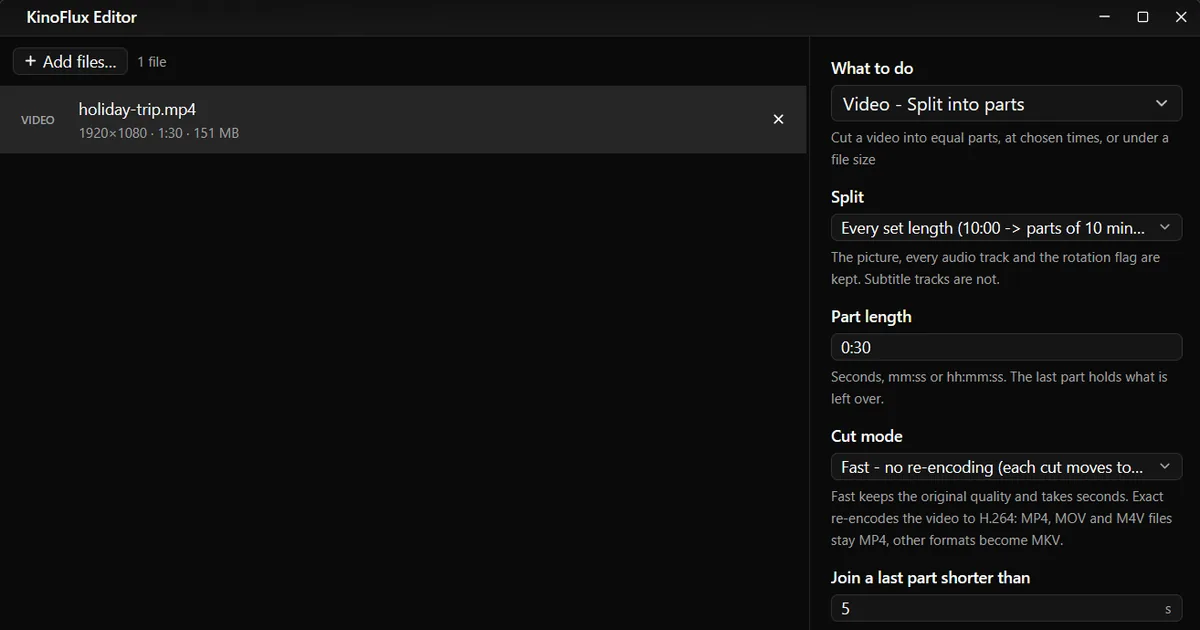
KinoFlux Editor has a Video - Split into parts tool for this. It can split by length, into a number of equal parts, at times you type, or into pieces under a file size. In its default Fast mode it does not encode the video again, so the parts keep the original quality and the job finishes in seconds.
Four ways to split#
| Split | What you type | Good for |
|---|---|---|
| Every set length | A part length, for example 10:00 | Lectures, long recordings, status updates with a time limit |
| Into a number of equal parts | How many parts (2 to 500) | "Cut this in half" |
| At chosen times | The start of each new part, for example 1:30, 4:05, 10:00 | Chapters, separate scenes |
| Under a file size | The largest part in MB | Email, upload forms, chat apps |
How to split a video#
- Add the video. Drag it onto the KinoFlux Editor window.
- Pick the tool. Press Ctrl+K (Cmd+K on a Mac), type "split" and choose Video - Split into parts.
- Choose how to split. Under Split, pick one of the four ways and fill in the box that appears.
- Choose the cut mode. Leave Fast - no re-encoding for speed and full quality, or pick Exact - re-encode when every cut must be on the exact time.
- Start. Press Ctrl+Enter. The parts go into a new folder next to the original, named
name_parts.
Results from a 151 MB clip#
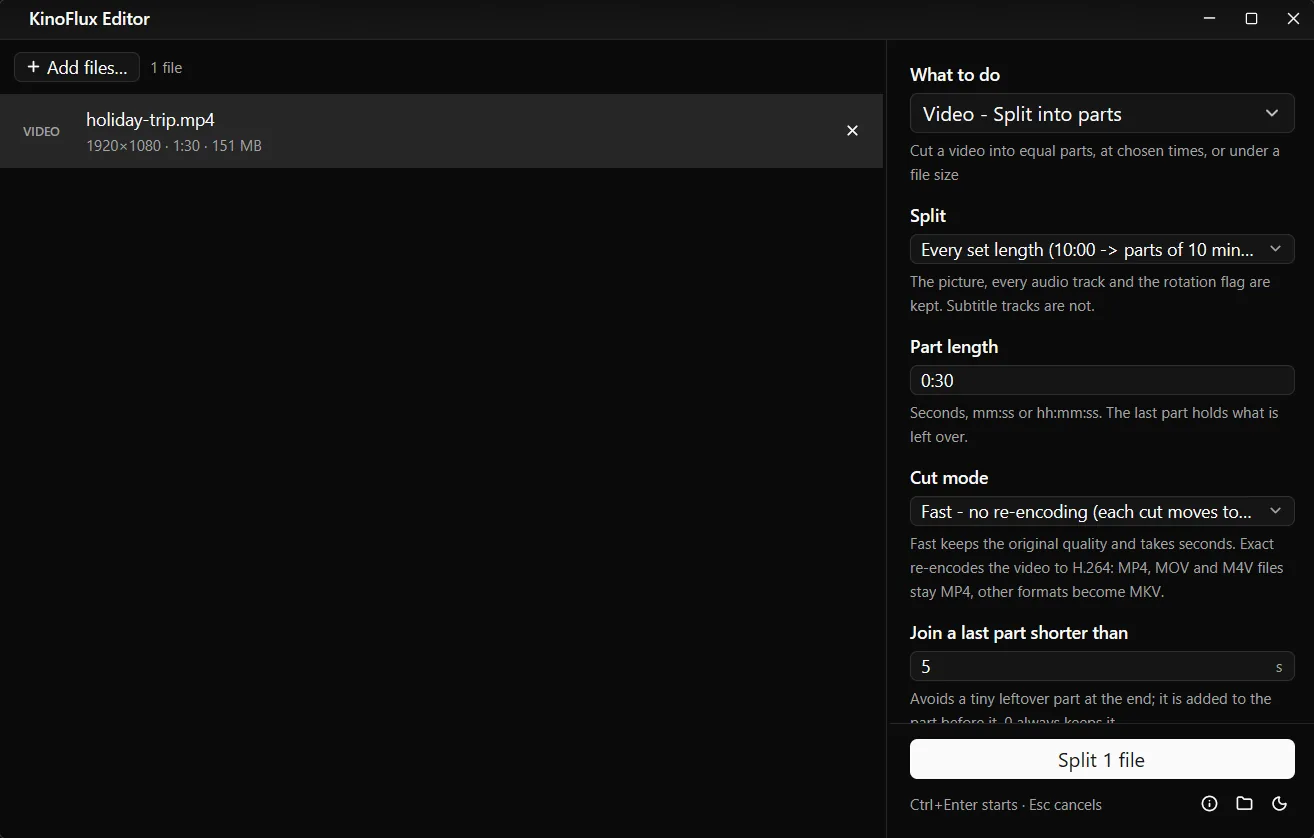
The test file is 1080p, 90 seconds and 151 MB, with a keyframe about every 8 seconds.
Every 30 seconds, fast mode:
| Part | Length | Size |
|---|---|---|
| holiday-trip_part01.mp4 | 33.4 s | 56.1 MB |
| holiday-trip_part02.mp4 | 33.3 s | 55.9 MB |
| holiday-trip_part03.mp4 | 23.3 s | 39.1 MB |
The parts are not exactly 30 seconds because a fast cut moves to the next keyframe. On this clip that added about 3 seconds per part. With Exact mode the cuts land on 0:30 and 1:00, but the video is encoded again.
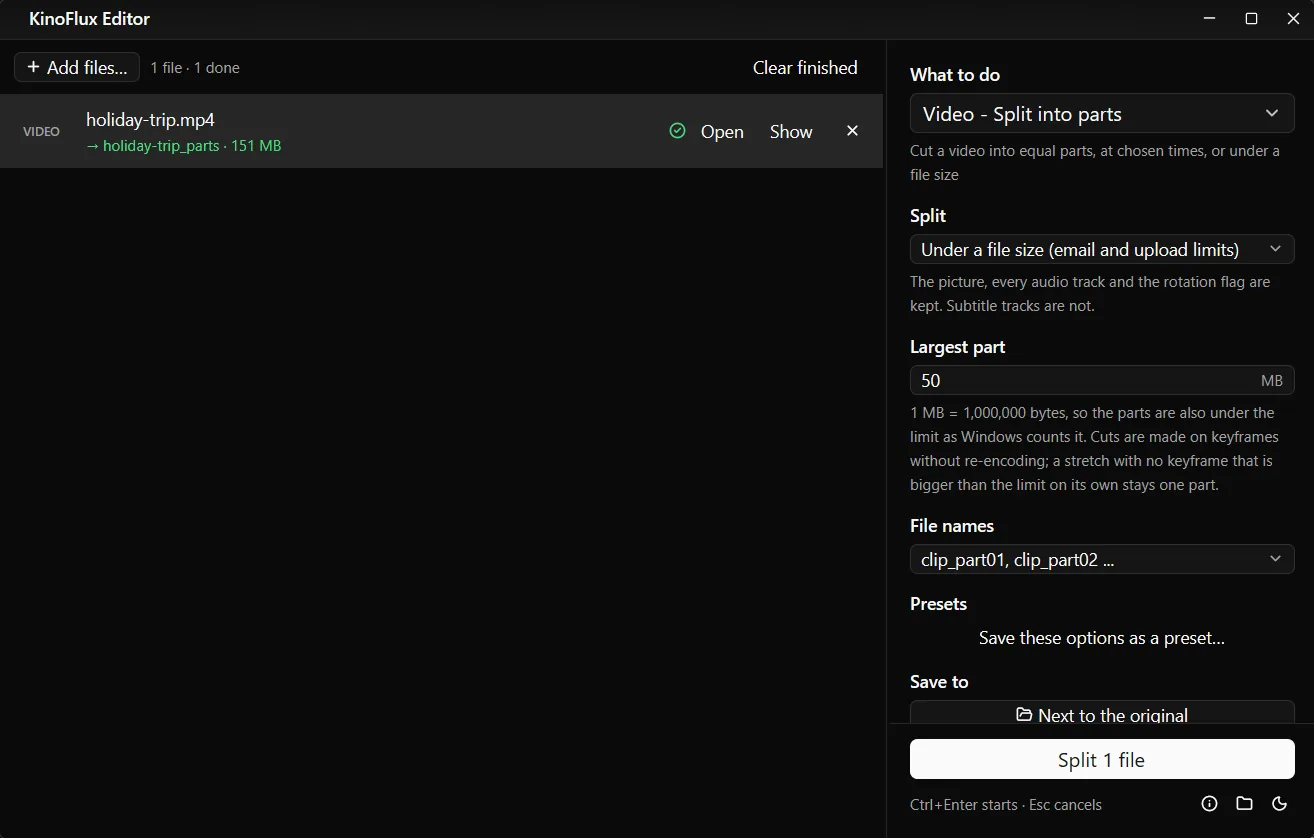
Under 50 MB:
| Part | Length | Size in bytes |
|---|---|---|
| holiday-trip_part01.mp4 | 25.0 s | 44,162,076 |
| holiday-trip_part02.mp4 | 25.0 s | 43,928,672 |
| holiday-trip_part03.mp4 | 25.0 s | 44,045,690 |
| holiday-trip_part04.mp4 | 15.0 s | 26,311,813 |
Every part is under 50,000,000 bytes. The tool fills each part up to the last keyframe that still fits, so parts end a little under the limit rather than over it.
All options#
| Option | Choices | Default |
|---|---|---|
| Split | Every set length, Into a number of equal parts, At chosen times, Under a file size | Every set length |
| Part length | Seconds, mm:ss or hh:mm:ss | 10:00 |
| Number of parts | 2 to 500 | 2 |
| Cut at | Times separated by commas or spaces | empty |
| Largest part | 1 to 100,000 MB | 100 |
| Cut mode | Fast (each cut moves to the next keyframe) or Exact (re-encode, exact time) | Fast |
| Quality and Encoder | Only for Exact mode | High quality, CPU |
| Join a last part shorter than | 0 to 600 seconds | 5 |
| File names | clip_part01, clip_part02 ... or clip_00-00-00_00-10-00 (start and end time) | part numbers |
The Join a last part shorter than option avoids a two second leftover at the end. A tail shorter than this is added to the part before it. Set it to 0 to always keep the tail as its own part.
Limits#
- Fast cuts are only as precise as the keyframes. Most phone videos have a keyframe every second or two, so the difference is small. Screen recordings and some cameras use long gaps.
- Exact mode changes the format of some files. It re-encodes to H.264. MP4, MOV and M4V stay MP4; other types become MKV.
- Size mode always uses fast cuts. There is no exact option for it.
- Subtitle tracks are dropped. Add them again with Add subtitles if you need them.
- Times after the end are skipped. If you type 12:00 for a 10 minute video, that cut is ignored.
Related guides#
- Want to keep one section and throw away the rest? Trim a video instead.
- Parts still too big? Make the video smaller first, then split.
- Splitting PDFs to fit a limit works the same way: split a PDF by file size.
All tools are listed on the KinoFlux Editor page.
Frequently asked questions
Does splitting lower the quality?
Not in Fast mode, which copies the video and sound into the parts without encoding them again. Exact mode re-encodes to H.264 so it can cut on the exact second.
Why are my parts not exactly the length I typed?
Fast mode can only cut on a keyframe, so each cut moves to the next one. With a keyframe every few seconds, a part can be a few seconds longer than you asked. Use Exact mode when the times matter.
Will every part be under the size I set?
Yes, as long as the video has keyframes often enough. The limit counts 1 MB as 1,000,000 bytes, so the parts are also under the limit as Windows counts it. A single stretch between two keyframes that is bigger than the limit stays one part.
Are subtitles kept in the parts?
The picture, every audio track and the rotation flag are kept. Subtitle tracks inside the video are not.
How do I put the parts back together?
Use Video - Join videos. See join videos into one file.
- split video
- cut video into parts
- video file size limit