
Make a video file smaller without visible quality loss
A phone video is too big to send, store or upload. How to shrink it on your own computer with KinoFlux Editor: pick a compression level, switch to H.265, or lower the resolution, with real before and after sizes.
Nitiksh4 min readKinoFlux Editor
On this page
Phone videos are big. A minute and a half of 1080p can be well over 100 MB, which is too much for an email, a chat app, a form upload or a nearly full phone. You do not need an online compressor that uploads your private video to someone else's server. KinoFlux Editor shrinks it on your own computer.
There are two tools for this:
- Video - Compress re-encodes the video at a lower bitrate. It has three levels and an option to use H.265.
- Video - Change resolution scales the picture down, for example from 1080p to 720p.
Both write a new file next to the original and never replace it.
How to make a video smaller#
- Add the video. Drag one or more videos onto the window.
- Pick Video - Compress. Press Ctrl+K (Cmd+K on a Mac), type "compress" and choose Video - Compress.
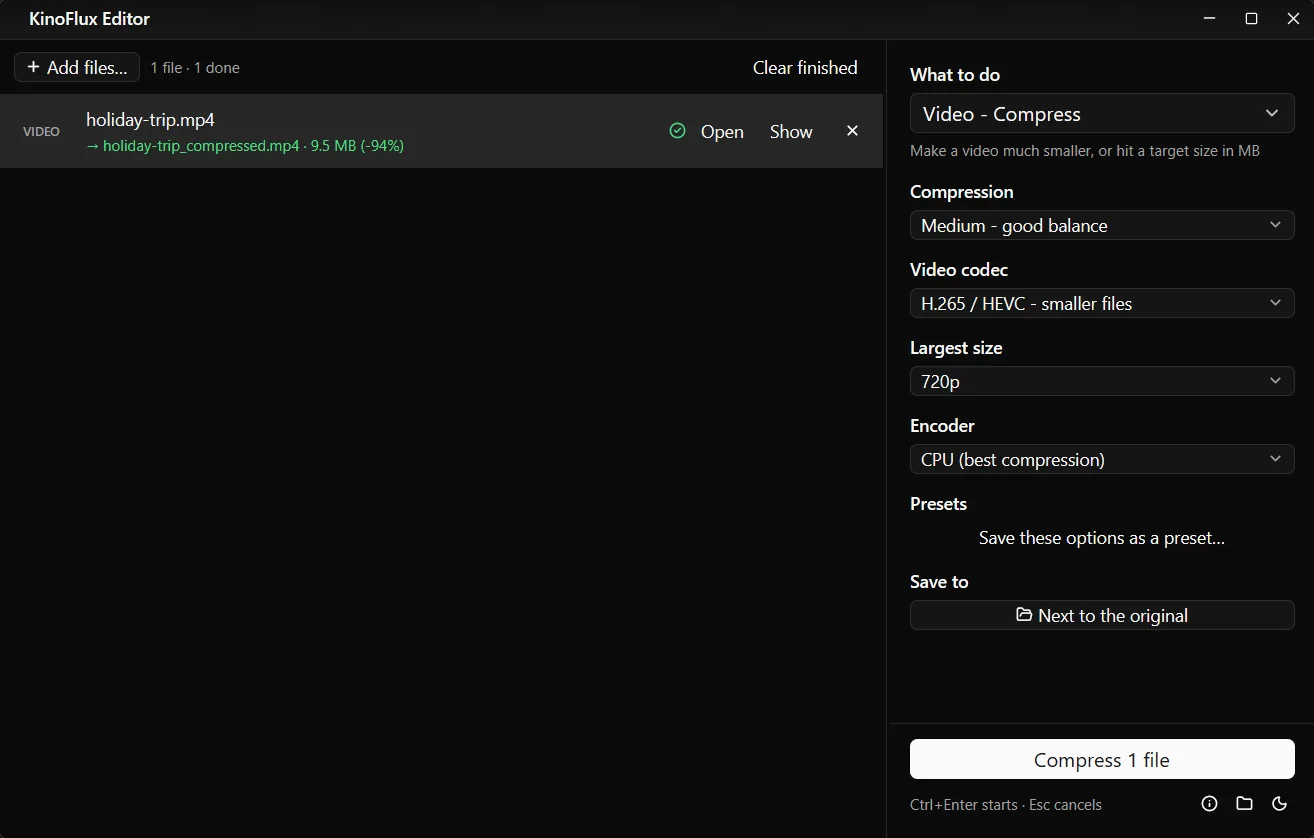
- Choose a level. Medium - good balance is right for most videos. Light keeps more detail, Strong makes much smaller files.
- Choose the codec. H.265 / HEVC - smaller files gives the biggest saving. Keep H.264 if the file must play on old devices.
- Lower the size if it is bigger than needed. Under Largest size, 1080p or 720p is plenty for a phone screen.
- Start. Press Ctrl+Enter. The new file is saved as
name_compressed.mp4.
Real numbers from one clip#
The test clip is 1080p, 90 seconds, 151 MB. It is a demo clip made for these guides and has a high bitrate for what it shows, so it shrinks more than typical phone footage would. Use the numbers to compare the settings with each other, not as a promise for your own videos.
| Settings | Result | Smaller by |
|---|---|---|
| Original (1080p, H.264) | 151 MB | |
| Compress, Medium, H.264, original size | 64.7 MB | 57% |
| Compress, Target 20 MB, H.264 | 18.5 MB | 88% |
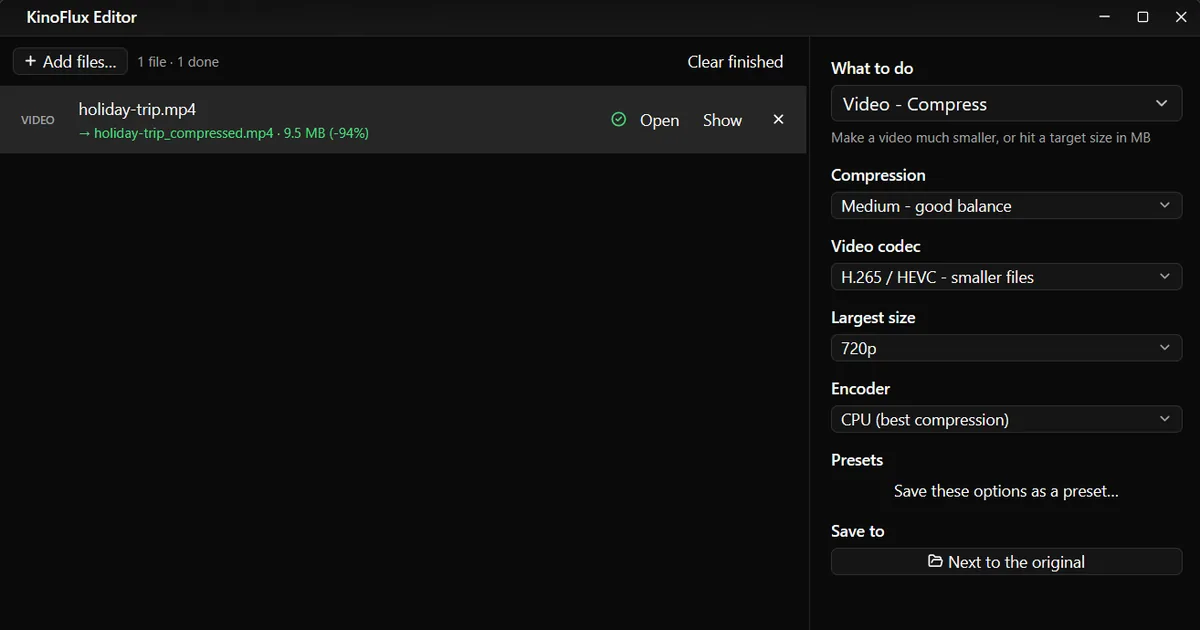
| Compress, Medium, H.265, largest size 720p | 9.5 MB | 94% |
The first two rows come from the target size guide, which used the same clip. The last row shows how much the codec and resolution add: same level, a seventh of the size.
Lower the resolution only#
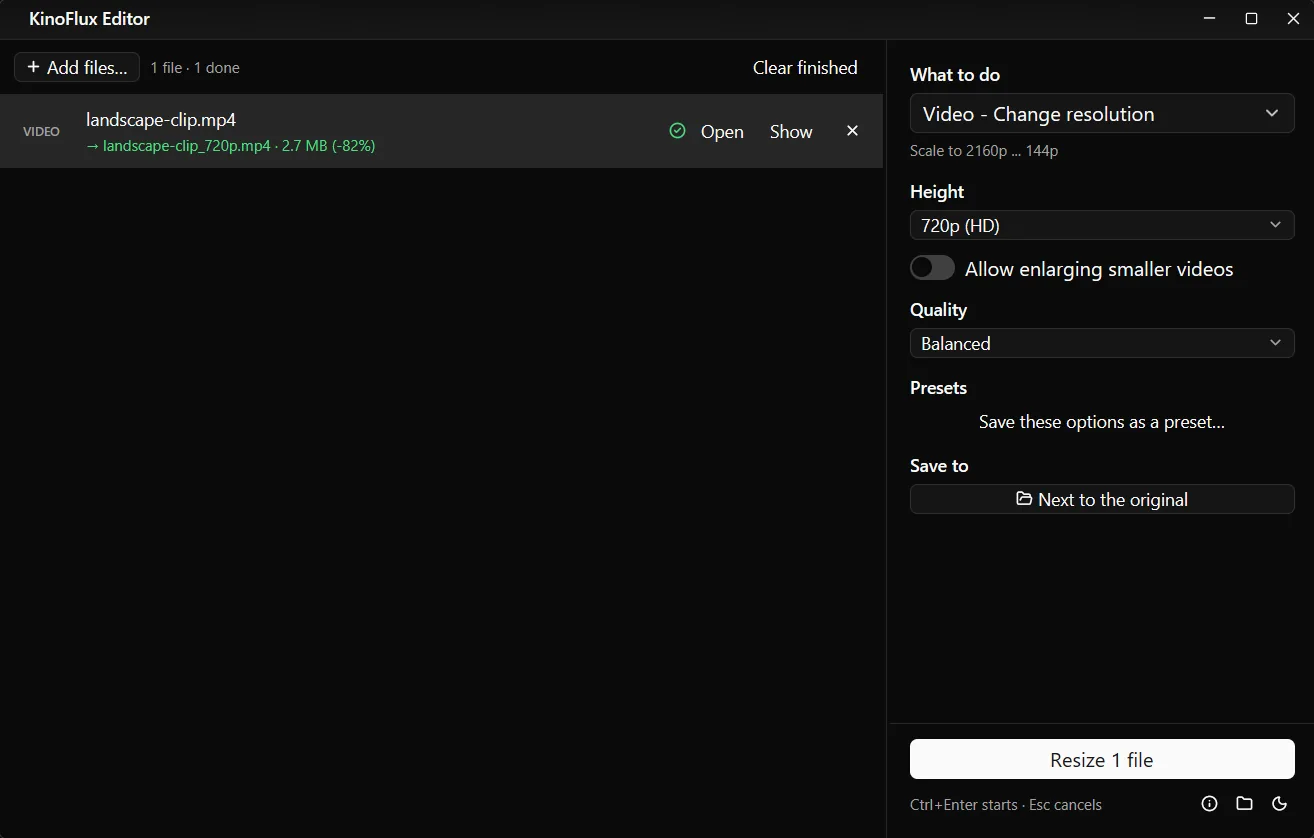
Sometimes you want the picture smaller but not more compressed, for example to make a 4K clip easier to edit or play on an older laptop. That is what Video - Change resolution does.
| Option | Choices | Default |
|---|---|---|
| Height | 4K (2160p), 1440p, 1080p, 720p, 480p, 360p, 240p, 144p | 720p |
| Allow enlarging smaller videos | on or off | off |
| Quality | Smaller file, Balanced, High quality | Balanced |
A 15 second 1080p clip of 14.5 MB came out as a 2.7 MB 720p file at Balanced. The width follows the height so the shape stays the same. With enlarging off, a video that is already smaller than the height you pick is left at its size.
Compress options at a glance#
| Option | Choices | Default |
|---|---|---|
| Compression | Light (barely visible loss), Medium (good balance), Strong (much smaller), Target a file size | Medium |
| Target size | 1 to 20,000 MB (only with Target a file size) | 25 |
| Video codec | H.264 (most compatible), H.265 / HEVC (smaller files) | H.264 |
| Largest size | Keep original size, 1080p, 720p, 480p | Keep original size |
| Encoder | CPU (best compression) or GPU (fastest), when a GPU encoder is found | CPU |
Limits#
- It never makes a file bigger, but it also cannot work magic on a file that is already small. A video that was compressed hard before will not shrink much more.
- Each run is a new encode. Compressing the same file again and again loses detail each time. Go back to the original if you need another try.
- H.265 is not supported everywhere. Some older TVs, browsers and Windows PCs without the HEVC video extension cannot play it.
- No preview. There is no side-by-side quality view. Open the result and watch it before you delete the original.
- Strong is strong. On fast motion or fine detail it can show blocks and blur. If it does, use Medium, or lower the resolution instead.
Related guides#
- Need it under a set number of MB? Compress to a target size.
- Still too long for a site's limit? Split it into parts or trim the parts you do not need.
- Wrong file type for the site? Convert it to MP4.
The KinoFlux Editor page lists all 66 tools and the download files.
Frequently asked questions
What is the best setting to make a video smaller without seeing a difference?
Start with Video - Compress at Medium and the H.265 codec. If the video is 4K or 1080p and will be watched on a phone, also set Largest size to 1080p or 720p. Watch the result before you delete anything.
Can compressing make my file bigger?
No. Video - Compress caps the new video bitrate at 85% of the original, so a file that is already well compressed does not grow.
Should I pick H.264 or H.265?
H.265 gives smaller files at the same quality. H.264 plays on more devices, including older TVs, browsers and PCs. If the file is for someone else and you are not sure what they use, pick H.264.
I need the file under an exact size, like 25 MB. What do I use?
Use the Target a file size level of the same tool. It is explained step by step in compress a video to a target size.
Does the GPU option make smaller files?
No, it makes them faster. The CPU encoder gives the best compression. The GPU choice only appears when your graphics card has a video encoder.
- compress video
- reduce video size
- h265
- change resolution