
Trim a video without re-encoding, and when to use the precise cut instead
How the Video - Trim tool in KinoFlux Editor 0.1.2 works, with real results from a 12 second clip. Fast cut versus precise cut, why a fast cut can start early, and a known bug with the range slider.
Nitiksh3 min readKinoFlux Editor
On this page
Cutting a piece out of a video can be instant or slow, depending on whether the program has to encode the video again. KinoFlux Editor 0.1.2 offers both in its Video - Trim tool: a fast cut that copies the existing data, and a precise cut that re-encodes. This post explains the difference with numbers from a real 12 second test clip, and describes one bug in the range slider that you should know about.
The two cut modes#
The Cut mode option has two choices:
- Fast - no re-encoding. The video and audio streams are copied into a new file. There is no quality loss and it finishes quickly. The catch is that a copy can only start at a keyframe, so the cut may begin a little earlier than the time you asked for.
- Precise - re-encode. The video is encoded again, so the cut starts and ends exactly where you say. It is slower and the file is a new encode, not a copy.
A keyframe is a frame that is stored complete. The frames after it store only changes. A stream copy cannot begin in the middle of that chain, so it backs up to the previous keyframe.
The test file#
The demo clip is 1280×720, 12 seconds, 4.6 MB. I checked its keyframes with ffprobe: it has only two, at 0 seconds and at 8.3 seconds. That is far fewer than most phone or camera videos, which usually have a keyframe every second or two. It is a synthetic demo clip made for this series, so it shows the effect clearly. Expect a smaller difference on ordinary footage.
The goal was to keep the part from 0:03 to 0:09, which is 6 seconds.
Steps#
- Drop the video on the window and choose Video - Trim with Ctrl+K.
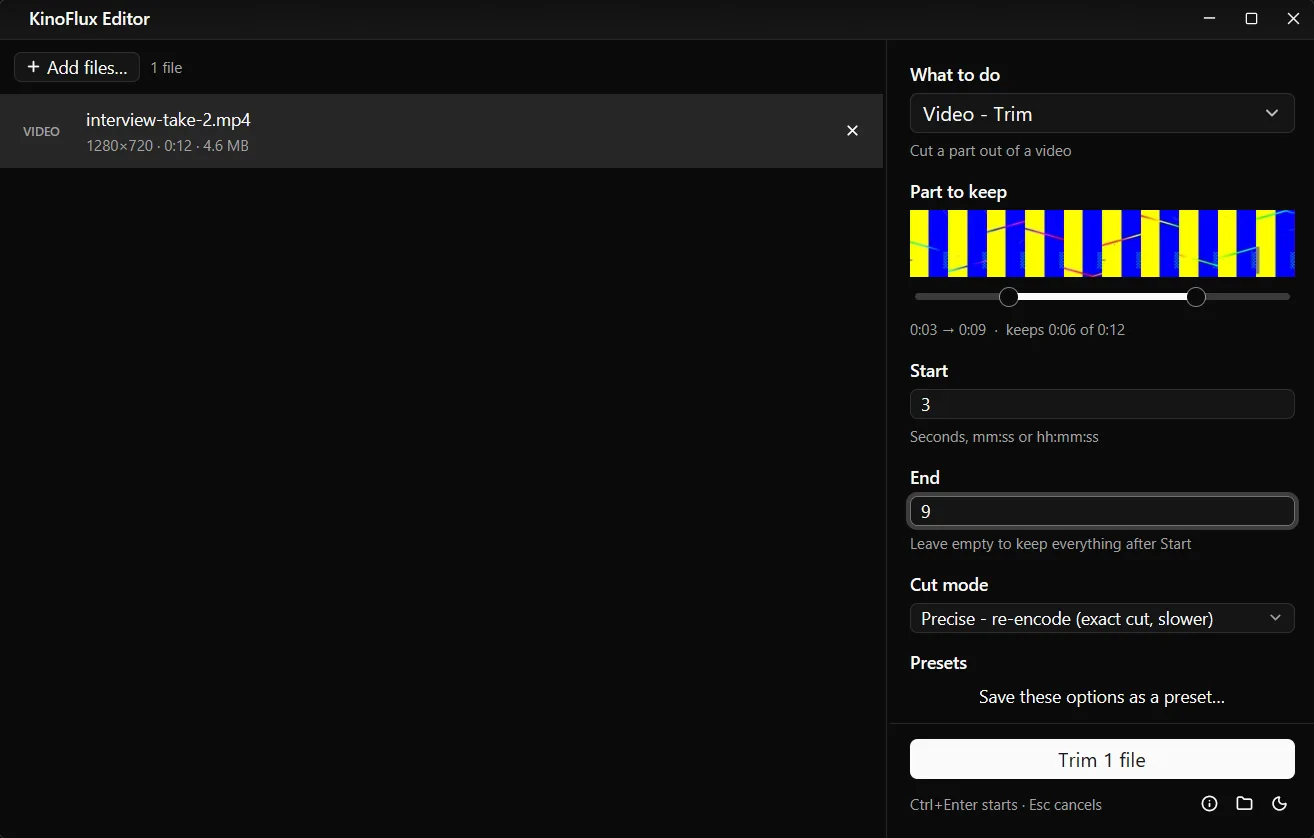
- The panel shows a strip of 10 thumbnails and a two-handle slider under Part to keep.
- Type the times in the Start and End boxes. They accept plain seconds, mm:ss or hh:mm:ss. If you leave End empty, everything after Start is kept.
- Pick the cut mode.
- Press Ctrl+Enter.
A known bug: type the times, do not rely on the slider#
In my tests with 0.1.2, dragging or clicking the slider updated the Start and End boxes and the summary line, but the finished file was still the full 12 seconds. Typing the values into the Start and End boxes worked in my test, and the screenshot above shows that case. Until this is fixed, use the boxes. The slider and thumbnails are still handy for finding the moment you want to cut at. Read the time off the label and type it.
Results#
| Mode | Start / End | Output length | Output size |
|---|---|---|---|
| Precise | 3 / 9 | 6.000 s | 3.2 MB (3,305,412 bytes) |
| Fast | 3 / 9 | 9.09 s | 3.5 MB (3,632,752 bytes) |
The precise cut is exactly 6 seconds, as asked. The fast cut is 9.09 seconds. Because my clip has no keyframe between 0 and 8.3 seconds, the stream copy backed up to the keyframe at 0 and kept everything from there to the end point. The cut did what the option says it does: it started at the nearest earlier keyframe.
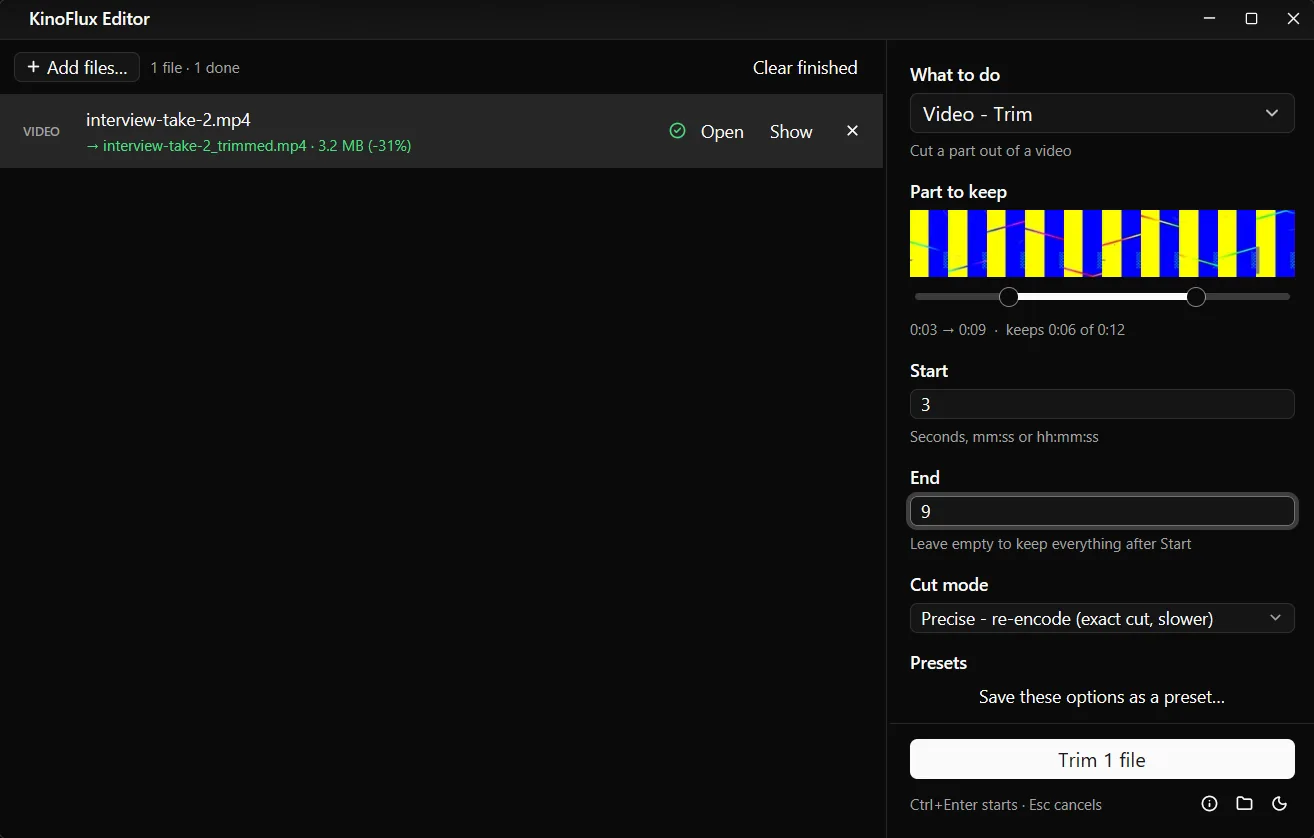
Both files are named interview-take-2_trimmed.mp4 and are written next to the original. If you run a second trim, the name gets " (2)" and nothing is overwritten.
Which mode to use#
- Use Fast when a start that is a second or two early does not matter, for example when you remove a long intro or ending from a recording. It is quick and keeps the original quality.
- Use Precise when the start must be exact: a clip for a social post, a single sentence from an interview, a meme. You pay with time and a new encode.
- If the file will be re-compressed anyway, do the precise trim and then run the target size compression. Doing both gives a short, small file.
Related tools in the same area#
The Audio area has its own Trim tool for sound files, and Video - Join videos puts clips together. Join re-encodes (it does not stream-copy), so clips of different sizes and codecs can be combined. If you only want the sound from a clip, see extracting audio.
Everything runs on your computer. The product page has the download, and the v0.1.2 release page lists the files.
- trim video
- cut video
- keyframes
- windows