
How to compress a video to a target size in MB, offline
Step by step with KinoFlux Editor 0.1.2, using a 151 MB, 90 second 1080p clip. What the "Target a file size" option does, how close it got, and how it compares with the Medium level.
Nitiksh3 min readKinoFlux Editor
On this page
Sometimes a video has to fit under a limit: an email attachment, a form that accepts files up to a certain size, a chat app. Guessing at quality settings until the file is small enough is slow. KinoFlux Editor 0.1.2 has a "Target a file size" mode in its Video - Compress tool, so you type the size you want and it works out the bitrate for you. This post shows the steps and the numbers from a real run.
The test file#
I used a demo clip made for this series: 1920×1080, 1 minute 30 seconds, 151 MB as KinoFlux shows it (158,443,982 bytes). KinoFlux shows sizes in binary megabytes (1 MB is 1,048,576 bytes), which is why 158,443,982 bytes appears as 151 MB.
Steps#
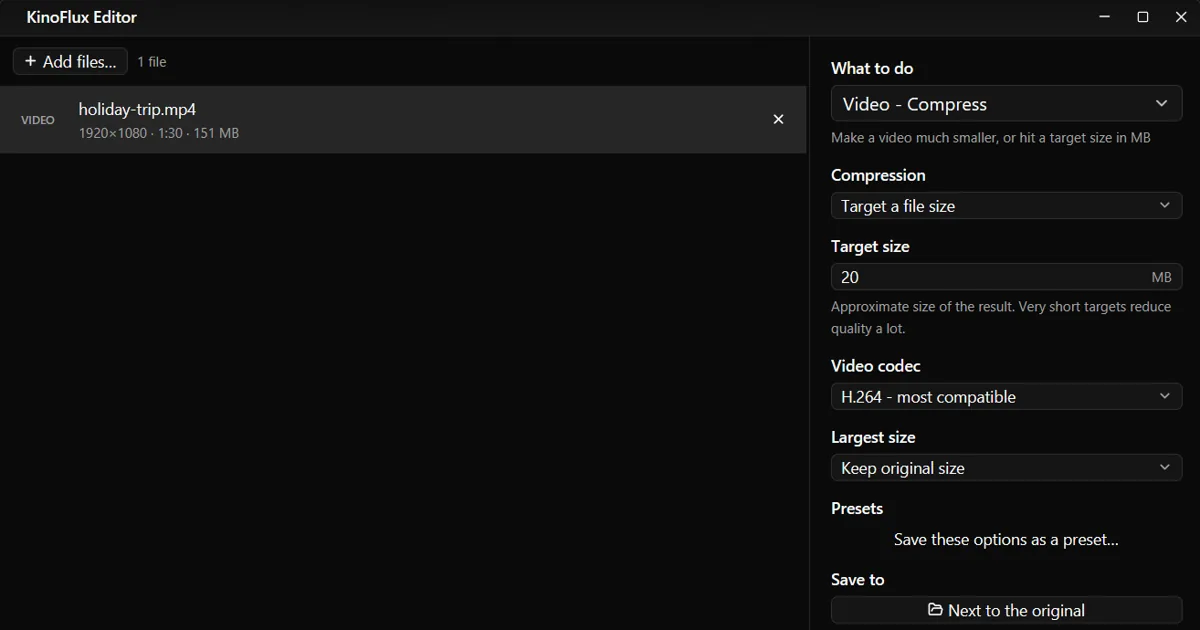
- Start KinoFlux Editor and drop the video on the window. The row shows the resolution, duration and size.
- Open the action picker with Ctrl+K and choose Video - Compress. For a video the panel preselects Video - Convert / compress, so switch to the compress tool.
- Set Compression to Target a file size. A Target size box appears. The range is 1 to 20,000 MB and the default is 25.
- Type the size you want. I used 20.
- Leave Video codec on H.264 - most compatible, and Largest size on Keep original size.
- Press Ctrl+Enter.
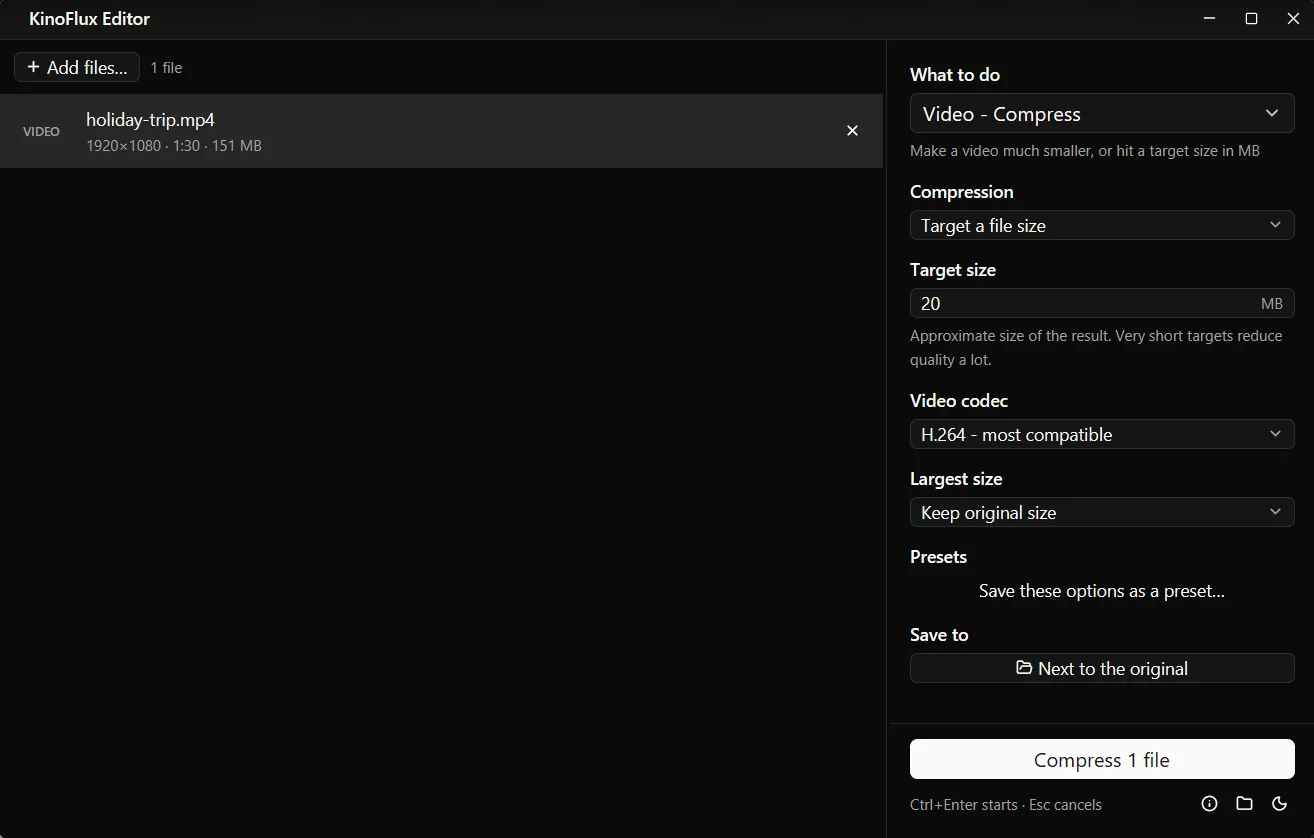
The panel warns that the target is approximate and that very short targets reduce quality a lot. That matches what I saw: the result lands near the target, not exactly on it.
What came out#
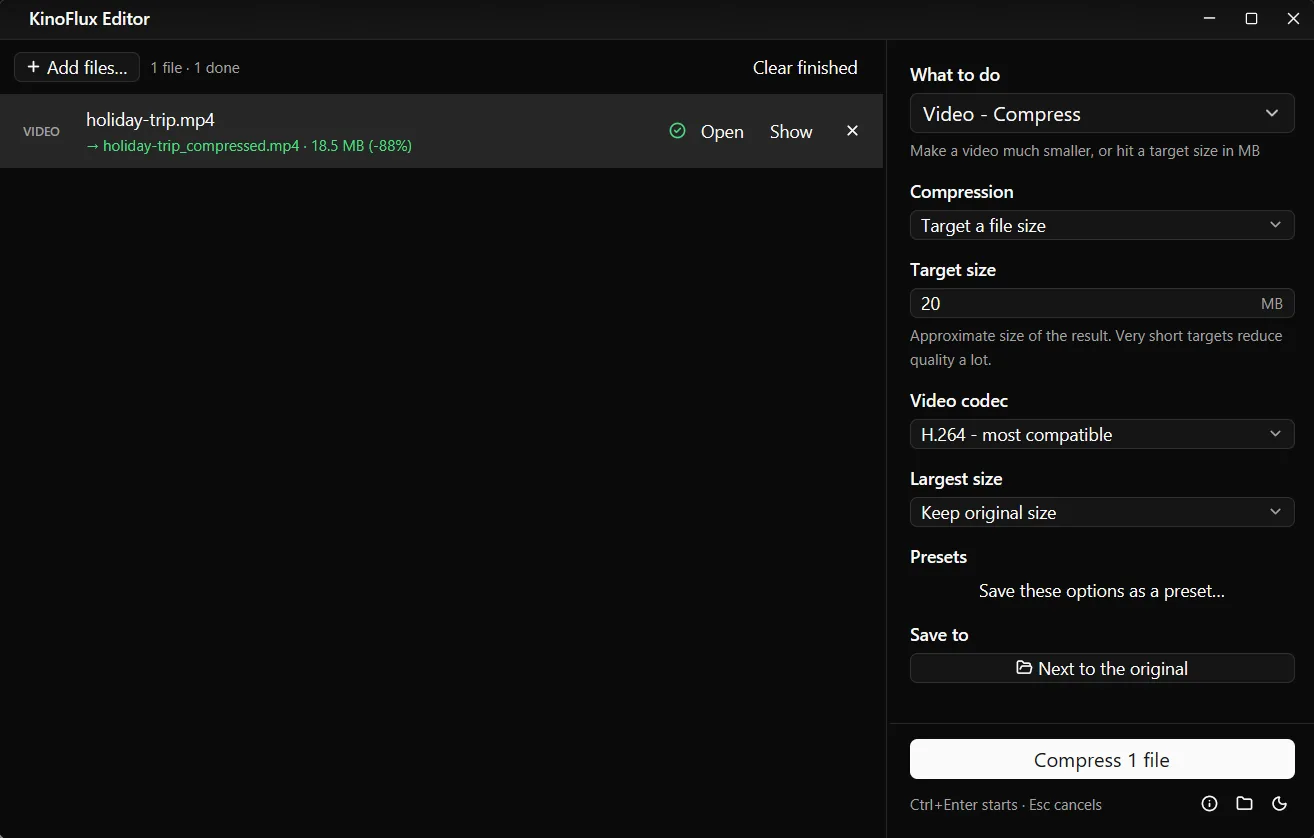
The finished file is holiday-trip_compressed.mp4, written next to the original. KinoFlux shows it as 18.5 MB, which is 88% smaller than the source (19,374,499 bytes). The duration stayed at 90 seconds. So a 20 MB target gave a file a little under 20 MB. That is the useful direction, because a result slightly under the limit still fits. I only ran this one clip, so I cannot say how far off the result can be for other material. Check the size after the run if the limit is strict.
The original is untouched. If you run the same job again, the new file gets " (2)" in its name instead of replacing the first.
The fixed levels, for comparison#
The same tool also has three fixed levels: Light, Medium and Strong. On the same clip, Medium produced a 64.7 MB file (67,844,859 bytes), 57% smaller than the source.
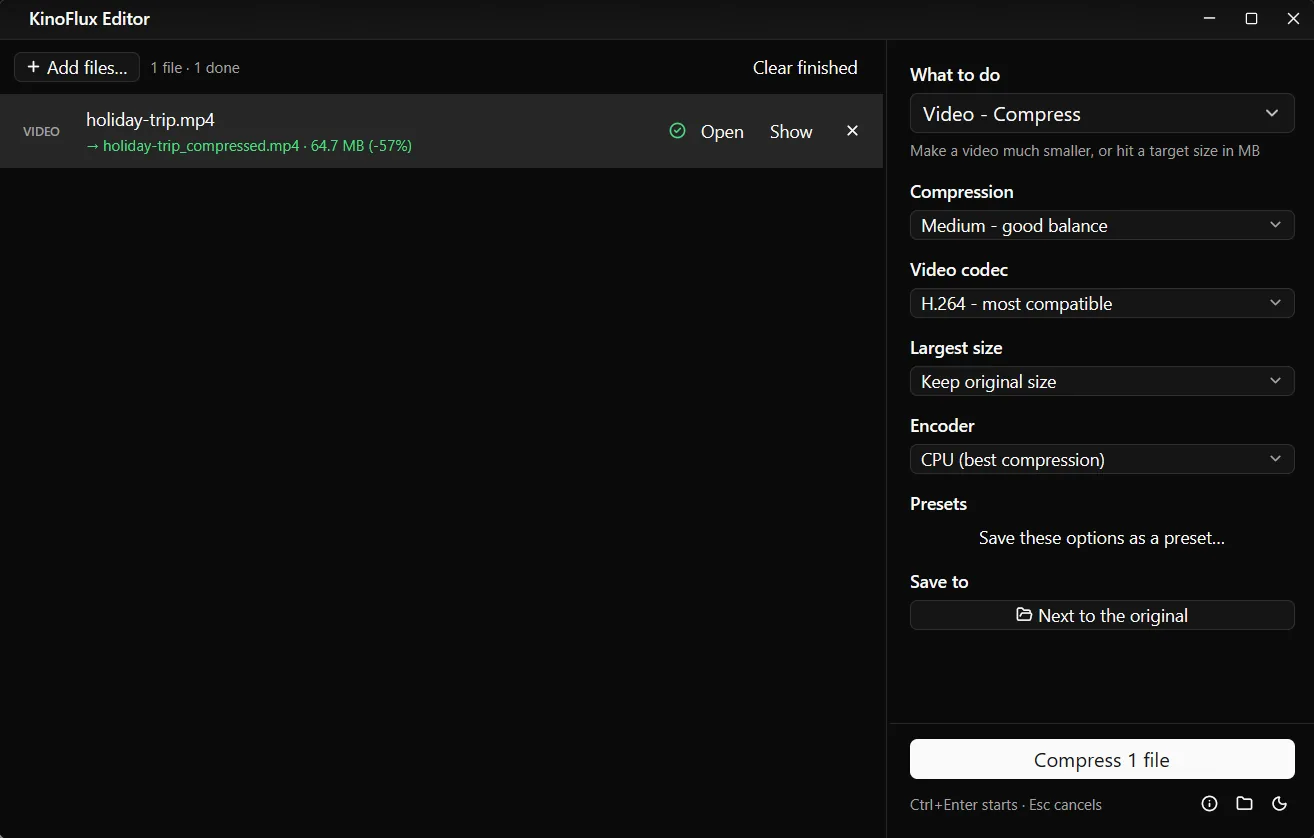
Use a fixed level when you want a smaller file and do not care about the exact size. Use a target when there is a number you have to stay under.
Settings that matter#
- Video codec. H.264 plays almost everywhere. H.265 is offered too and generally gives a smaller file at the same quality, but some older players and web tools cannot open it.
- Largest size. If the source is 4K or 1080p, setting 1080p, 720p or 480p lowers the resolution. At small targets this leaves more bitrate for each pixel than keeping the full resolution would.
- Never bigger. Compress caps the video bitrate at 85% of the source's bitrate, so a file that is already heavily compressed does not grow. The project notes say this rule was added after a 4K screen recording grew with Medium during testing.
- Encoder. The tool reference lists a CPU or GPU encoder choice. It did not show up on my test PC, so I used the default.
I did not run a side-by-side visual quality comparison for this post, so I make no claim about how the 18.5 MB file looks next to the original. Watch the result before you send it.
If the result is too big or too soft#
- Too big: lower the target by a few MB and run again, or choose a smaller Largest size.
- Too soft: raise the target, or trim the video first with the trim tool so the same bytes cover fewer seconds.
- Sound only: the audio extraction tool gives a file a small fraction of the size.
You can save a favorite combination, such as "Email 25 MB", as a preset. The shortcuts and presets post shows how.
The video never leaves your computer: FFmpeg runs locally and KinoFlux Editor has no network code. Download links are on the product page, and the release notes are on the v0.1.2 release page.
- compress video
- target file size
- h264
- windows