
KinoFlux Editor shortcuts, the action picker, presets and the results list
The keyboard shortcuts of KinoFlux Editor 0.1.2, how Ctrl+K finds a tool, how to save and reuse option presets, what the file list does while jobs run, and how to start it from the command line.
Nitiksh3 min readKinoFlux Editor
On this page
KinoFlux Editor is built so that you can run a whole job without the mouse. Once you know ten keys, adding files, switching tools and starting a batch take a few seconds. This post lists the shortcuts of version 0.1.2, then covers the action picker, presets, the results list and the command line.
The shortcuts#
On macOS, read Cmd wherever the table says Ctrl.
| Keys | What it does |
|---|---|
| Ctrl+O | Add files |
| Ctrl+Shift+O | Add a folder |
| Ctrl+K | Open the action picker |
| Ctrl+Enter | Start the job (it cancels while one is running) |
| Esc | Close the picker, or cancel running jobs |
| F1 | About, help and the legal pages |
| Ctrl+A | Select all files in the list |
| Arrow keys, click, Ctrl+click, Shift+click | Select files |
| Delete | Remove the selected rows |
| Alt+Up, Alt+Down | Move the selected row (this sets the order for joins and merges) |
| Tab, Shift+Tab | Move between controls |
Dragging a row to a new place does the same as Alt+Up and Alt+Down. Delete only removes rows from the list. It never deletes a file from your disk.
On a Mac, Cmd+Q quits, Cmd+H hides the app, Cmd+W closes the window and Cmd+M minimizes it.
The action picker#
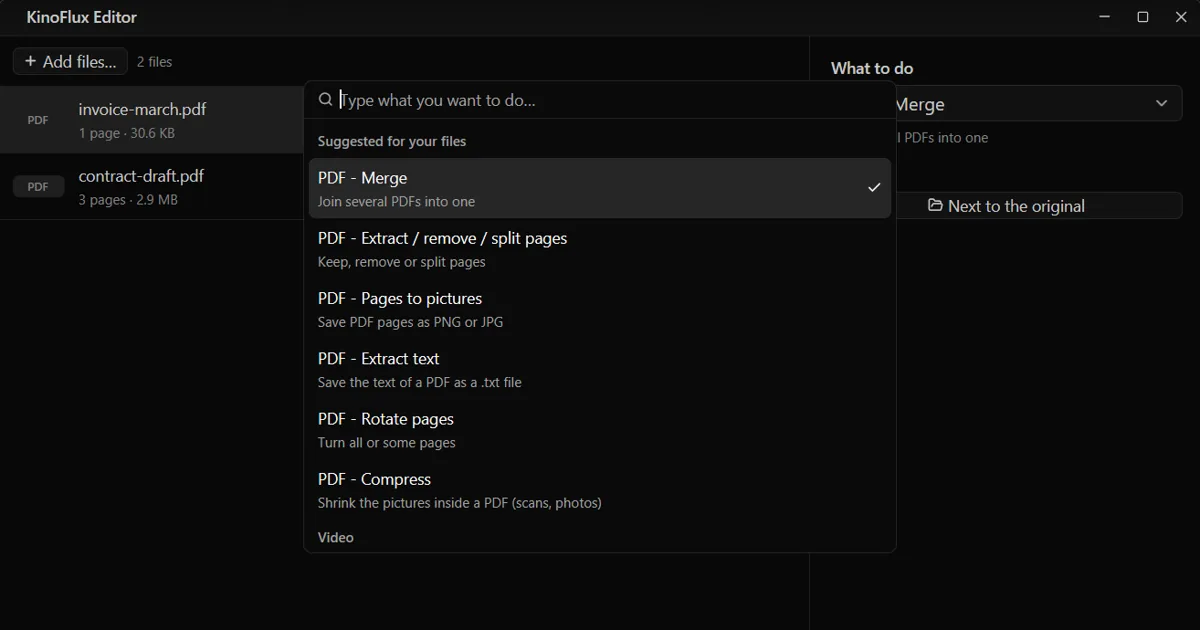
Ctrl+K opens a searchable list of every tool. When files are loaded, the tools that fit their types are listed first, under "Suggested for your files".
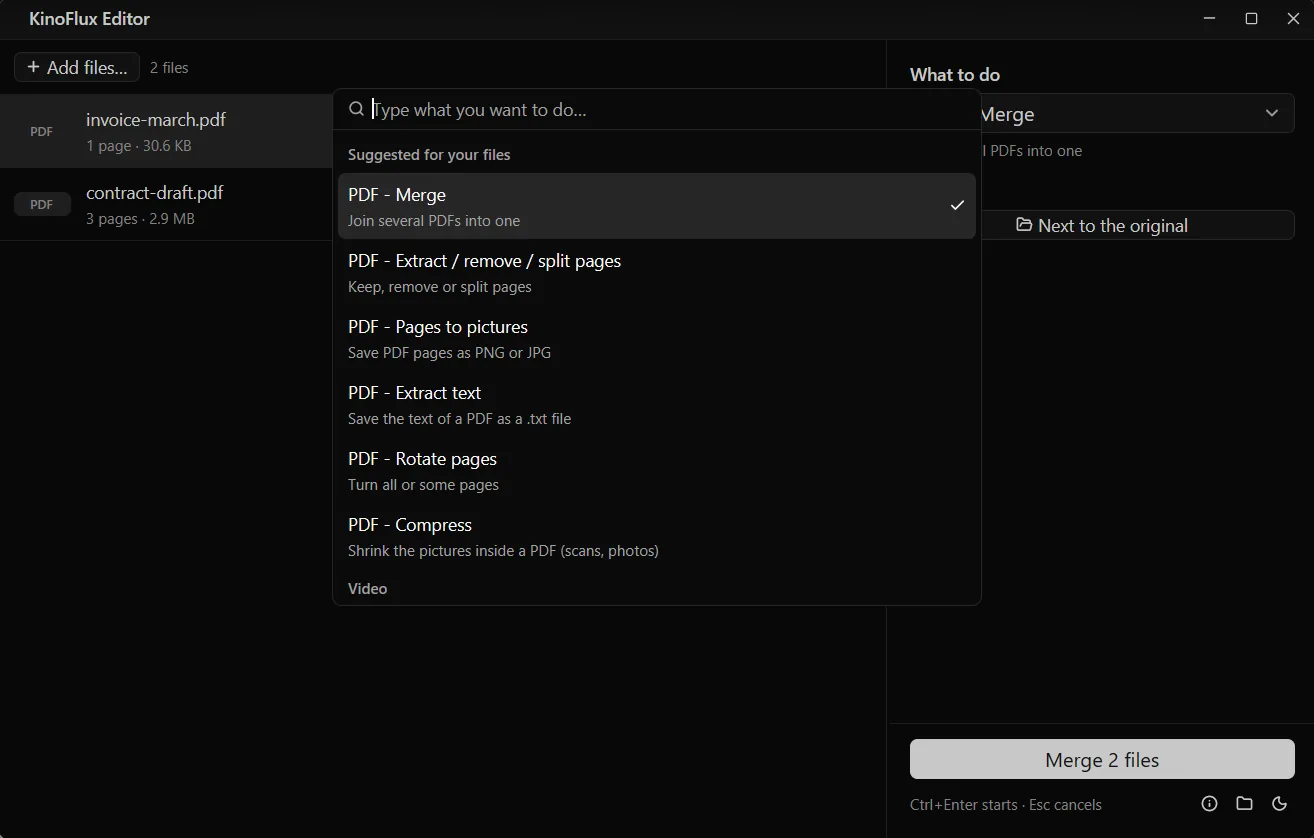
The picker is not only for tools. It also offers a few app actions: add files, clear finished, and change the theme. The moon or sun button at the bottom right cycles the theme through system, light and dark. The default, system, follows your operating system.
Presets#
If you run the same settings again and again, save them. Every tool panel has a Presets line with a link, "Save these options as a preset...". Click it, type a name such as "Small for email", and save. The preset then shows up as a chip in the same place. Click the chip to fill in the saved options, and click the small x on it to delete it.
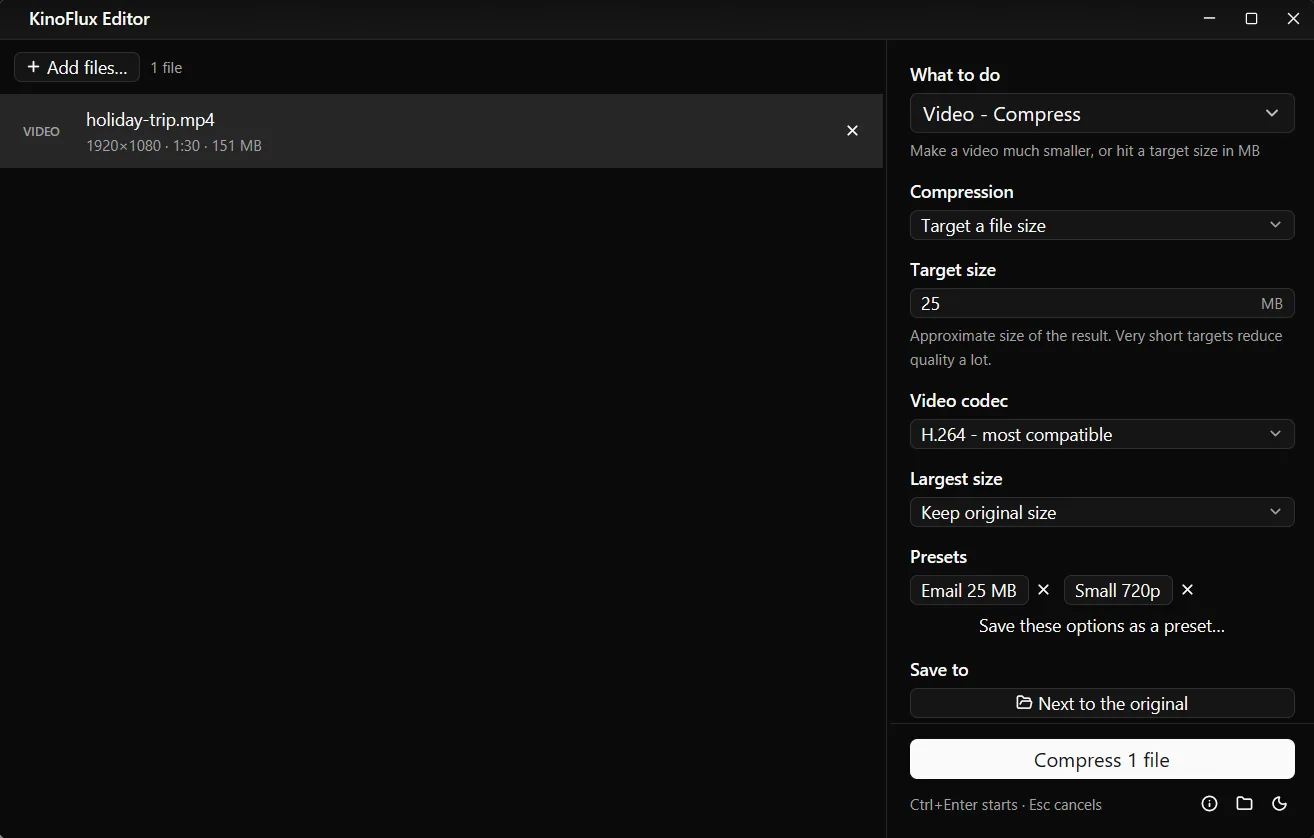
Presets belong to a tool, so "Email 25 MB" appears for Video - Compress and not for the image tools. They are stored in your settings file, which you can read: it holds option values only, never passwords or file paths. The target size post uses the same options as the first preset in the screenshot.
The app also remembers the last values you used in each tool, so most panels already hold your previous choices when you come back.
The file list and what runs together#
The list on the left is the queue. You can add more files before or after you start. Each row shows its own progress, a cancel button and, when it finishes, the output name and size. "Clear finished" removes the done rows.
Jobs run in parallel within limits: video two at a time, audio three, images four and PDFs three. Documents run one at a time because LibreOffice needs its own settings folder for each run. Join and merge tools use the list order, which is what Alt+Up and Alt+Down are for.
Results history#
The Results button (the folder icon at the bottom right) shows recent finished jobs: the tool, the file, how long ago, the size and the output name, each with Open and Show links. The list holds the last 200 jobs and has a Clear list command.
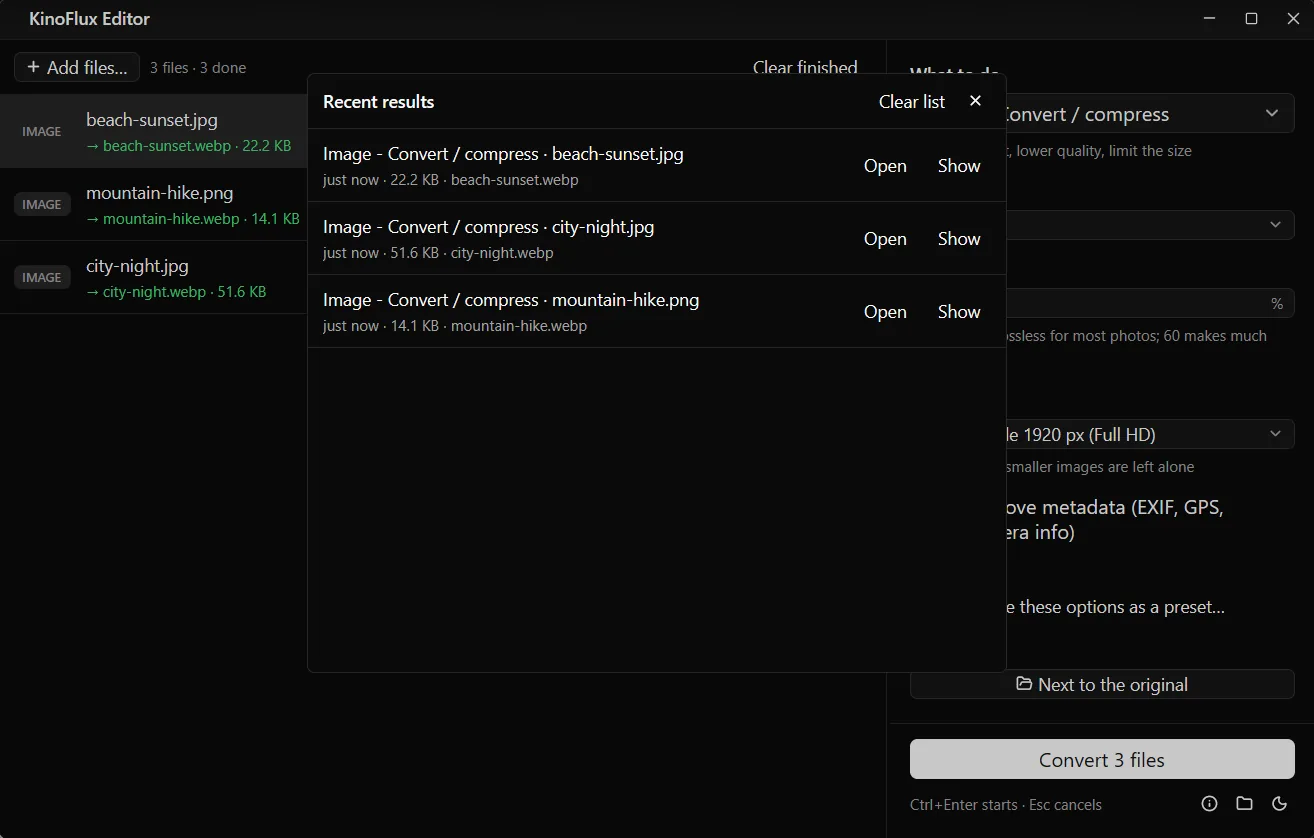
The list is stored on your computer only. The privacy post describes where.
Layout tips#
Drag the thin splitter between the list and the panel to change the width of the panel. Double-click it to reset. In a narrow window the two parts stack on top of each other.
Command line#
You can start the program with files, a tool, or both:
kinoflux-editor --tool pdf-merge --start a.pdf b.pdf--tool <slug>picks a tool. The slugs are listed in the tool reference, for examplevideo-compress,video-trim,image-convertandpdf-pages.--startbegins the job right away.--new-instanceopens a second window. Without it, a second start hands its files to the window that is already open.
The "Open with KinoFlux Editor" entry in the Windows right-click menu starts the program the same way, with the file as an argument. The installer offers it as an optional task, and it is off by default.
New here? The introduction shows the whole tool set. Get the app from the product page or the v0.1.2 release page.
- keyboard shortcuts
- presets
- command line
- productivity