
Extract the audio from a video as MP3, FLAC or another format
Pull the soundtrack out of a video file with KinoFlux Editor 0.1.2. The formats on offer, what the bitrate setting does, and real file sizes from a 90 second clip.
Nitiksh2 min readKinoFlux Editor
On this page
You have a recorded lecture, a concert clip or a screen recording, and you only want the sound. KinoFlux Editor 0.1.2 has a Video - Extract audio tool for this. It reads the video, takes the audio track and saves it in the format you pick. This post covers the steps, the formats, and what the files cost in size.
Steps#
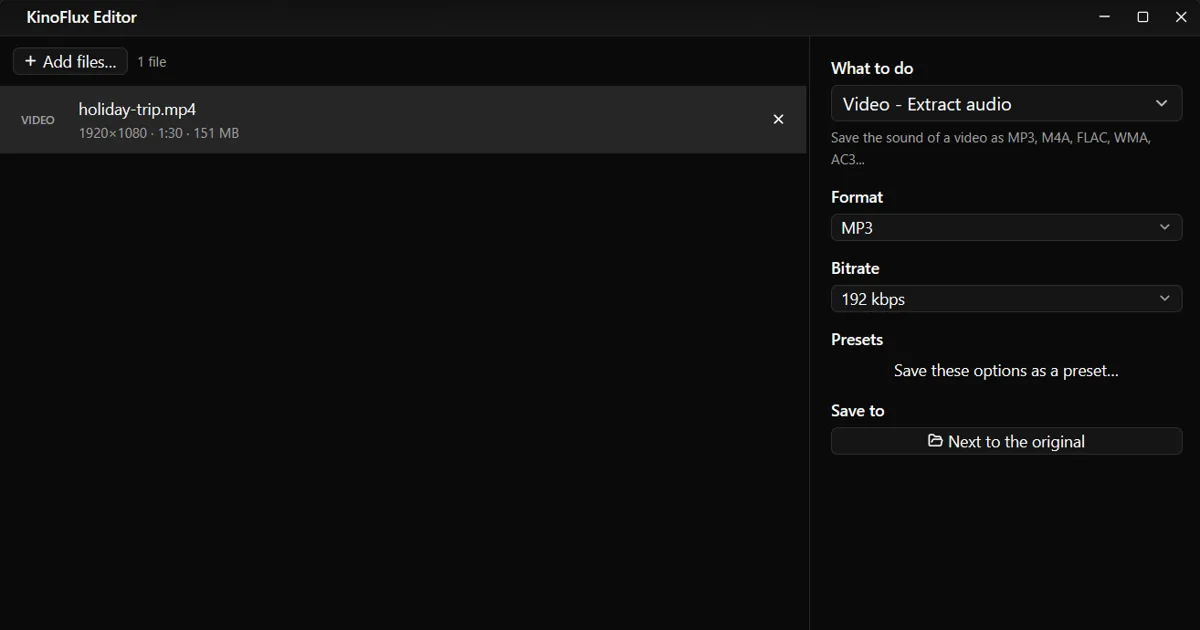
- Drop one or more videos on the window. Many files in one go are fine.
- Press Ctrl+K and choose Video - Extract audio.
- Pick a Format and, for lossy formats, a Bitrate.
- Press Ctrl+Enter.
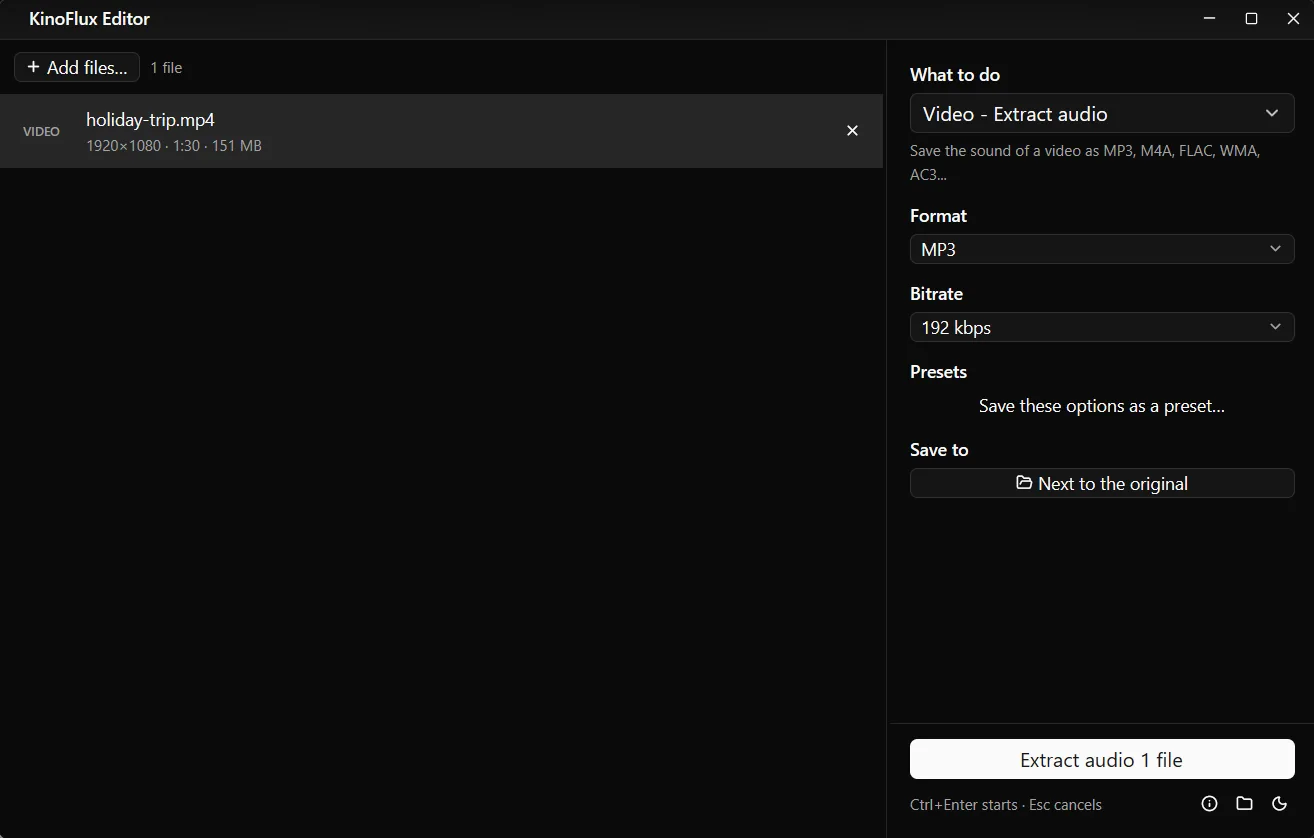
The tool accepts mp4, m4v, mov, mkv, webm, avi, wmv, flv, mpg, mpeg, 3gp, ts, m2ts and ogv files.
Formats#
The Format list has twelve choices:
| Format | Notes |
|---|---|
| MP3 | The default. Plays everywhere. |
| M4A (AAC) | AAC audio in an .m4a file, common on Apple devices. |
| Opus, OGG Vorbis | Open formats, good at low bitrates. |
| FLAC | Lossless. Larger files, nothing thrown away. |
| WAV, AIFF | Uncompressed. Very large. |
| AAC, WMA, AC3, MP2 | For players or tools that need those. |
| M4R | The iPhone ringtone format. |
For everyday listening MP3 or M4A is enough. Choose FLAC if you plan to edit the sound later or archive it. Choose WAV or AIFF only if another program asks for it.
Bitrate#
For the lossy formats, Bitrate offers 128, 192, 256 and 320 kbps. The default is 192. A higher number keeps more detail and makes a bigger file. The bitrate does not apply to lossless and uncompressed formats such as FLAC and WAV.
The file size is easy to predict for lossy formats: bitrate multiplied by duration. At 192 kbps, 90 seconds is about 2.16 million bytes. The real run matched that.
Real results#
The test clip is 1 minute 30 seconds long and is 151 MB as a video.
| Format | Output size | Duration |
|---|---|---|
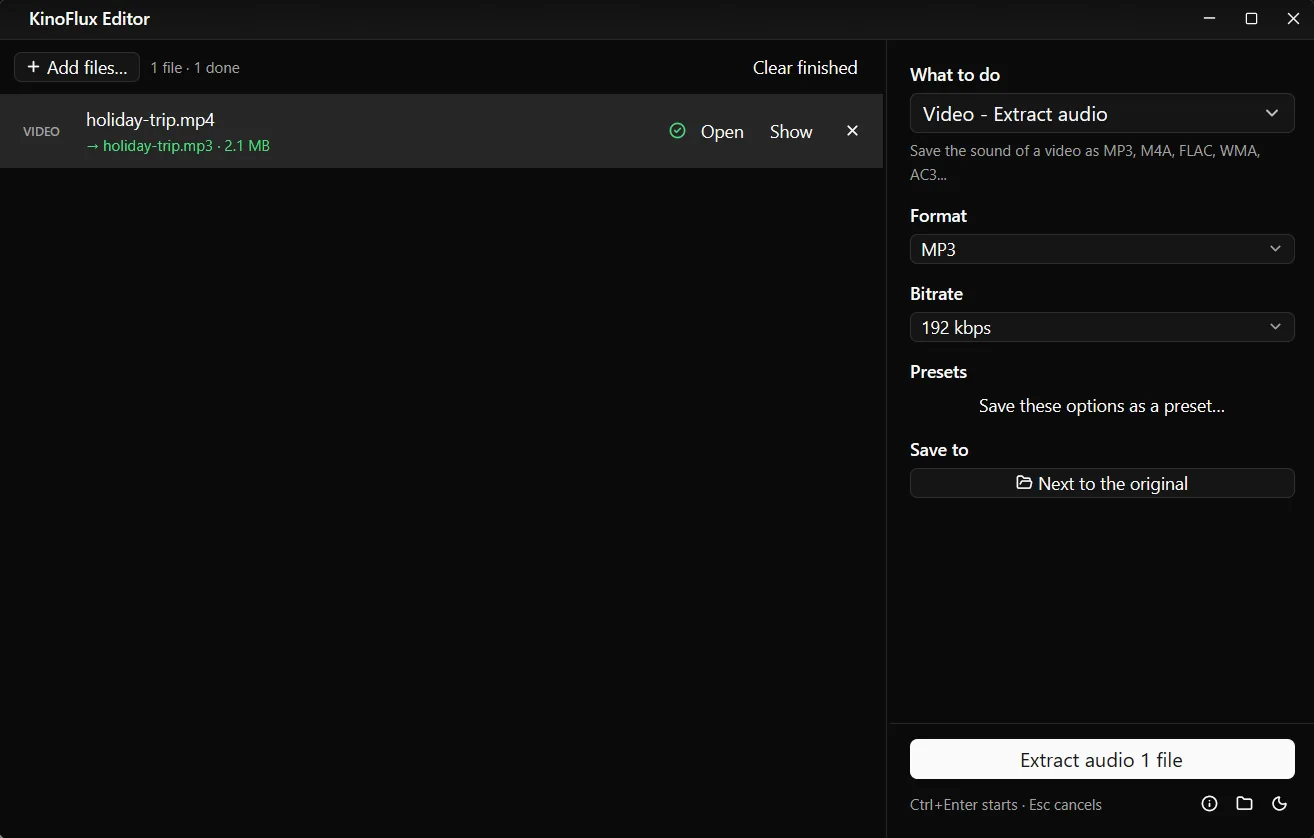
| MP3, 192 kbps | 2.1 MB (2,161,831 bytes) | 90.0 s |
| FLAC | 4.3 MB (4,462,193 bytes) | 90.0 s |
The audio track of my demo clip is synthetic, so the FLAC size is not typical. Real recordings with music or speech usually compress differently. What the numbers do show is the ratio between the settings: FLAC cost about twice what MP3 at 192 kbps did for the same clip, and both are a small fraction of the video.
The output is named after the video with the new extension, holiday-trip.mp3, and is written next to it. The video itself is not changed.
Tips#
- Only part of the sound. Trim the video first with the trim tool, then extract. Or extract first and use Audio - Trim on the result.
- Several videos. Add them all. Video jobs run two at a time, and each row shows its own progress.
- A different format later. Audio - Convert changes an existing sound file from one format to another, so you do not have to extract again.
- Presets. If you always want M4A at 256 kbps, save those options as a preset. The shortcuts post shows how.
Extraction runs locally with FFmpeg 8.0, which ships inside the app. Nothing is uploaded. Get the app from the product page or the v0.1.2 release page. For an overview of the other tools, read the introduction.
- extract audio
- mp3
- flac
- windows