
Save PowerPoint slides as pictures, all at once
You need slides as PNG or JPG for a website, a social post, a chat message or a video. How to save every slide of a PowerPoint, or the pages of a Word or Excel file, as pictures with KinoFlux Editor, without PowerPoint installed.
Nitiksh3 min readKinoFlux Editor
On this page
A finished presentation often needs to live outside PowerPoint: slides as pictures for a blog post, a LinkedIn carousel, a WhatsApp message to people on phones, or a video. PowerPoint can export one slide at a time, or all of them if you have it installed. On a computer without Office you are stuck.
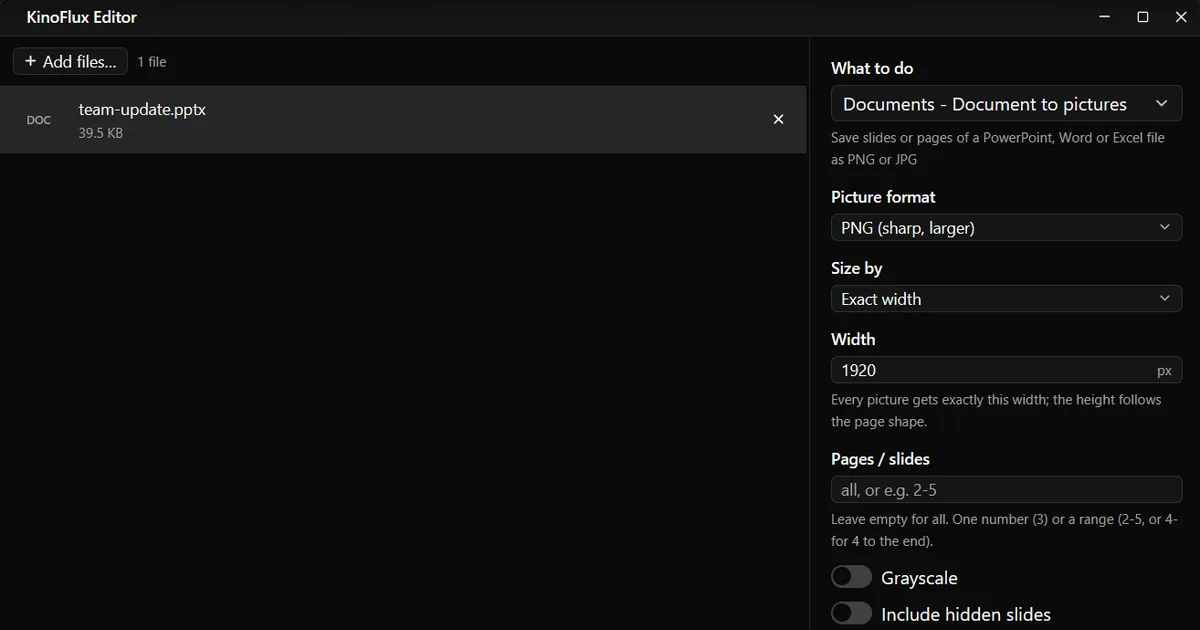
Documents - Document to pictures in KinoFlux Editor saves every slide of a presentation, or every page of a Word or Excel file, as PNG or JPG in one go.
How to save slides as pictures#
- Add the presentation. Drag the .pptx, .ppt, .pps, .ppsx or .odp file onto the KinoFlux Editor window.
- Pick the tool. Press Ctrl+K (Cmd+K on a Mac), type "pictures" and choose Documents - Document to pictures.
- Choose the format. PNG (sharp, larger) is the default and best for slides with text. JPG (smaller) suits photo slides.
- Choose the size. Exact width of 1920 px is the default.
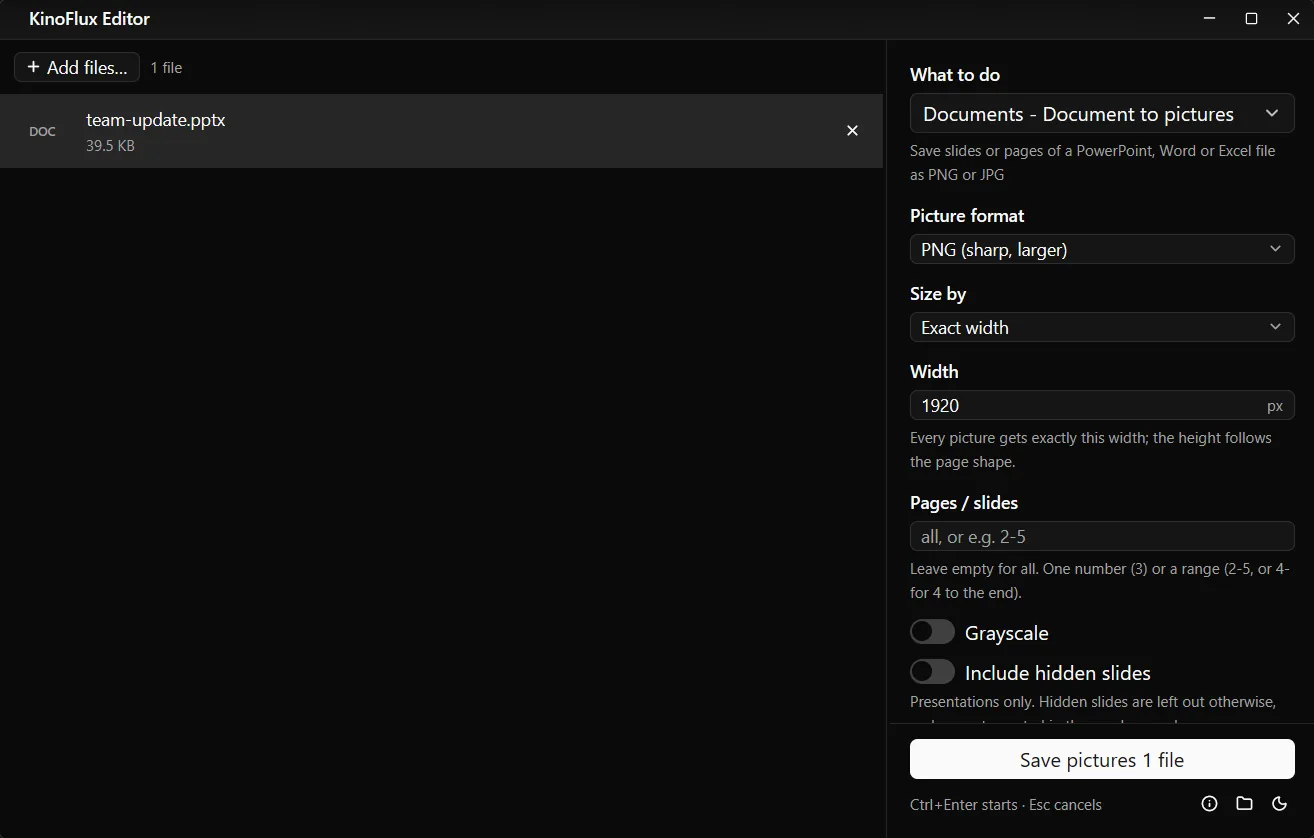
- Start. Press Ctrl+Enter. You get a folder
name_slideswithslide-01.png,slide-02.pngand so on.
Result#
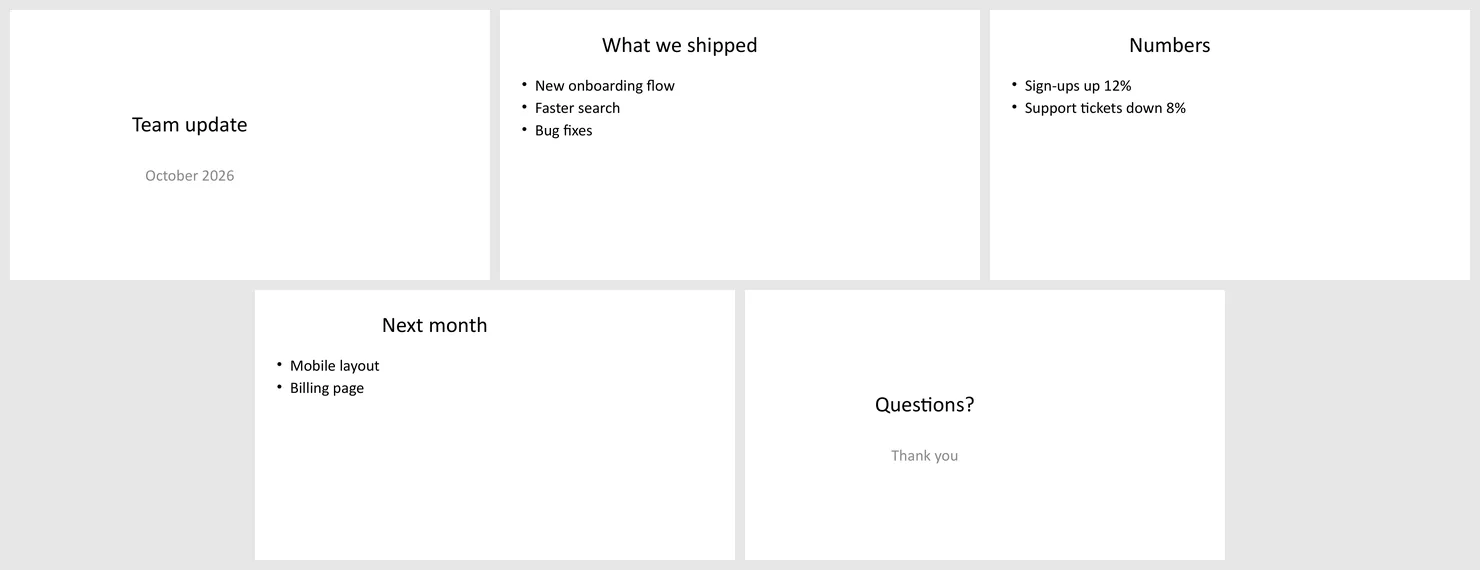
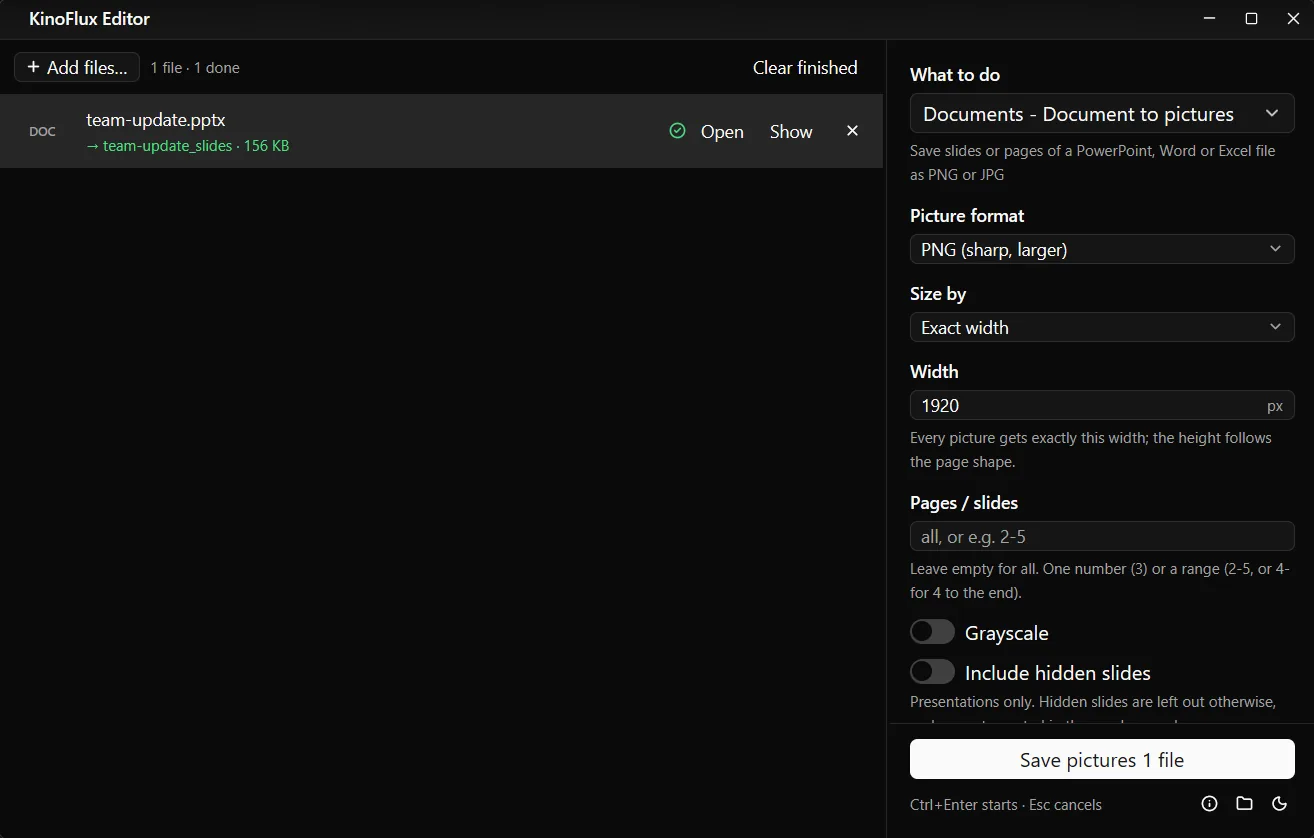
The demo presentation made for these guides has five slides. The tool saved them as team-update_slides/slide-01.png to slide-05.png, each 1920 x 1081 pixels, 23 to 43 KB, 156 KB in total.
Word and Excel pages too#
The same tool takes Word (doc, docx, odt, rtf, txt), Excel (xls, xlsx, ods, csv) and other documents. Pages are then named page-01, page-02 and so on. Useful for a preview picture of a document, or to send a page to someone who cannot open the file.
Options#
| Option | Choices | Default |
|---|---|---|
| Picture format | PNG (sharp, larger), JPG (smaller) | PNG |
| JPG quality (JPG) | 50 to 100 | 90 |
| Size by | Exact width, Resolution | Exact width |
| Width | 100 to 10000 px | 1920 |
| Resolution | 30 to 1200 dpi | 150 |
| Pages / slides | empty for all, one number, or a range like 2-5 or 4- | all |
| Grayscale | on or off | off |
| Include hidden slides | on or off | off |
| Also save the speaker-notes pages | on or off; saved as notes-01, notes-02 ... | off |
| File names | Automatic (slide-01 for presentations, page-01 otherwise), slide-01 ..., page-01 ... | Automatic |
Limits#
- Still pictures only. Animations, transitions and videos inside slides are not exported. Each slide shows its final state.
- Fonts are replaced when they are not installed on your computer. Install the font, or check the pictures before you publish them.
- One range per run. For slides 1 and 7 only, run it twice.
- One file at a time. Several presentations are done one after the other.
Related guides#
- The same from a PDF: convert PDF pages to JPG.
- The whole presentation as one file: convert PowerPoint and Word to PDF.
- An old .ppt that needs updating: update old Office files.
- Pictures for Instagram from the slides: resize images to an exact size.
All tools are on the KinoFlux Editor page.
Frequently asked questions
Do I need PowerPoint installed?
No. KinoFlux Editor uses the LibreOffice copy it brings along, on Windows and on Mac.
What width should I use?
1920 px (the default) is Full HD and right for videos, websites and sharing. 1280 px is enough for chat apps. For printing, switch Size by to Resolution and use 300 dpi.
Can I save only some slides?
Yes. Type a slide number or a range in Pages / slides, for example 3 or 2-5, or 4- for slide 4 to the end. The pictures keep their place numbers, so 4-6 gives slide-04 to slide-06.
Are hidden slides included?
Not by default. Switch on Include hidden slides to get them too.
Will my slides look exactly like in PowerPoint?
Usually very close. LibreOffice draws the slides, so fonts that are not on your computer are replaced and some animations or special effects are shown as their final state.
- powerpoint
- slides to images
- ppt to jpg
- documents