
Convert Word, Excel and PowerPoint files to PDF without Office
How the Documents tools in KinoFlux Editor 0.1.2 work. Windows includes LibreOffice, macOS needs it installed. Steps, supported file types, what to expect from the layout, and the PDF-to-Office direction.
Nitiksh3 min readKinoFlux Editor
On this page
Converting a Word file to PDF is something you do often, usually right before sending it. If you do not have Microsoft Office on the machine, or you do not want to upload a contract to a website, you need a converter that runs locally. KinoFlux Editor 0.1.2 has 13 tools in its Documents area. They are driven by LibreOffice, which does the actual conversion in the background.
Where LibreOffice comes from#
- Windows. The installer includes a portable copy of LibreOffice 26.2.1.2 (the project notes put its size at about 890 MB). There is nothing to install separately. That is a large part of why the Windows installer is 262 MB to download and about 1.1 GB on disk.
- macOS. LibreOffice is not bundled. You install it yourself, about 800 MB, into
/Applications(or~/Applications), from the LibreOffice website or withbrew install --cask libreoffice. If it is missing, the Documents tools show a banner that says so. Everything else in the app works without it.
KinoFlux starts LibreOffice without its window, with a private settings folder of its own, so your normal LibreOffice settings are not touched. The privacy post lists where that folder lives.
Word to PDF, step by step#
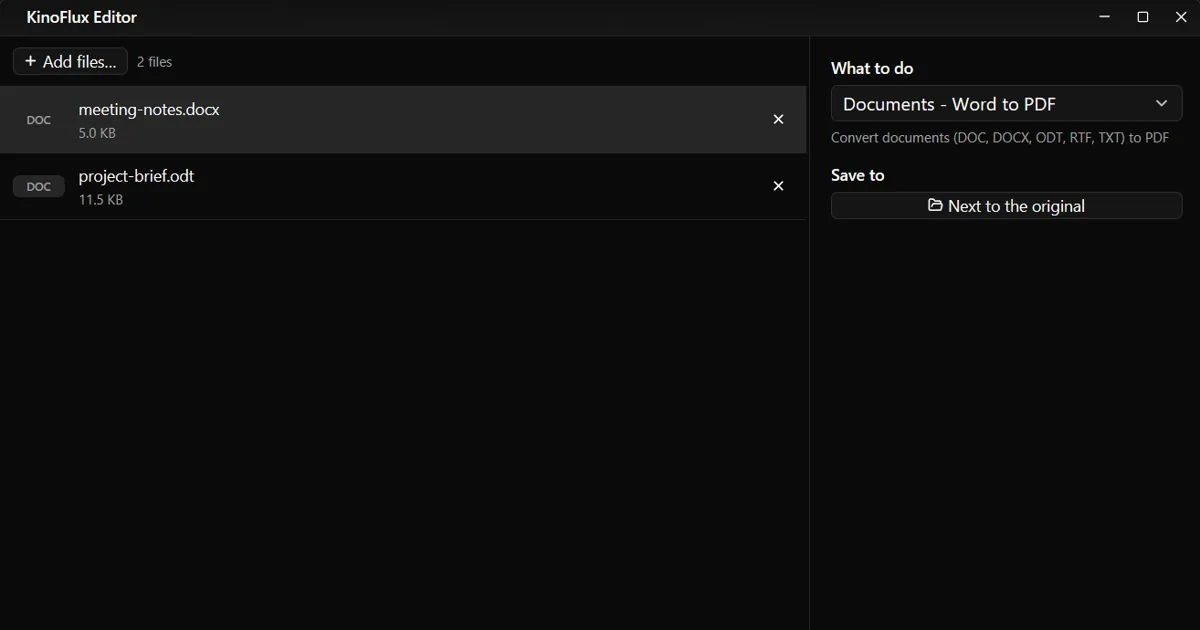
- Drop one or more documents on the window.
- Press Ctrl+K and choose Documents - Word to PDF.
- There are no options. Press Ctrl+Enter.
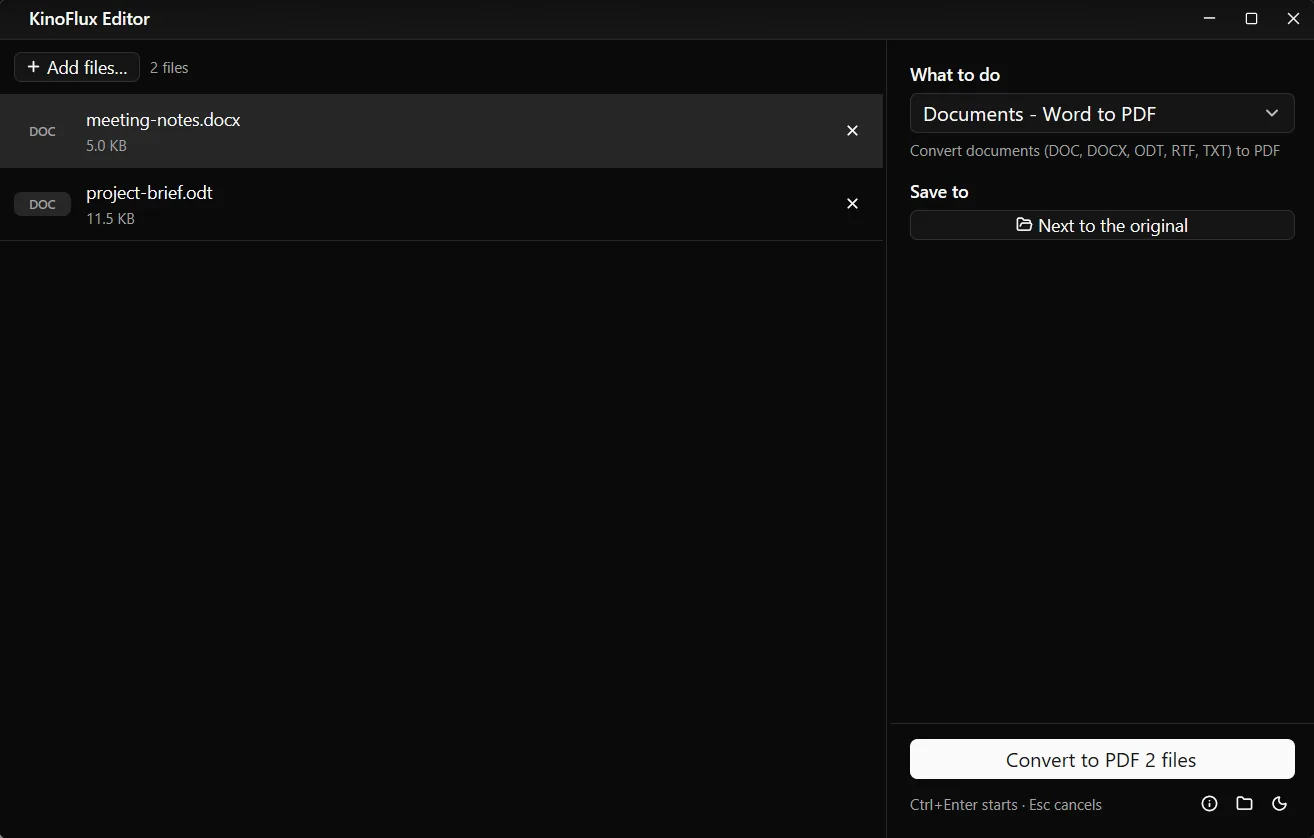
The tool accepts doc, docx, odt, rtf, txt, dot and dotx files. Each document becomes a PDF with the same name next to it.
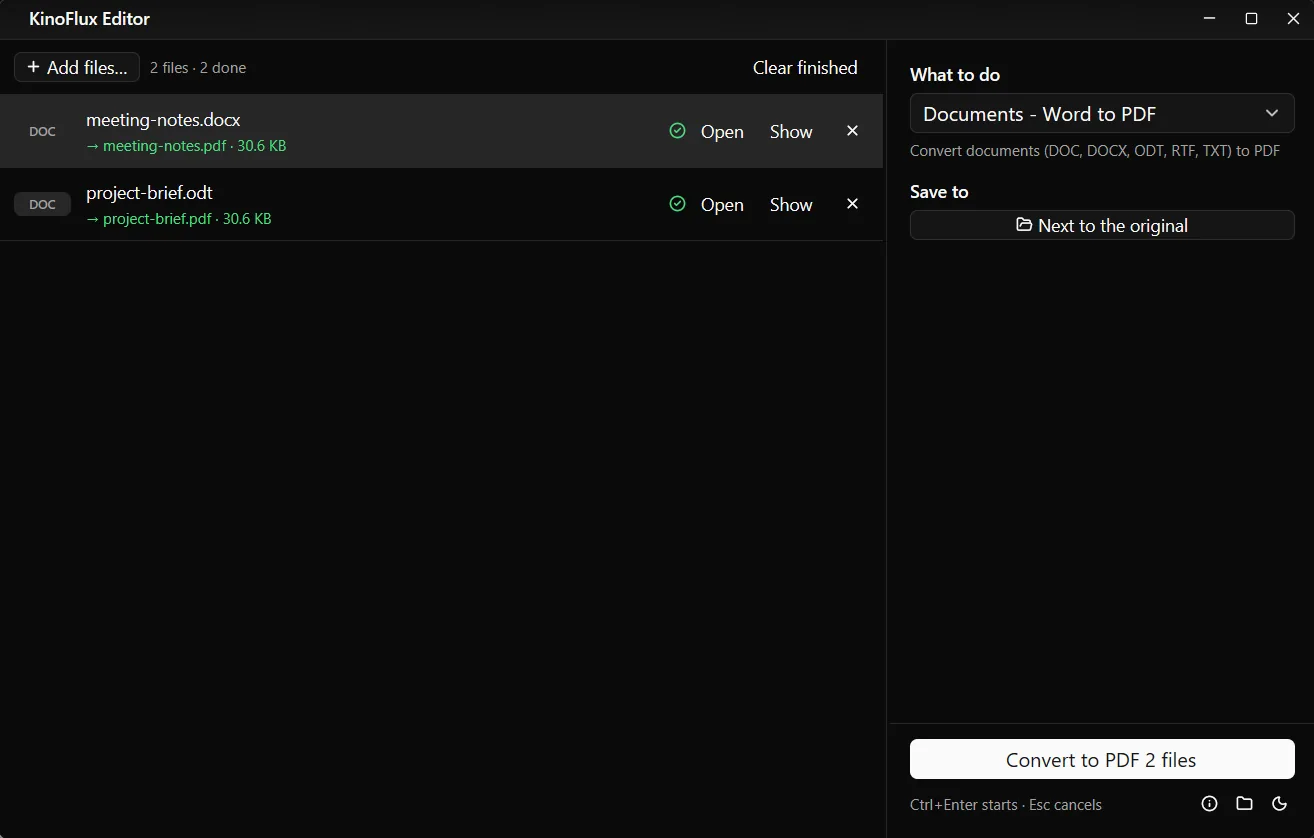
My two test documents are tiny demo files (5.1 KB and 11.7 KB), and each produced a PDF of 30.6 KB. They only show that the route works. They say nothing about how a long, complex document will come out.
One at a time#
LibreOffice jobs run one after another, not in parallel, because each run uses its own settings folder and a lock. Every other area of the app runs several jobs at once. If you add 50 documents, the progress moves steadily rather than fast. It is still a convenient way to leave a batch running.
The other conversions#
The 13 Documents tools cover more than Word:
| Tool | Takes | Makes |
|---|---|---|
| PowerPoint to PDF | ppt, pptx, pps, ppsx, odp | |
| Word to PDF | doc, docx, odt, rtf, txt, dot, dotx | |
| Excel to PDF | xls, xlsx, ods, csv | |
| PDF to Word | .docx | |
| PDF to PowerPoint | .pptx | |
| PDF to Excel | .xlsx | |
| Update old Office files | doc, xls, ppt and similar | docx, xlsx, pptx |
| Office to OpenDocument and back | Office files, ODF files | ODF, Office files |
| Spreadsheet to CSV, CSV to spreadsheet | sheets, CSV | CSV, sheets |
| Document to HTML, HTML to document | documents, HTML | HTML, documents |
What to expect from the output#
Because LibreOffice does the layout, a document made in Microsoft Word is rendered by LibreOffice's engine, not Word's. Plain letters, notes and reports are the safest case. Fonts that are not installed on the computer get replaced, and complex layouts with unusual spacing or exotic features can shift. Open the PDF and look at it before you send it.
The reverse direction has bigger limits, and the project notes say so directly:
- PDF to Word and PDF to PowerPoint use LibreOffice's drawing import. The result is editable, but the layout is approximate.
- PDF to Excel extracts the text with Poppler, splits columns at gaps of two or more spaces, and builds a spreadsheet from that. A scanned PDF has no text, so the result is empty. There is no OCR.
- Spreadsheet to CSV exports the first sheet only, as UTF-8 with comma separators.
When it does not work#
If LibreOffice is missing on a Mac, you get the banner and nothing runs. For PDF files that are locked, use the PDF tools described in the PDF post.
To install on either system, follow the install guide. The app is on the product page and the v0.1.2 release page.
- word to pdf
- libreoffice
- documents
- windows
- macos