
Merge, split and compress PDFs offline with KinoFlux Editor
How the PDF tools in KinoFlux Editor 0.1.2 work, from joining files to splitting by page to shrinking scans, with real results. Including the case where compress changed almost nothing.
Nitiksh4 min readKinoFlux Editor
On this page
PDF chores are the classic reason people end up on an upload site: join two files, take pages 3 to 5 out of a long one, make a scan small enough to send. KinoFlux Editor 0.1.2 has 12 PDF tools that do this on your own computer. This post covers merge, page extraction and splitting, and compress, using three small demo PDFs. It also shows where compress did not help, because that matters as much as where it does.
Merge#
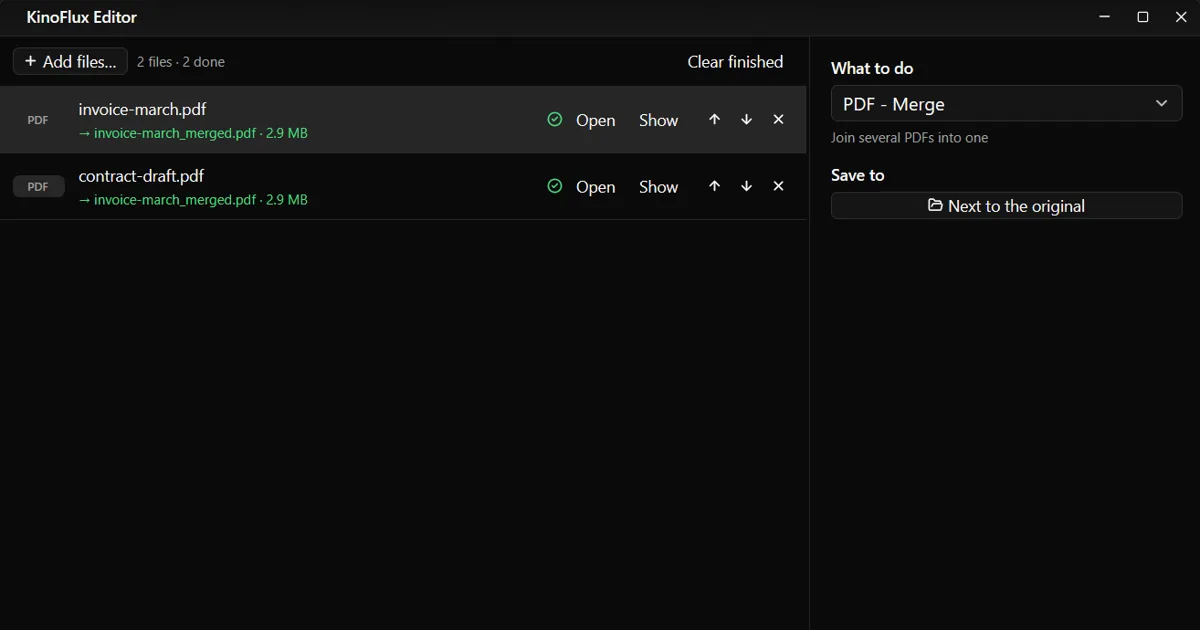
PDF - Merge joins all the PDFs you add into one file. It has no options. The order of the result is the order of the list.
- Drop the PDFs on the window and choose PDF - Merge (Ctrl+K opens the action picker if it is not already selected).
- Put the files in the order you want. Drag a row, or select it and press Alt+Up or Alt+Down.
- Press Ctrl+Enter.
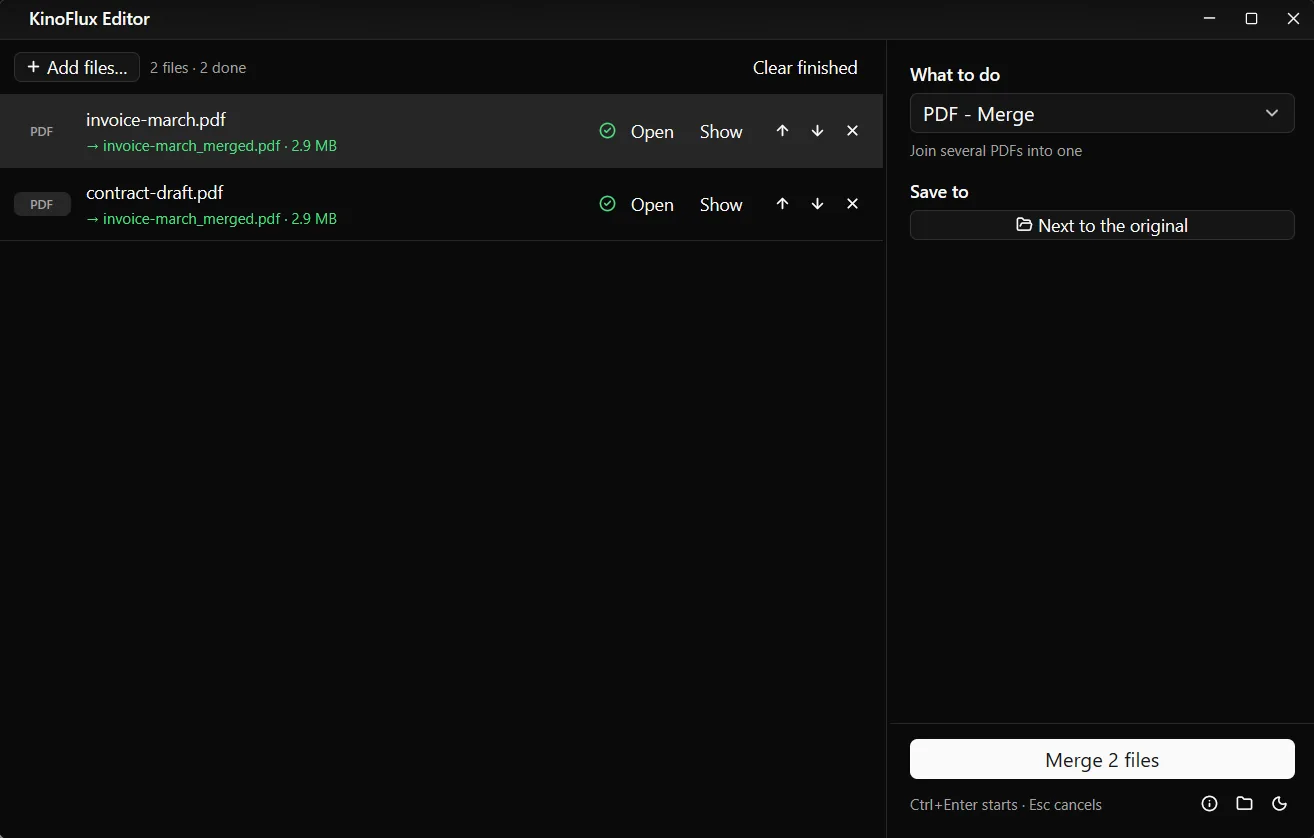
My test merged a 1-page invoice (31,327 bytes) and a 3-page contract (3,041,595 bytes) into invoice-march_merged.pdf of 3,064,770 bytes. The result is named after the first file, and both rows show the same output. If you do not like the order, run it again after reordering. The earlier result is kept, with " (2)" added to the new name.
Pages: keep, remove or split#
PDF - Extract / remove / split pages has four modes:
- Keep only these pages
- Remove these pages
- Split into one file per page
- Split every N pages (default 10, up to 10,000)
For the first two you type a page list. The syntax is plain: 1-3, 5, 8-12 means pages 1 to 3, page 5 and pages 8 to 12. r1 means the last page, and 5-z means page 5 to the end.
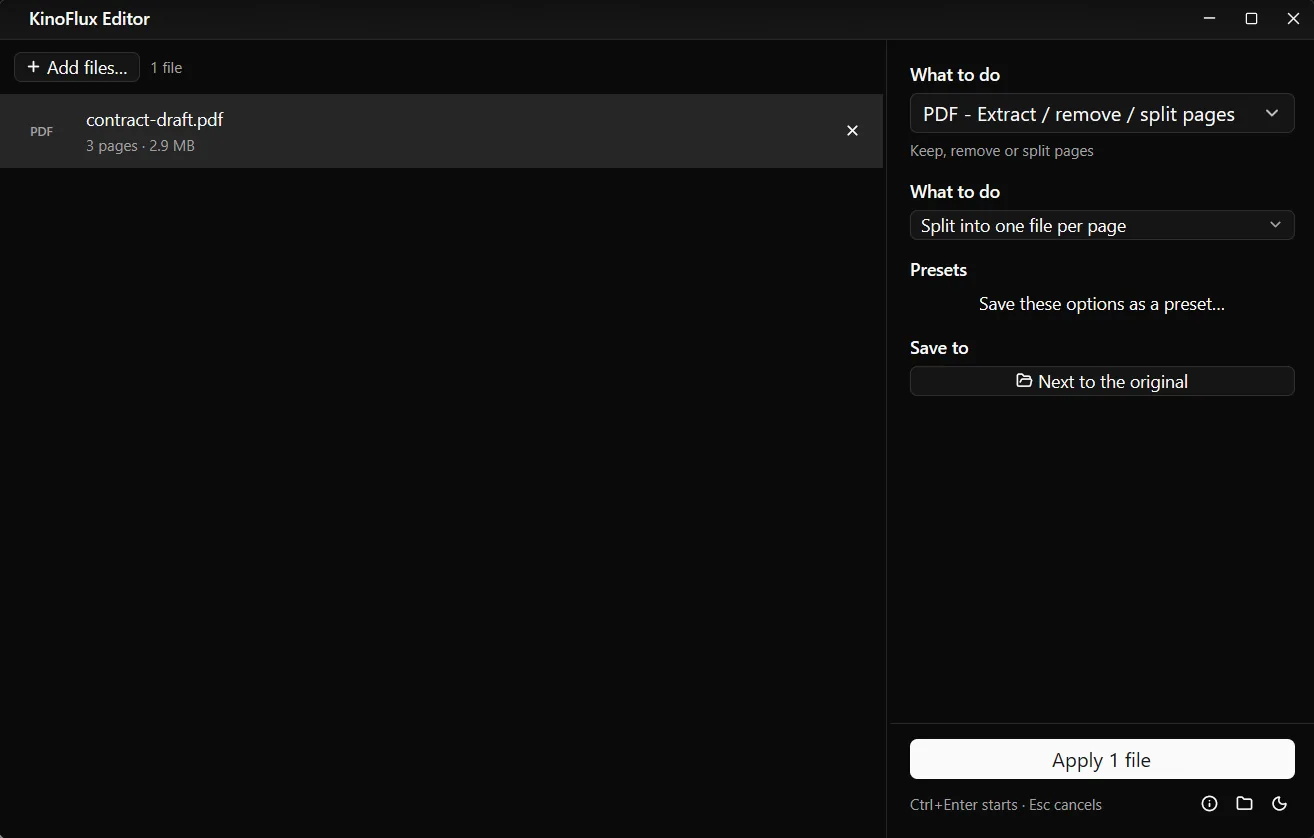
Splitting the 3-page contract in "one file per page" mode wrote a folder named contract-draft_split next to the original. Inside were contract-draft_1.pdf (9,007 bytes), contract-draft_2.pdf and contract-draft_3.pdf (1,515,930 bytes each). The first page is small and the other two are about 1.5 MB each.
For a large file, "Split every N pages" is the quick way to cut a long report into chapters of equal length.
Compress#
PDF - Compress shrinks the pictures inside a PDF. It has three levels: Light (pictures stay sharp), Medium (good for e-mail, the default) and Strong (smallest, pictures get softer).
It is important to know how it works. The compression is done by KinoFlux itself, not by Ghostscript. It opens the PDF, decodes the JPEG pictures inside, and re-encodes them at a lower quality or size. That means:
- A scan or a photo-heavy PDF with JPEG pictures can get much smaller.
- A PDF that is mostly text barely changes, because there is no picture data to shrink.
- A PDF whose pictures are stored another way may not shrink either.
My contract demo showed the last case. Medium produced contract-draft_small.pdf at 3,040,493 bytes against 3,041,595 for the original, and KinoFlux labelled it "same size".
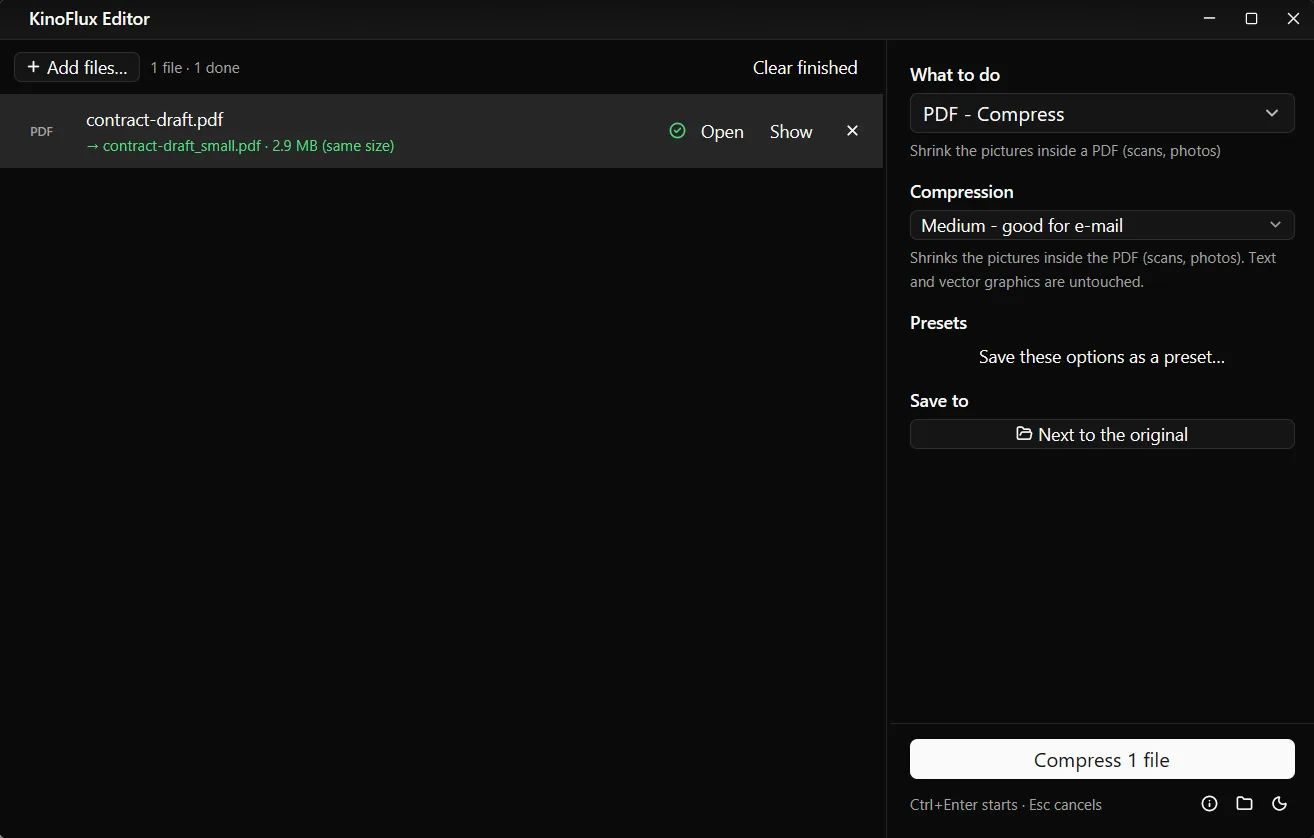
I include this result because it is what happened, and because the app reports it plainly instead of pretending. If compress does not help, try PDF - Optimize (lossless), which is meant to reduce the size without losing quality. I did not run it for this post, so I have no numbers for it.
Other PDF tools worth knowing#
- Pages to pictures saves each page as PNG or JPG.
- Extract text saves the text of a PDF as a .txt file. Scanned PDFs have no text layer, and there is no OCR.
- Rotate pages, Add a text watermark, and Remove document info do what they say.
- Add a password and Remove the password handle protected files. If a PDF is locked, KinoFlux tells you to use "Remove the password" first, rather than failing halfway.
- Pictures to PDF builds one PDF from images. The image post covers preparing the pictures.
One privacy note: when you give a password, it is used for that job only. It is not saved in settings, history or logs. While the job runs, the password is visible on the command line of the qpdf process to other programs running as the same Windows user. That is a limitation of how qpdf takes passwords, and it is worth knowing on a shared machine.
Jobs run in parallel#
PDF jobs run three at a time, so a folder of files moves faster than one at a time. Results are always new files, and the original PDFs stay as they were.
Word and Office files need a different route: see converting Word documents to PDF. The product page has the download, and the v0.1.2 release lists the installers.
- merge pdf
- split pdf
- compress pdf