
Convert MKV, MOV, AVI or WebM to MP4 on your computer
A video will not play on a phone, TV or website because of its file type. Here is how to turn it into an MP4 with KinoFlux Editor, either in seconds without quality loss or with a full re-encode that plays everywhere.
Nitiksh5 min readKinoFlux Editor
On this page
You have a video that will not open on your phone, will not upload to a website, or shows only sound and no picture on the TV. Most of the time the problem is the file type: MKV, MOV, AVI, WebM or WMV instead of MP4. MP4 with H.264 video and AAC sound is the one type that nearly every device and site accepts.
KinoFlux Editor has two tools for this. Both run on your computer, and neither uploads anything.
- Video - Change format swaps the container. With Fast copy it takes seconds and does not touch the picture.
- Video - Convert / compress encodes the video again as H.264 or H.265. It is slower, but the result plays everywhere.
Which tool to pick#
Start with Change format and Fast copy. If the result plays where you need it, you are done, with no quality loss. If it fails, or the result does not play, use Convert / compress.
| You want | Tool | Option |
|---|---|---|
| Same quality, done in seconds | Video - Change format | Method: Fast copy (no quality loss) |
| A file that plays on every device | Video - Convert / compress | Format: MP4, Video codec: H.264 |
| A smaller file at the same time | Video - Convert / compress | Quality: Smaller file, or a lower Size |
| A different output, not MP4 | Either tool | Format: MKV, WebM, MOV, M4V, AVI, FLV, WMV, MPEG or 3GP |
How to convert a video to MP4#
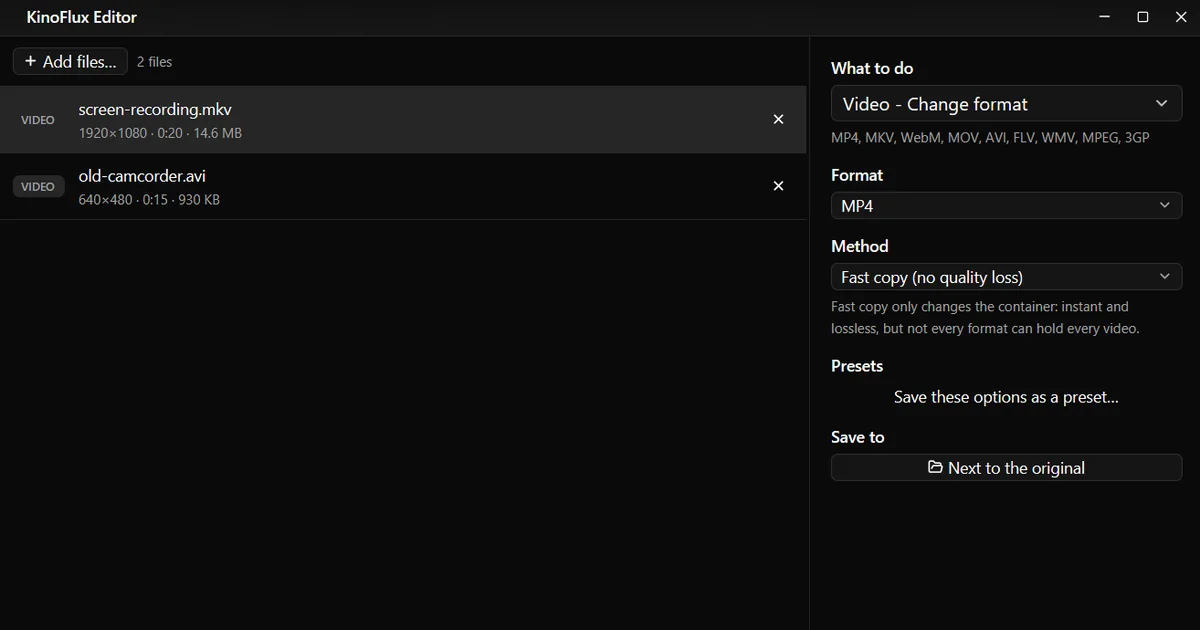
- Add the videos. Drag them onto the KinoFlux Editor window, or click Add files.... You can add many at once.
- Choose the tool. Press Ctrl+K (Cmd+K on a Mac), type "format" and pick Video - Change format.
- Set the options. Choose MP4 under Format and Fast copy (no quality loss) under Method.
- Start. Press Ctrl+Enter or click the button at the bottom. Each result is saved next to its original, for example
screen-recording.mp4. - Check the result. Click Open next to the file. If it does not play, run the same file through Video - Convert / compress with Format MP4 and Video codec H.264.
What happened with two test files#
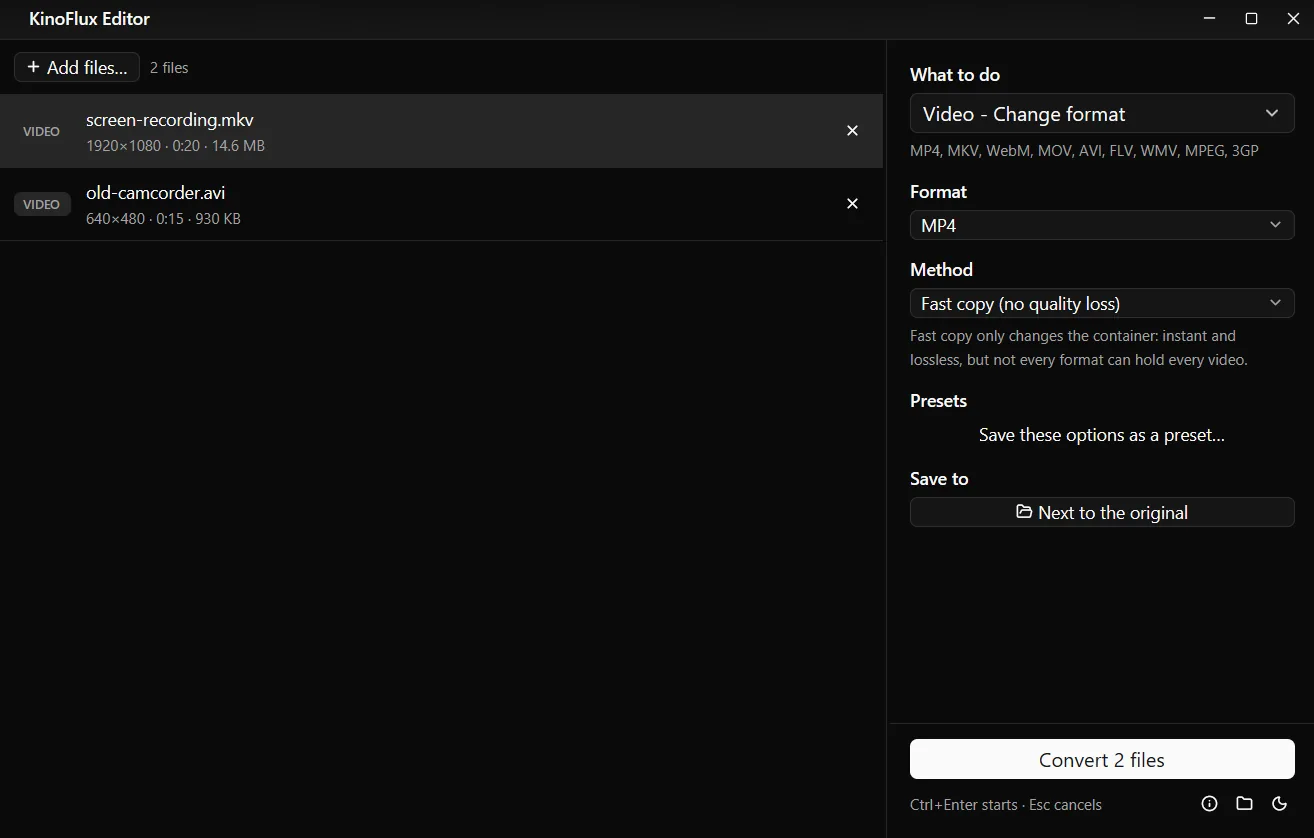
I ran two typical cases with demo clips made for these guides. The MKV is 20 seconds of 1080p H.264 video. The AVI is 15 seconds of 640x480 MPEG-4 Part 2 video with MP3 sound, the mix that many older cameras and phones wrote.
| File | Tool and option | Result |
|---|---|---|
| screen-recording.mkv (14.6 MB) | Change format, Fast copy | screen-recording.mp4, 14.7 MB |
| old-camcorder.avi (930 KB) | Change format, Fast copy | old-camcorder.mp4, 910 KB |
| old-camcorder.avi (930 KB) | Convert / compress, MP4, H.264, Balanced | old-camcorder_converted.mp4, 361 KB |
The MKV was the easy case: its video is already H.264, so the copy is a normal MP4 with the same picture. The AVI copy also finished, but it still holds the old MPEG-4 Part 2 video inside, and some phones and smart TVs refuse that. The re-encoded file is H.264 with AAC sound, the most widely supported pair, and it came out smaller because the old codec is far less efficient.
The options in Convert / compress#
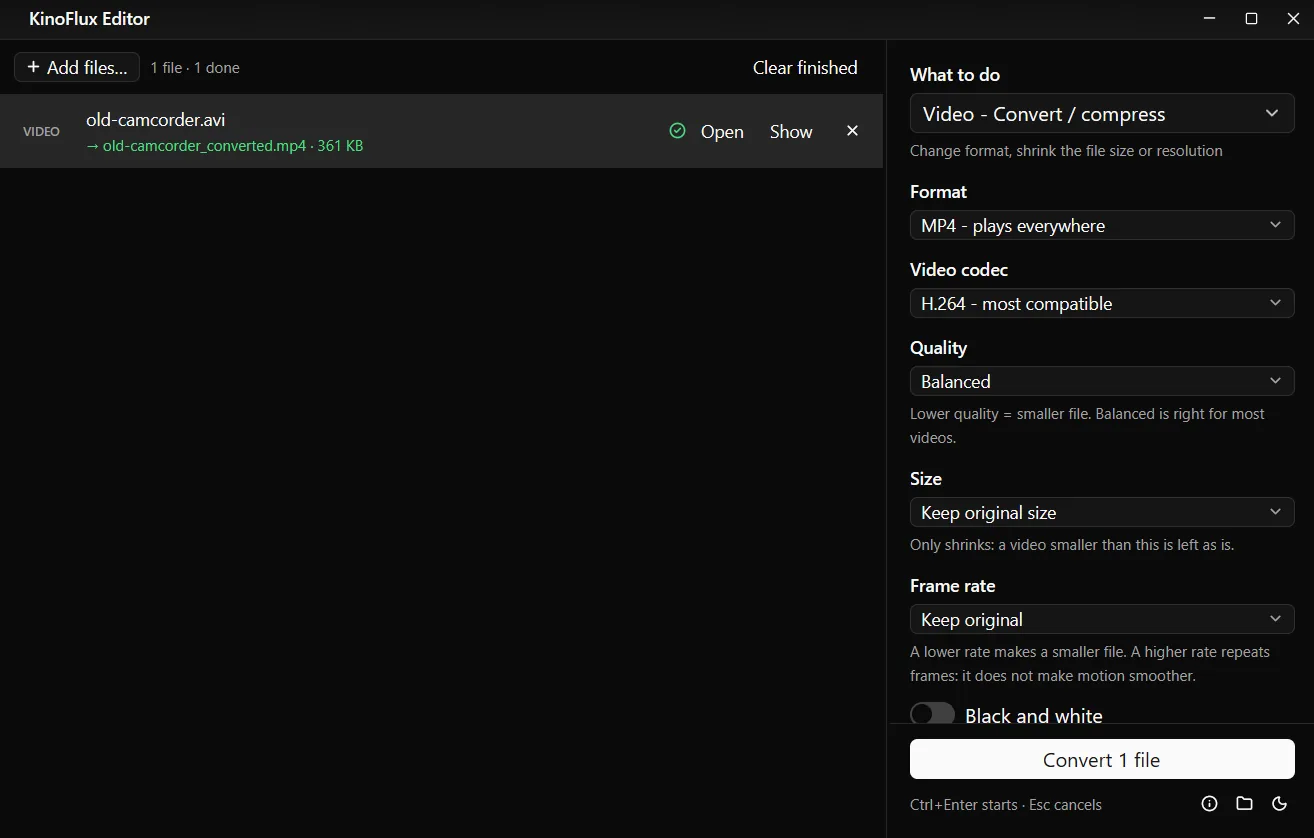
| Option | Choices | Default |
|---|---|---|
| Format | MP4, MKV, WebM (VP9 + Opus), MOV, M4V, AVI, FLV, WMV, MPEG, 3GP | MP4 |
| Video codec (MP4, MKV, MOV, M4V) | H.264 (most compatible) or H.265 / HEVC (smaller files) | H.264 |
| Quality | Smaller file, Balanced, High quality | Balanced |
| Size | Keep original, or 4K, 1440p, 1080p, 720p, 480p, 360p (only shrinks) | Keep original |
| Frame rate | Keep original, or 23.976 to 60 | Keep original |
| Black and white | on or off | off |
| Audio | Keep audio or Remove audio | Keep audio |
| Encoder | CPU (best compression), or GPU (fastest) when your graphics card has a video encoder | CPU |
Two things worth knowing. Size only ever shrinks: a 720p video stays 720p if you pick 1080p. And a higher frame rate does not make motion smoother, it only repeats frames.
Limits#
- Fast copy depends on what is inside. It cannot turn a codec that MP4 does not support into one that it does. If the tool reports an error, re-encode.
- OGV is input only. You can convert from OGV, not to it.
- H.265 plays on fewer devices. It makes smaller files, but older TVs, some browsers and older Windows PCs without the HEVC extension cannot play it. Pick H.264 when in doubt.
- No editing on a timeline. This is a batch converter. To cut a part out first, use Video - Trim.
- Re-encoding takes time. A long 4K video can take a while on the CPU. The GPU encoder is much faster but makes slightly bigger files at the same quality.
Related guides#
- File still too big after converting? See how to make a video file smaller or compress to an exact size in MB.
- Need only the sound? Extract the audio as MP3.
- Several clips that should be one file? Join videos into one.
All 66 tools are listed on the KinoFlux Editor page.
Frequently asked questions
Does converting to MP4 lower the quality?
Not with Change format and Fast copy: the picture and sound are copied as they are, only the container changes. Convert / compress and Re-encode create a new encode, which always loses a little, but at Balanced or High quality you will rarely see it.
Why did Fast copy fail or make a file that does not play?
Fast copy can only move streams that MP4 can hold. Old AVI files often contain MPEG-4 Part 2 video, which fits into MP4 but is not supported by every phone or TV. When that happens, run Video - Convert / compress instead, which re-encodes to H.264.
Can I convert many videos at once?
Yes. Drop all of them on the window. Each one becomes its own MP4 next to the original, and two video jobs run at the same time.
Can it convert to OGV?
No. OGV files can be read, but OGV is not offered as an output in 0.1.2 because the bundled encoder made files that did not play correctly.
Is my video uploaded anywhere?
No. The conversion runs on your computer with the bundled FFmpeg. The app has no network code at all. See what the app does with your files.
- convert video
- mp4
- mkv to mp4
- avi to mp4