
Speed up or slow down a video or audio file, without chipmunk voices
A tutorial drags, a lecture is too slow, or you want a slow-motion clip. How to change the speed of a video or an audio file with KinoFlux Editor while voices keep their normal pitch.
Nitiksh3 min readKinoFlux Editor
On this page
A screen recording is twice as long as it needs to be. A lecture or voice memo would be fine at 1.5x, but you want a file, not a player setting. Or you want a few seconds in slow motion. Changing speed is simple in theory, but many tools make voices sound like chipmunks when sped up, or like a slow robot when slowed down.
KinoFlux Editor has two speed tools that keep the pitch of voices the same:
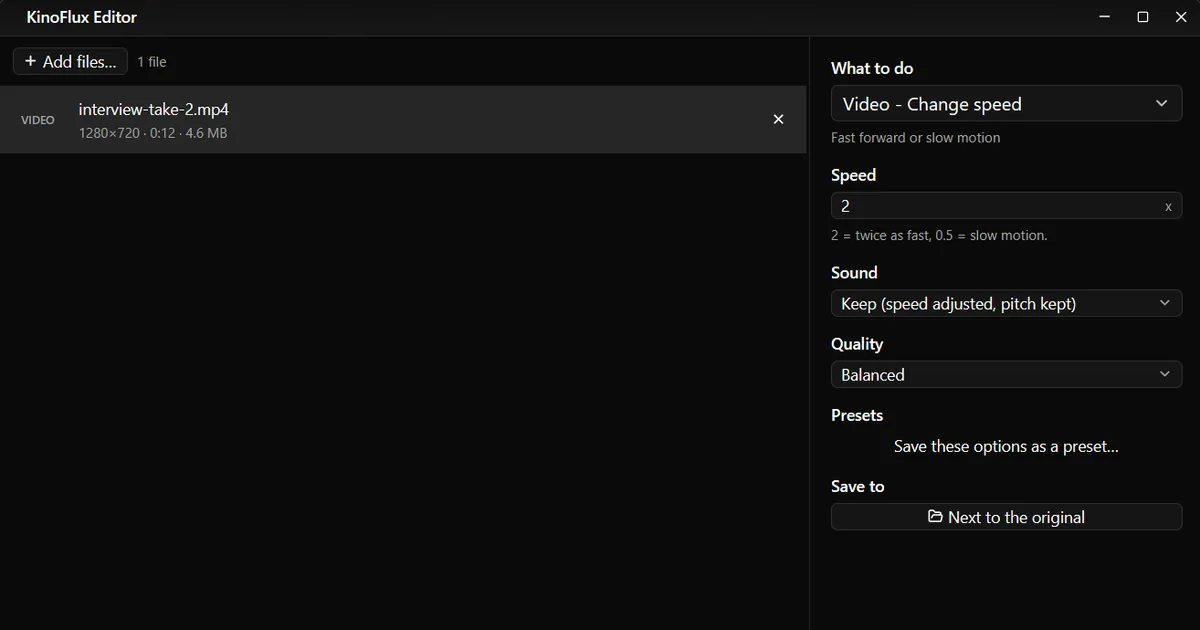
- Video - Change speed for video files (0.25x to 16x).
- Audio - Change speed for audio files (0.25x to 8x).
How to change the speed#
- Add the file. Drag a video or audio file onto the KinoFlux Editor window. Several files work too.
- Pick the tool. Press Ctrl+K (Cmd+K on a Mac), type "speed" and choose Video - Change speed or Audio - Change speed.
- Type the speed. 2 is twice as fast, 0.5 is half speed. For audio, 1.5 is 50% faster and 0.75 is slower.
- For video, choose what happens to the sound. Keep (speed adjusted, pitch kept) or Remove.
- Start. Press Ctrl+Enter. The speed is added to the file name, for example
interview-take-2_2x.mp4orvoice-memo_1.5x.mp3.
Results#
| File | Speed | Before | After |
|---|---|---|---|
| interview-take-2.mp4 (720p) | 2x | 12 s, 4.6 MB | 6 s, 2.4 MB |
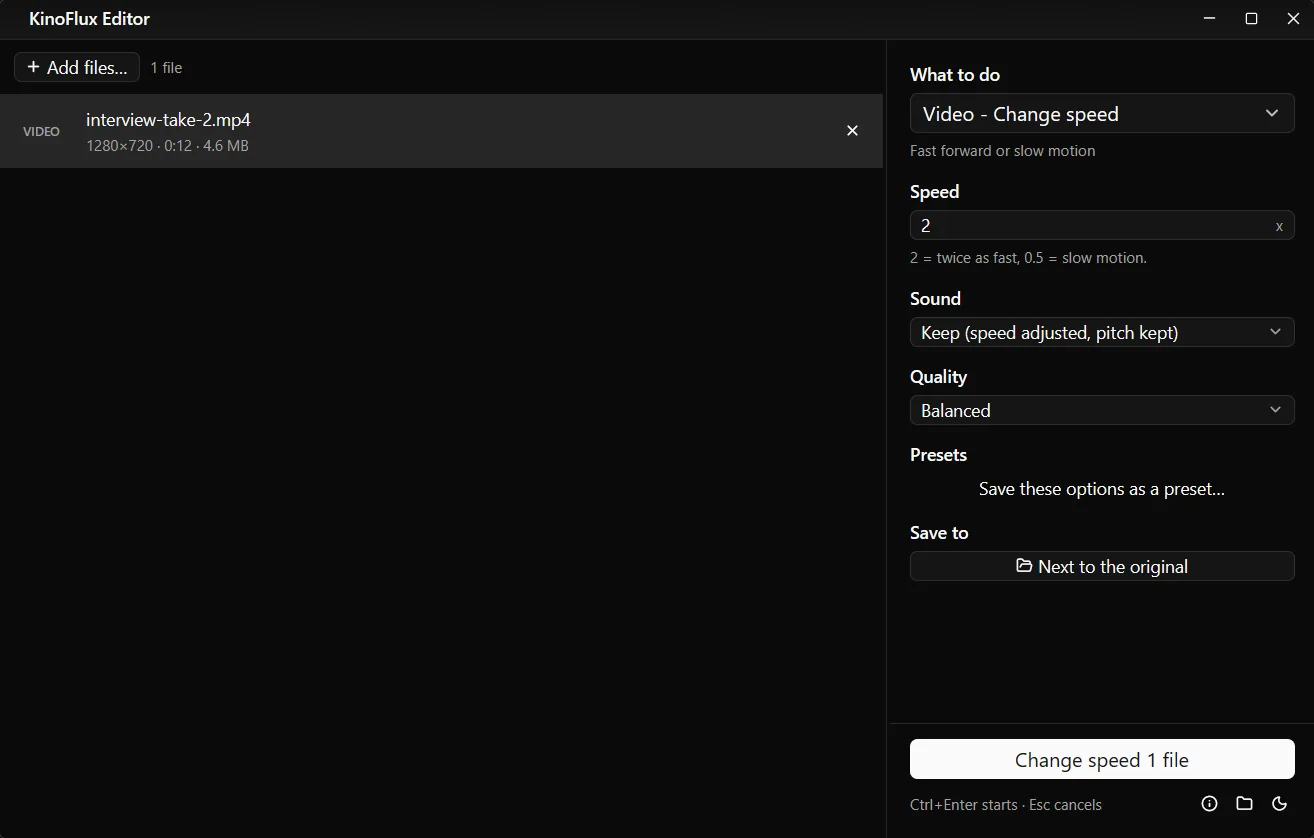
| voice-memo.mp3 (mono, 64 kbps) | 1.5x | 30 s, 235 KB | 20 s, 470 KB |
The video halved in length and roughly in size. The voice memo got shorter but bigger, because the audio tool saves at 192 kbps and the memo was recorded at 64 kbps. If size matters, run the result through Audio - Convert at 128 kbps, or keep the original and use your player's speed setting.
Options#
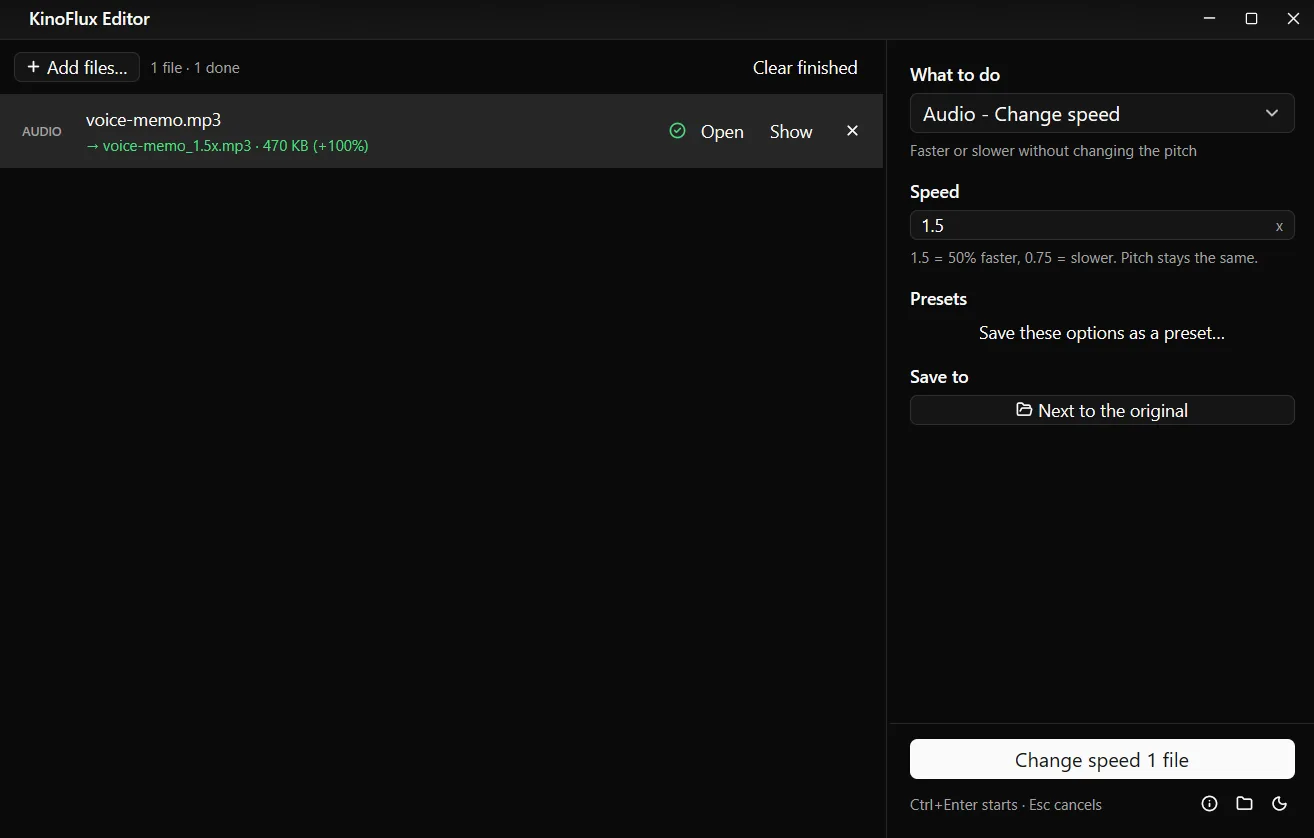
Video - Change speed
| Option | Choices | Default |
|---|---|---|
| Speed | 0.25 to 16x | 2 |
| Sound | Keep (speed adjusted, pitch kept) or Remove | Keep |
| Quality | Smaller file, Balanced, High quality | Balanced |
Audio - Change speed
| Option | Choices | Default |
|---|---|---|
| Speed | 0.25 to 8x | 1.5 |
The audio result keeps the file type of the original (an MP3 stays MP3, a WAV stays WAV). The video result is always an MP4 with H.264 video.
Good speeds for common jobs#
| Job | Speed |
|---|---|
| Lecture or podcast you want to get through faster | 1.25 to 1.75 |
| Screen recording or tutorial with slow parts | 1.5 to 2 |
| Time-lapse of a long process (sound removed) | 8 to 16 |
| Slow motion of a short moment | 0.5, or 0.25 for footage shot at a high frame rate |
Limits#
- The whole file changes speed. There is no speed ramp and no way to speed up only one part. Trim or split the part out first, change its speed, then join the pieces again.
- No frame blending. Slow motion repeats frames rather than creating new ones, and fast speeds drop frames.
- Video always re-encodes. The audio tool also encodes the sound again; both lose a little quality compared to the original.
- Very high speeds make speech hard to follow. Voices keep the right pitch, but well above 2x most people can no longer follow them. For time-lapse, remove the sound.
Related guides#
- Long pauses in a lecture? Remove silence before you speed it up. It often saves more time than speeding up.
- Want a short loop instead of a fast video? Make a GIF.
- File still too big? Make the video smaller.
All tools are on the KinoFlux Editor page.
Frequently asked questions
Will voices sound high or low after changing the speed?
No. KinoFlux Editor keeps the pitch the same, so a 1.5x lecture sounds like the same person talking faster, not like a chipmunk.
How fast or slow can I go?
Video - Change speed goes from 0.25x (four times slower) to 16x. Audio - Change speed goes from 0.25x to 8x.
Is the slow motion smooth?
Slow motion keeps the frame rate of the video and shows each frame for longer. It does not invent new frames between them, so slow motion from a normal 30 fps clip can look a bit jumpy. Footage shot at 60 fps or more slows down more smoothly.
Why is my sped-up audio file bigger than the original?
Audio - Change speed saves the result at 192 kbps. A voice memo recorded at a low bitrate, like 64 kbps, can come out bigger even though it is shorter.
Can I drop the sound when I speed up a video?
Yes. In Video - Change speed, set Sound to Remove. That is common for time-lapse style clips.
- video speed
- audio speed
- slow motion
- time lapse